

MoaTV User Guide
Simple instructions for live TV, movies, series, sports and more. Start with the most-used sections and add the rest as you go.
Support note
MoaTV is the app used to access the service from our private servers. If you need help with setup, navigation, tech support or finding content, contact us directly and we will take care of it.
Quick start
- Open MoaTV and wait for the main screen to load.
- Select My Live for live TV, Movies for movies, or Series for TV shows.
- Use Search when you already know the name of what you want to watch.
- Press the heart icon to save channels or content to Favorites for faster access later.
- Press Back 2 to 3 times to return to the main page of MoaTV.
Main home screen
This is the starting point for live TV, movies, series, sports and every other section.
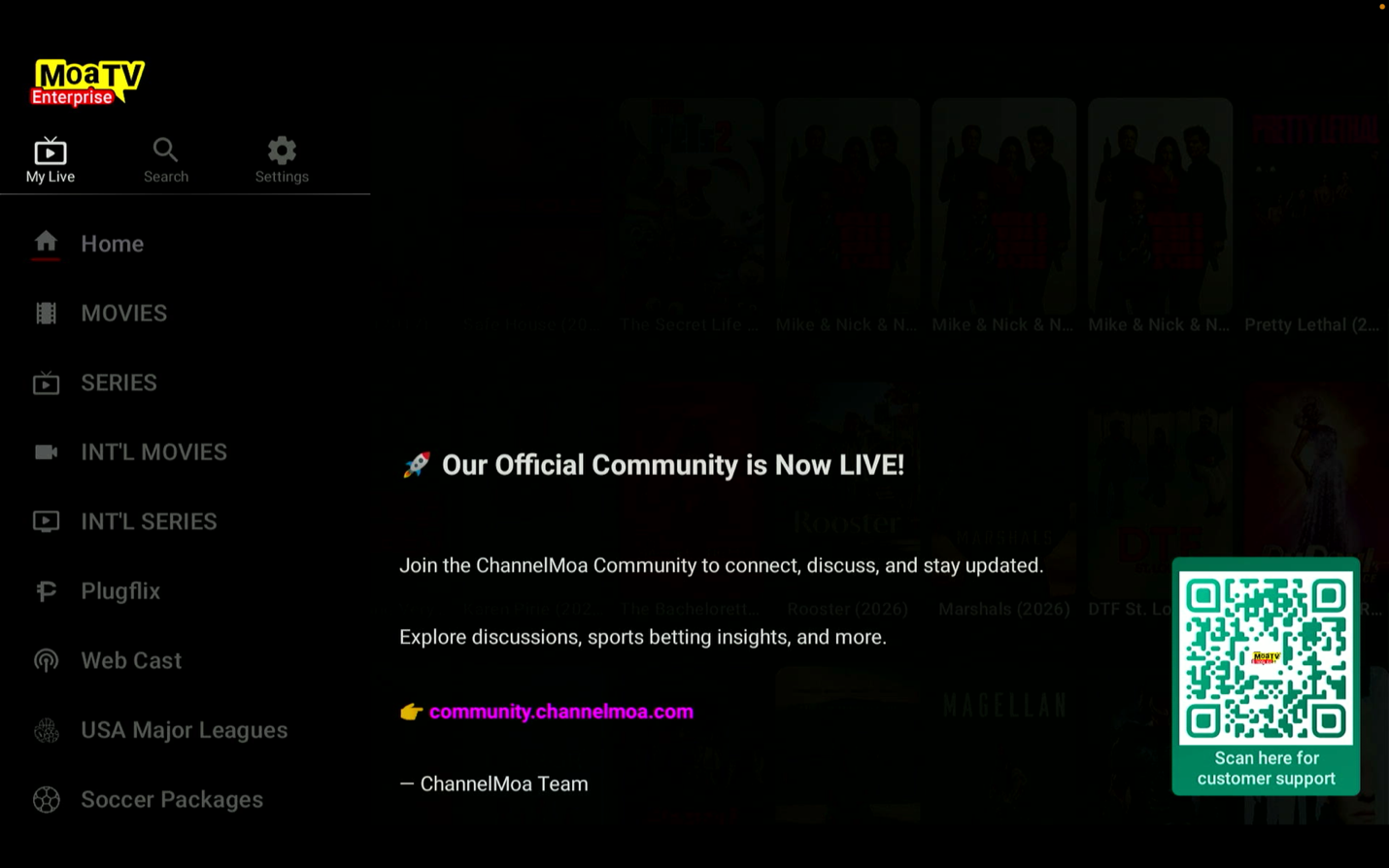
Getting started
Written for everyone, from tech-savvy users to those who just want clear, simple directions. Learn the most-used sections first and ignore the rest until you feel comfortable.
What to remember first
- Back button moves you back inside the app.
- Back 2 to 3 times usually returns you to the MoaTV main page.
- Home button on the remote exits the app and takes you to the Firestick home screen.
- Home inside the MoaTV menu returns you to the app's main page.
- Search fastest way to find a channel, movie, sports event or TV show by name.
- Favorites saves your most-used channels, movies and series, pinned at the top of each section.
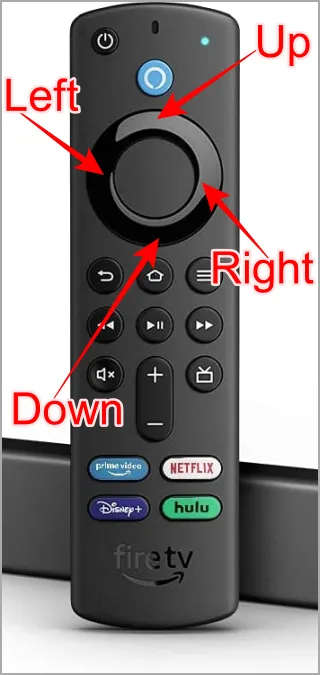
Remote basics: use the direction ring to move, the center button to select, and Back to return inside MoaTV.
How to watch Live TV
Select My Live from the top-left of the app to open live TV channels, both local and international.
Inside My Live
- The app may reopen on the last live channel you watched.
- Use the heart icon to add a channel to Favorites so you can find it faster later.
- Favorites are especially helpful for channels you watch often.
- If you only want the basics, this is the main section to learn first.

My Live is where live TV starts. It may open on the last channel you were watching, which is normal.
Using Search & Favorites
Search is the fastest way to find content when you already know the name: a live channel, movie, sports event or TV series.
Good examples: ESPN, CNN, Lakers, Power, Premier League.
- Use short keywords first and double-check spelling if nothing appears.
- Each area may organize Favorites separately, so check the section you were using.
How to browse Live TV categories
While in the live TV area, press Left on your remote to open the list of channel categories.
- Move through the list to find local TV, international TV, sports and saved Favorites.
- If you know exactly what you want, Search is usually faster than browsing.
How to open the TV Guide
Inside My Live, select the three-line menu icon to open the TV Guide. It shows what is playing now and what is coming up next.
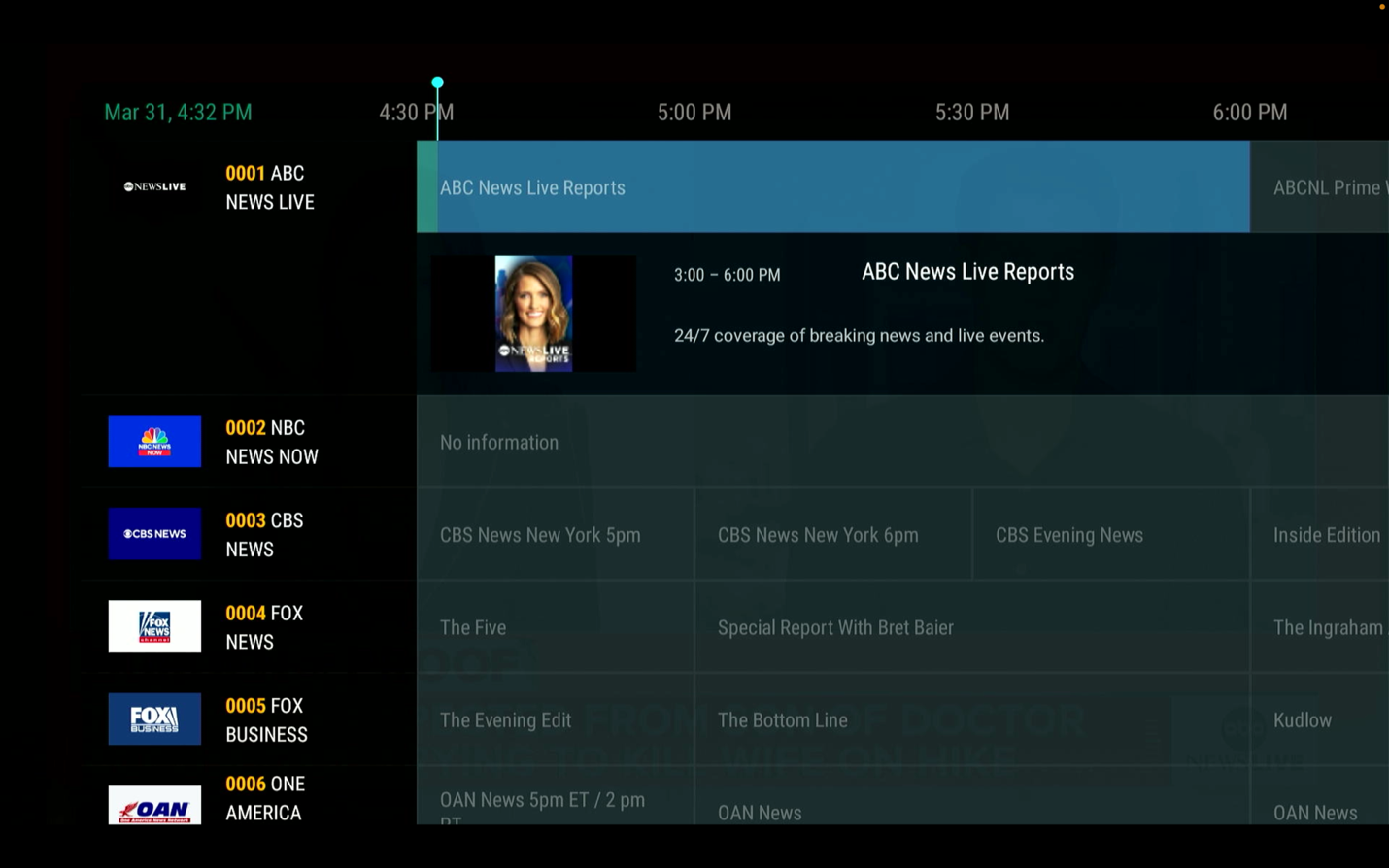
TV Guide view: browse what is on now and what is coming next.
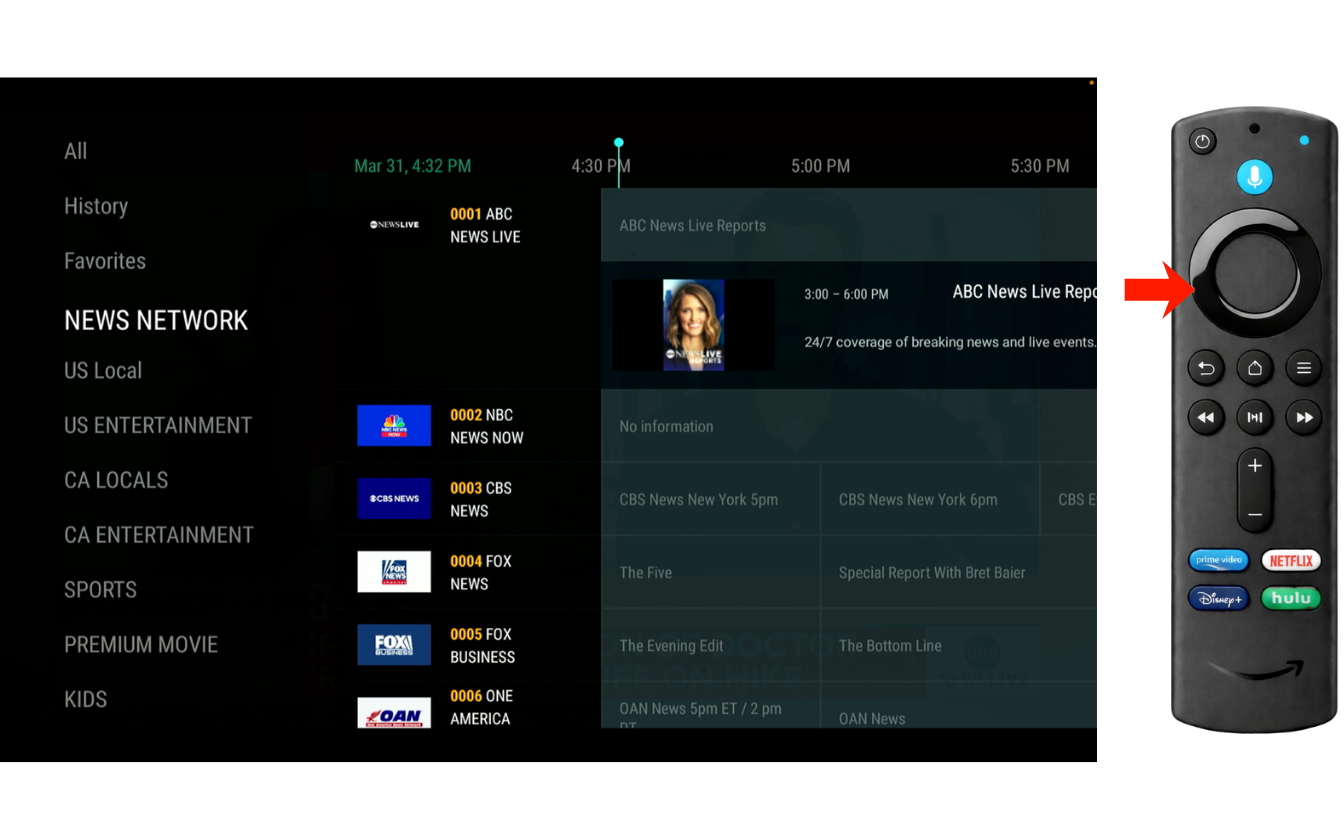
Categories panel: press Left inside live TV to open channel categories and Favorites.
Movies, Series & International
MoaTV is not only for live TV. You can also watch on-demand movies and shows from the Movies, Series, INT'L Movies and INT'L Series sections.
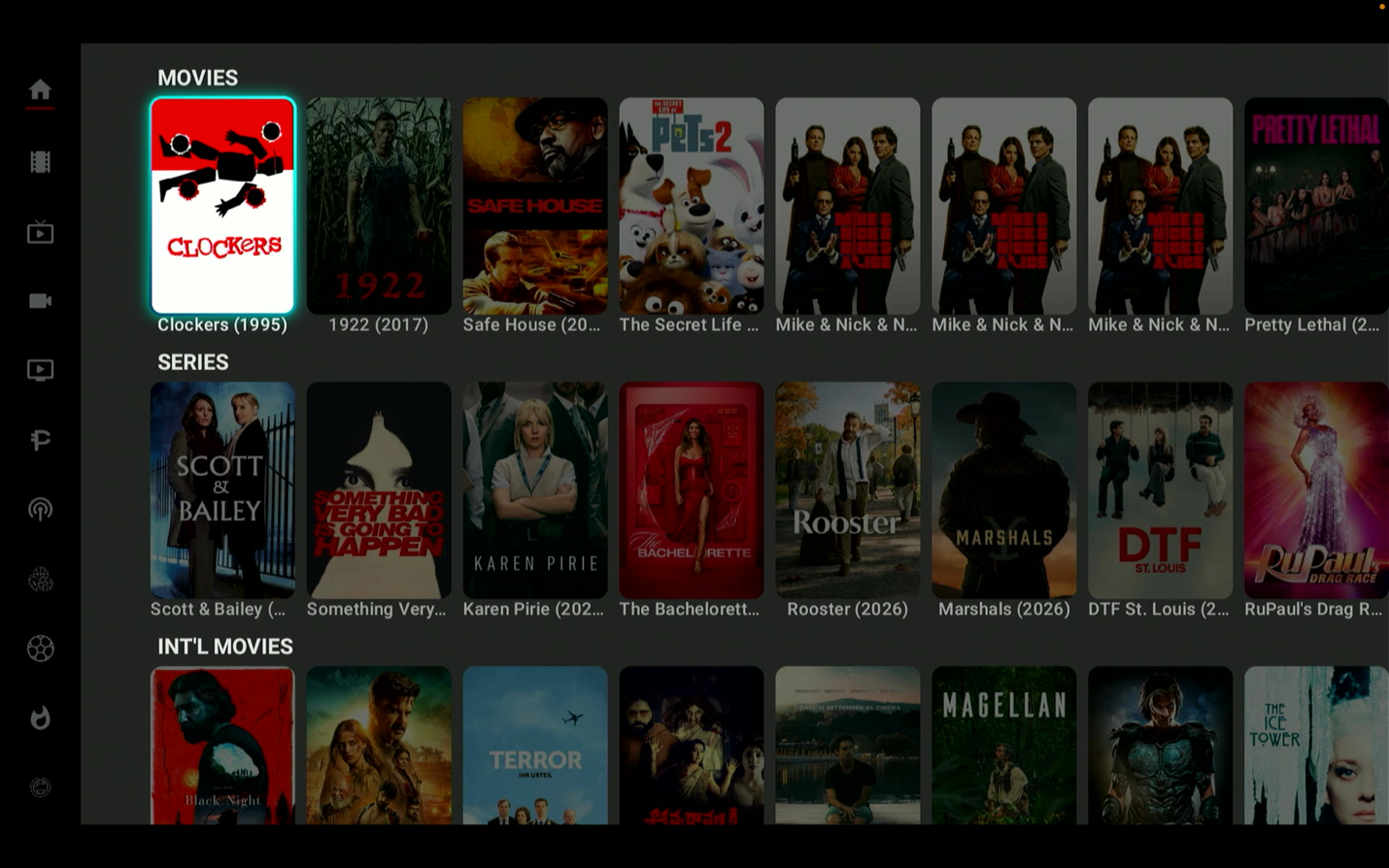
Use these sections for on-demand content instead of live TV.
What each section does
PlugFlix & Sports
PlugFlix is an extra content area with more ways to browse and watch. Sports content is grouped into easy-to-scan sections.
PlugFlix may include
- extra content areas
- web-based streaming options
- sports packages
- additional viewing categories
Sports sections include
- USA Major Leagues
- Soccer Packages
- PPV & Sports Events
- Global Sports
- Replay Sports
Troubleshooting & simple fixes
- The app opens on a channel right away: it reopened the last channel you watched. That is normal.
- You cannot find something: try Search with a short keyword or the exact title.
- You feel lost in the menu: press Back 2 to 3 times to return to the main page of MoaTV.
- You pressed the Firestick Home button by mistake: reopen the MoaTV app from the Firestick home screen.
- Your Favorites are missing: check the Favorites area inside the section you were using.
Need help with MoaTV?
If you need a hand with setup, navigation or finding content, contact us directly and we'll take care of it. Free support for active GeekzUP customers.