

Install MoaTV on ONN 4K
Follow this setup guide in order, matching each image, to get MoaTV and IPVanish running on your Walmart ONN 4K box. Doing the steps in order prevents most support questions. Prefer we handle it? Choose the Fully Unlocked ONN 4K bundle and it arrives ready to stream.
This guide walks you through
- 1Set up the device and install MoaTV
- 2Install and set up IPVanish
- 3Configure and optimize your ONN 4K
- 4Finish with Apps only mode
Before you start
- ONN 4K device connected to your TV.
- Wi-Fi ready before you start setup.
- Google or Gmail account ready.
- MoaTV activation code ready for later in setup.
- IPVanish login ready before installing the VPN.
Device setup
Sign in to Google TV, then use Downloader to install and activate MoaTV.
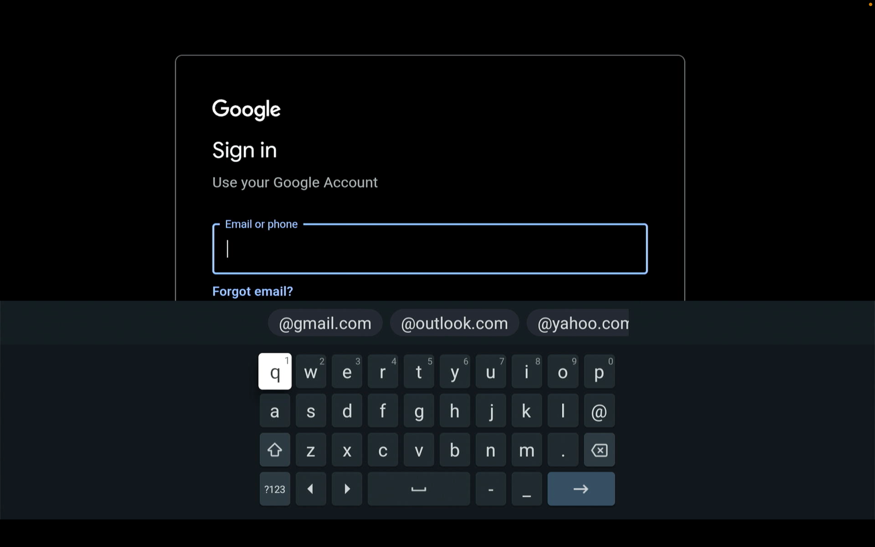
Sign in to your Google / Gmail account
Sign in to your Google or Gmail account to start setup. We provide devices fully set up and ready to use. Need help? GeekzUP can fully install and configure your device for a small service fee.
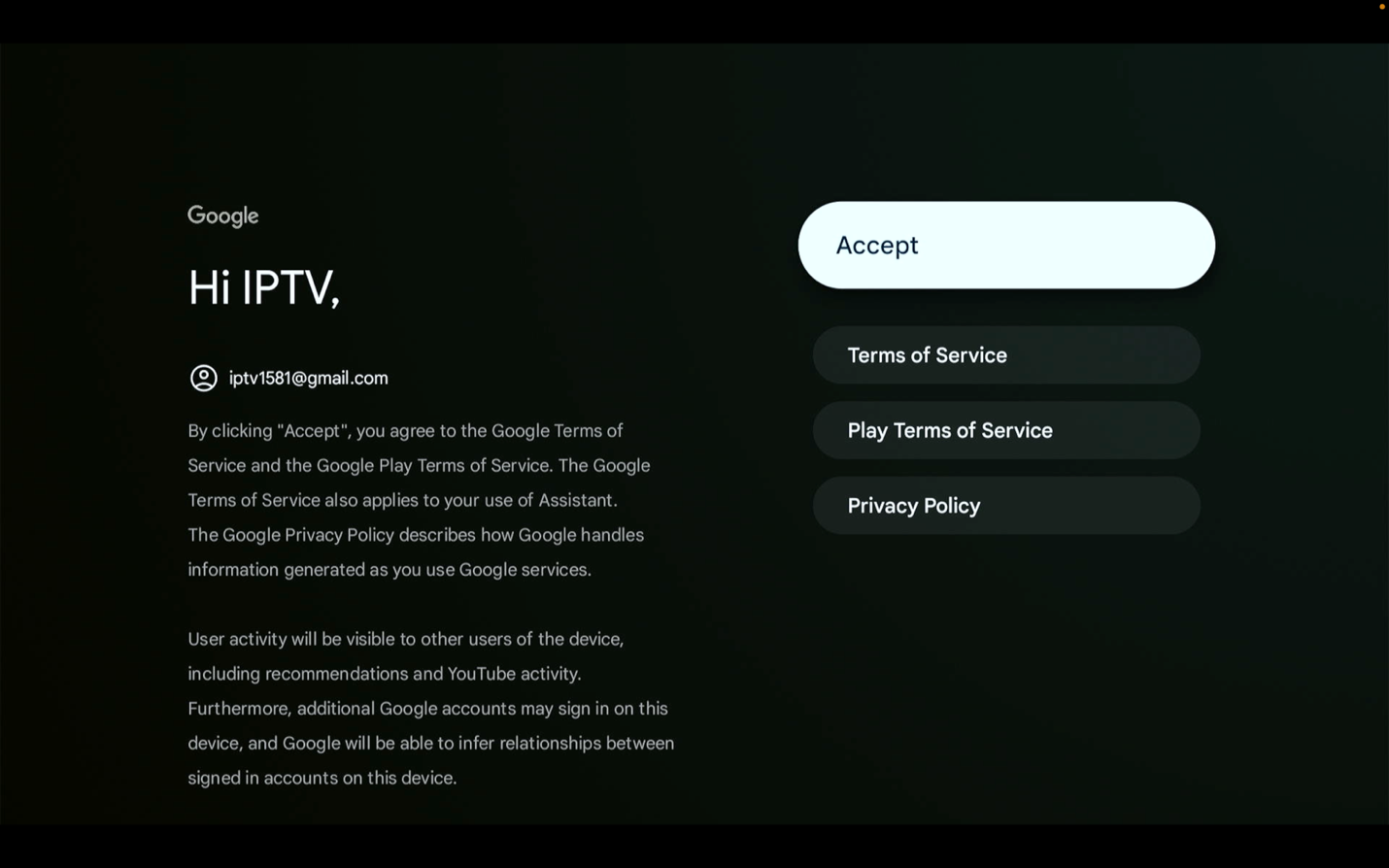
Accept the terms
Accept the terms to continue with setup.
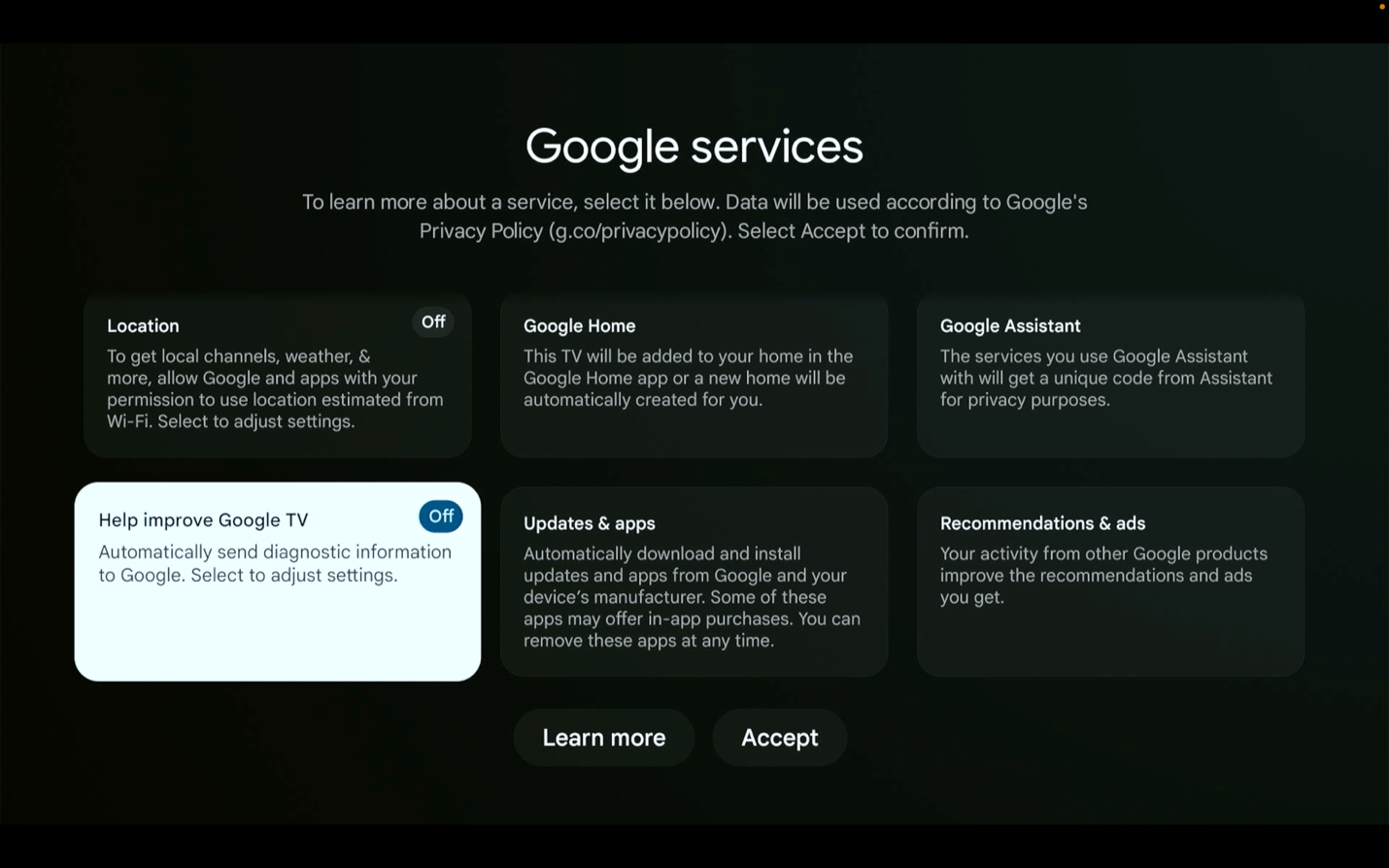
Disable Location and 'Help improve Google TV'
This is not required, but we recommend you disable Location and 'Help improve Google TV'.
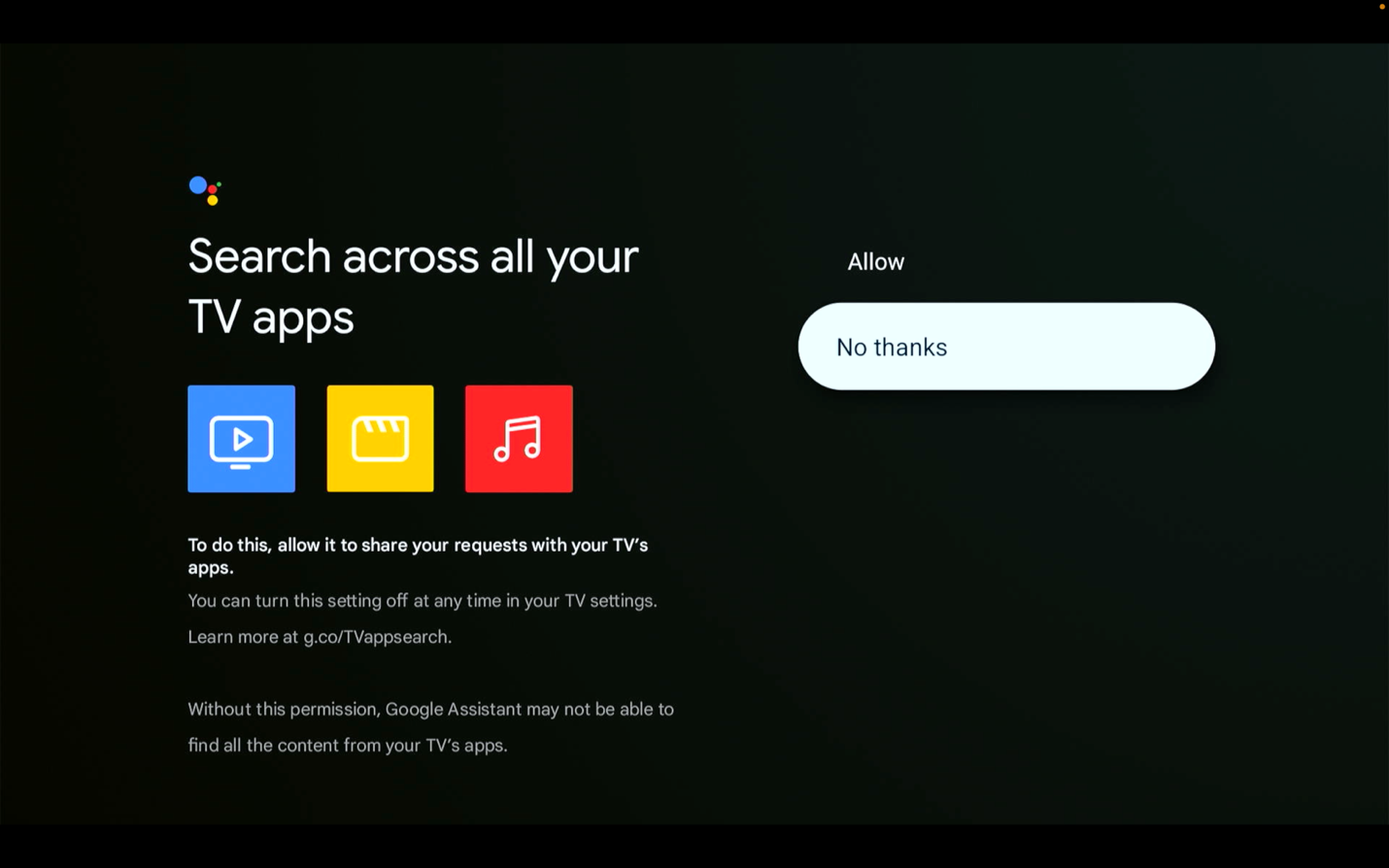
Choose No thanks
Choose No thanks if you do not want any additional apps.
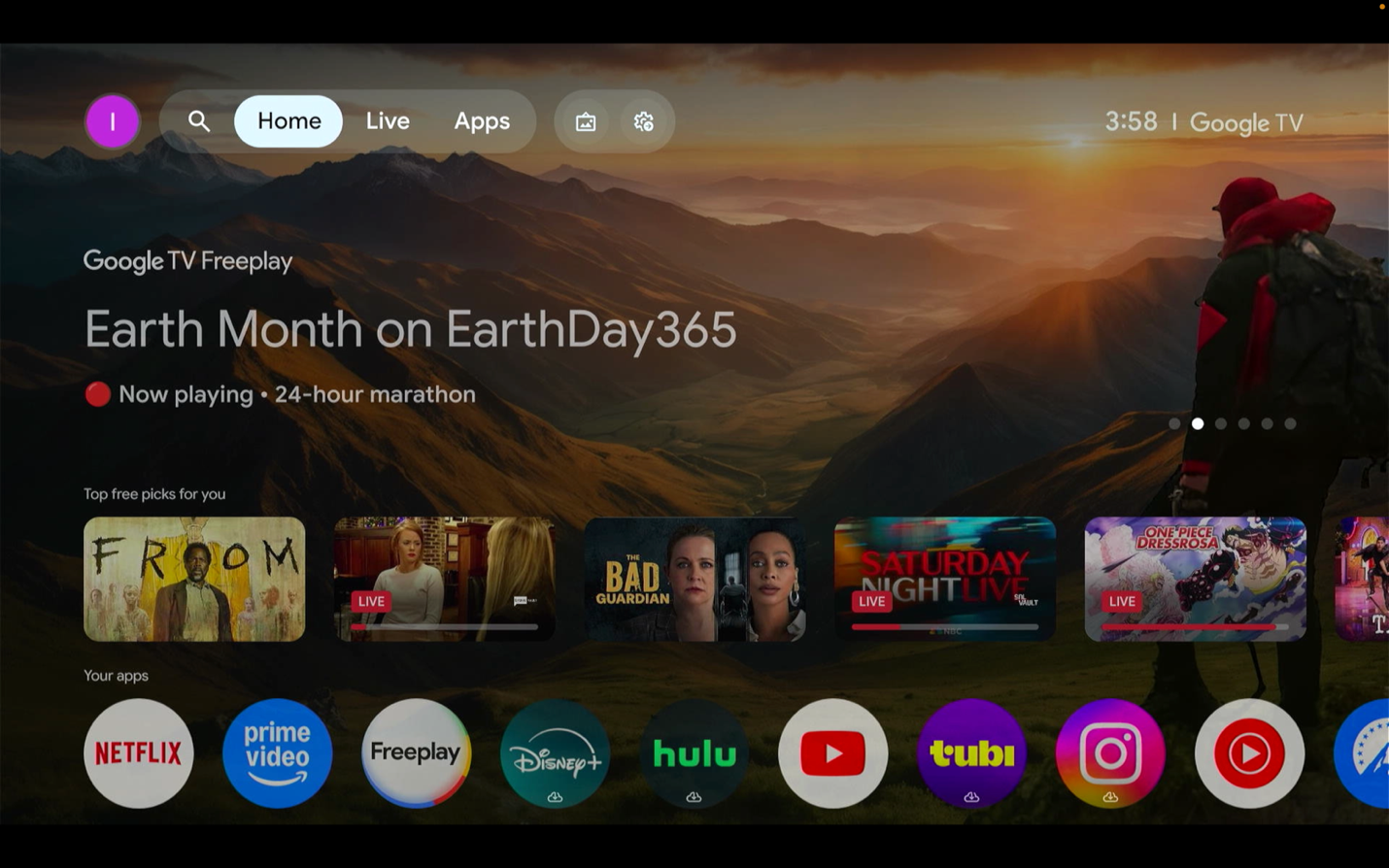
You are on the device's main page
This is the main page of the device.
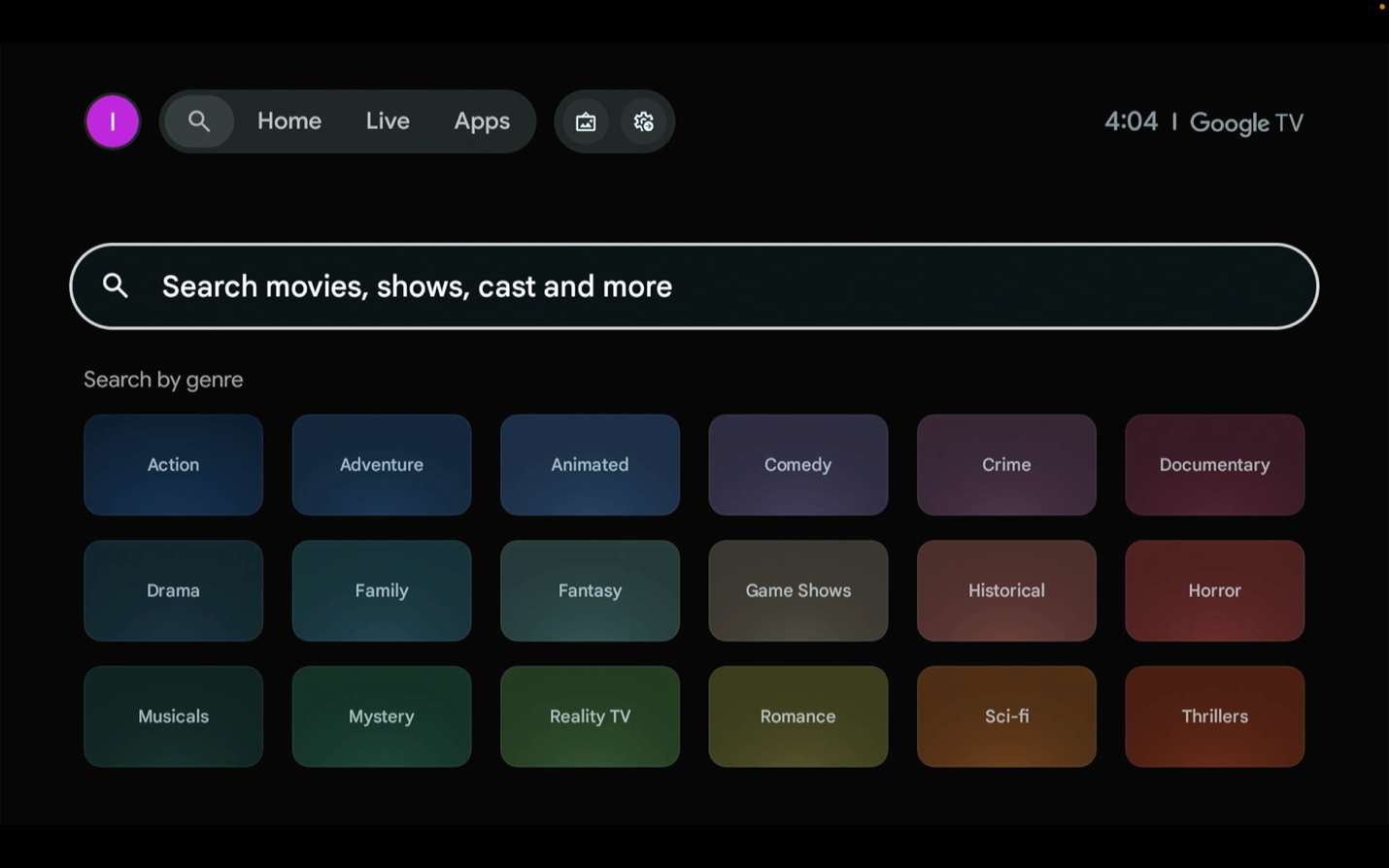
Type Downloader in the search area
Next to Home is the search area. Type 'Downloader' here.
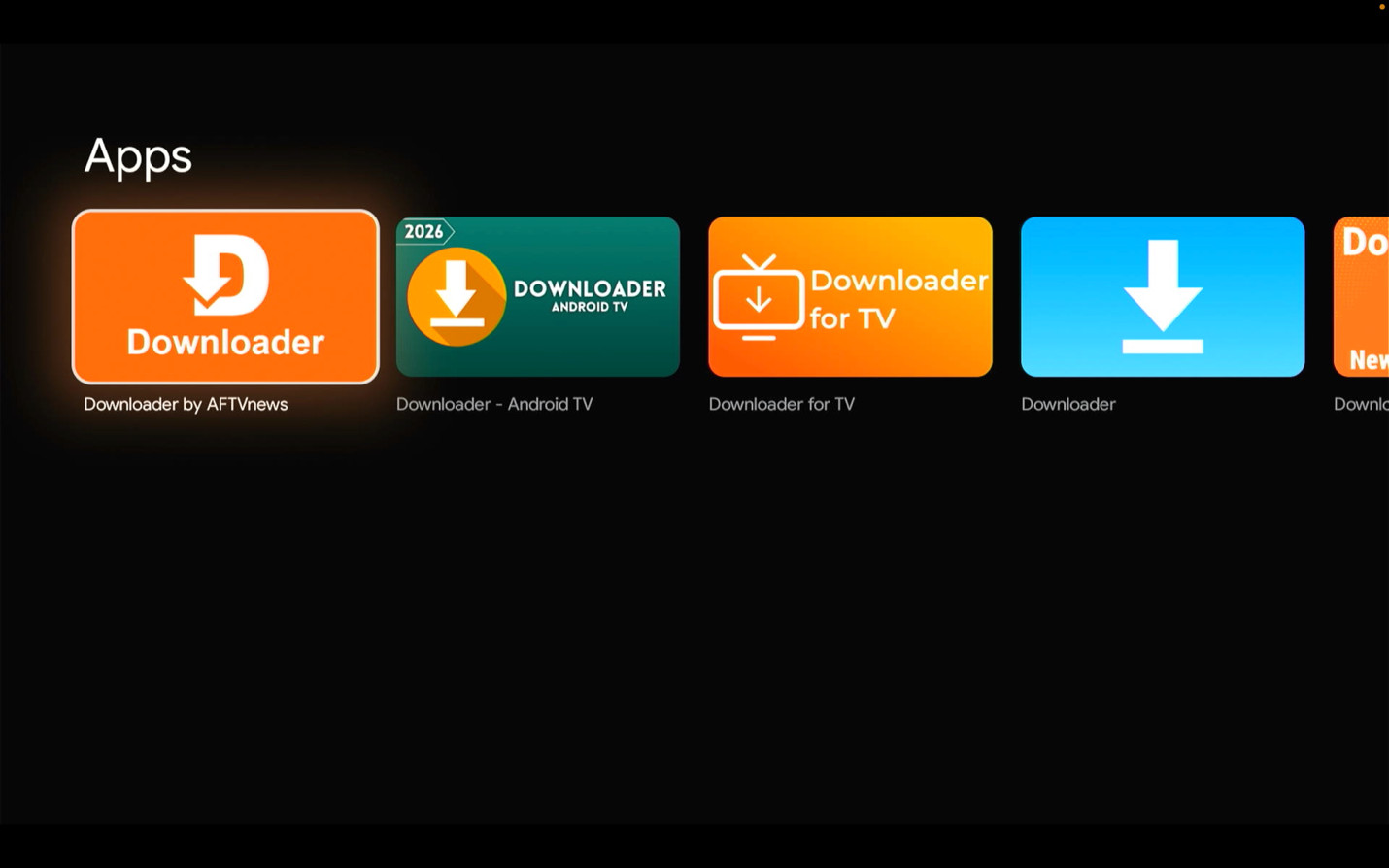
Install the official orange Downloader app
There are several similar apps, so install the official orange Downloader app.
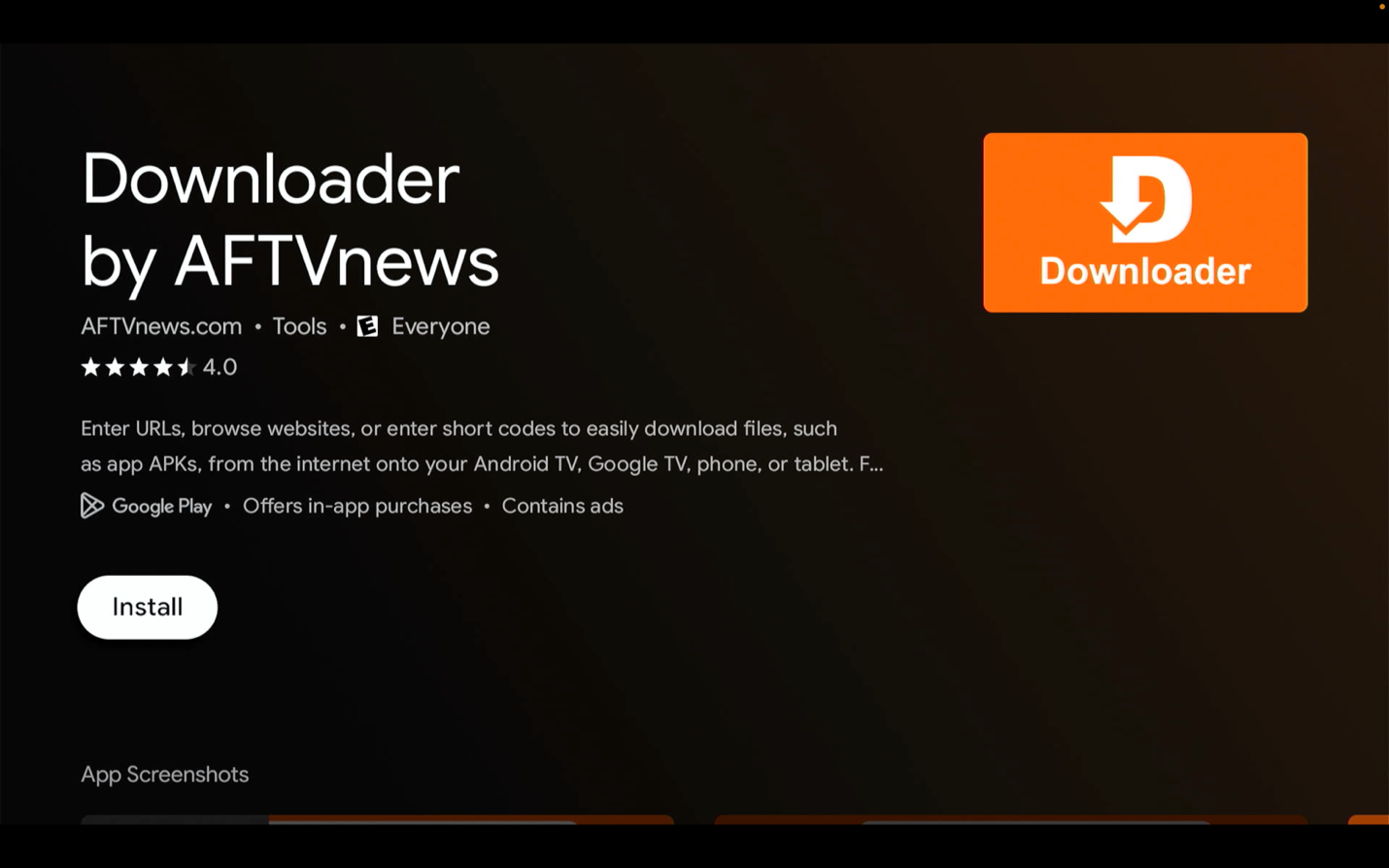
Confirm the official Downloader app
This is the official Downloader app. Install and open it.
Enter the short code in the URL area
In the URL area, type the short code 5472026.
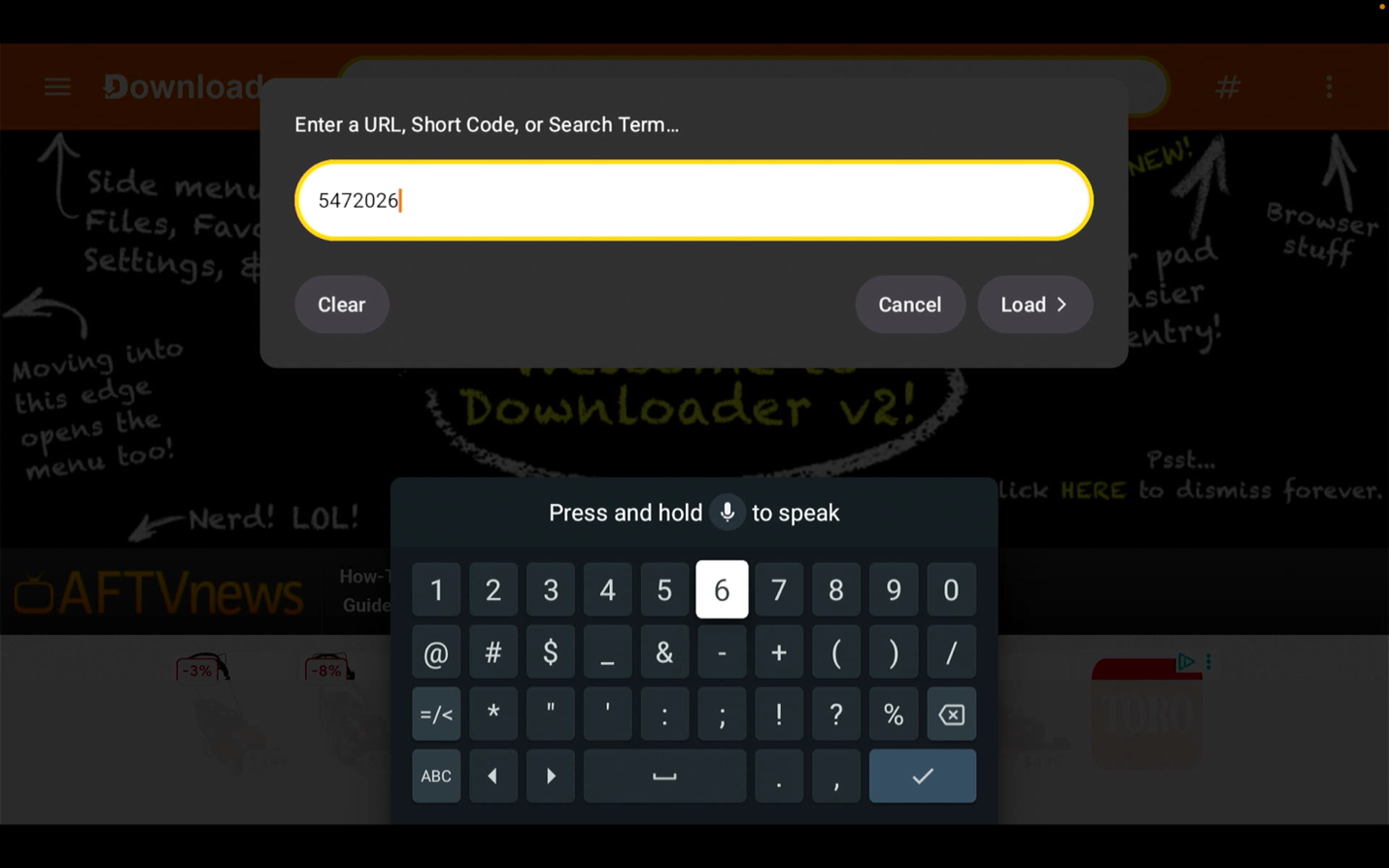
The MoaTV install begins
This starts the process to install MoaTV.
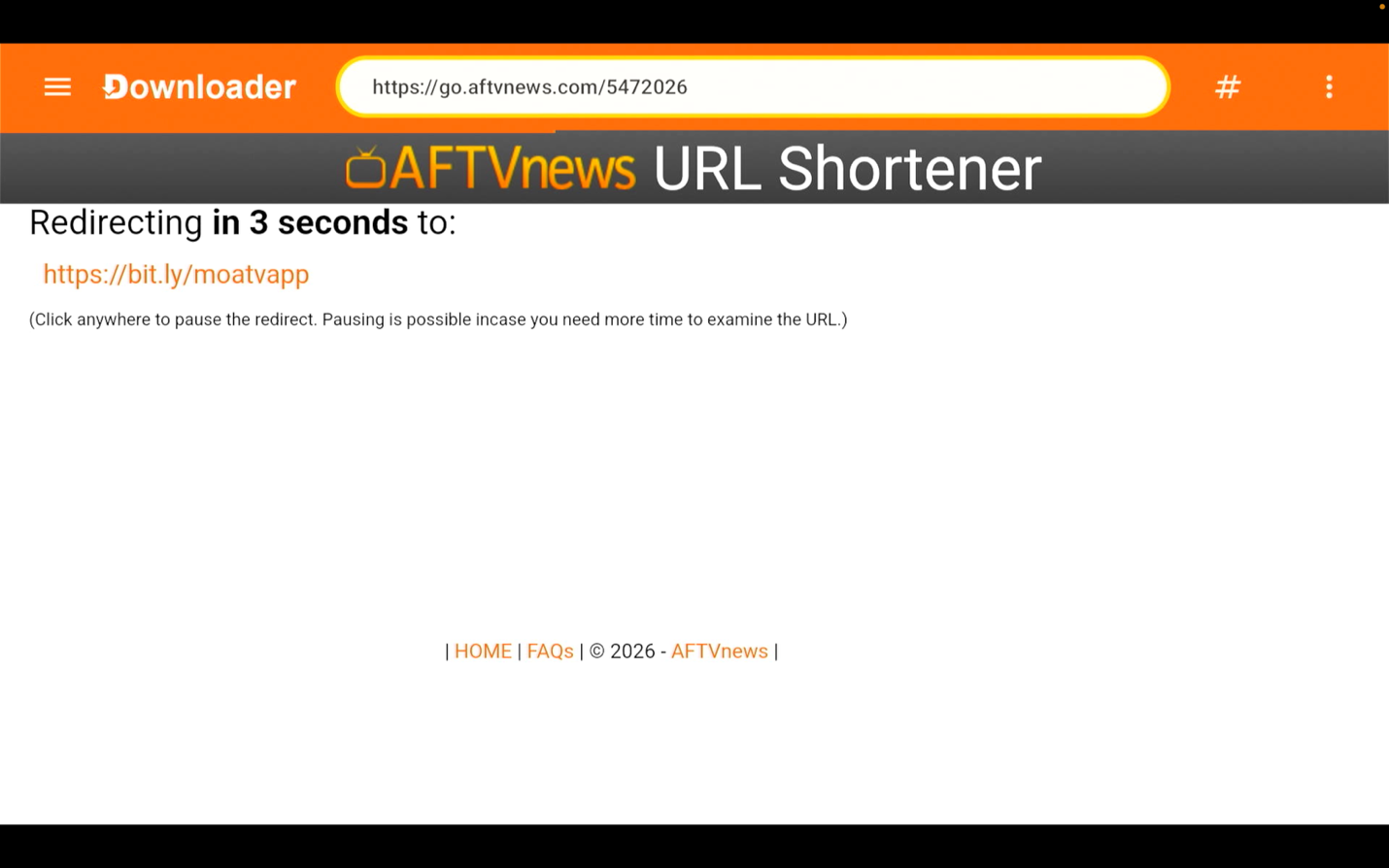
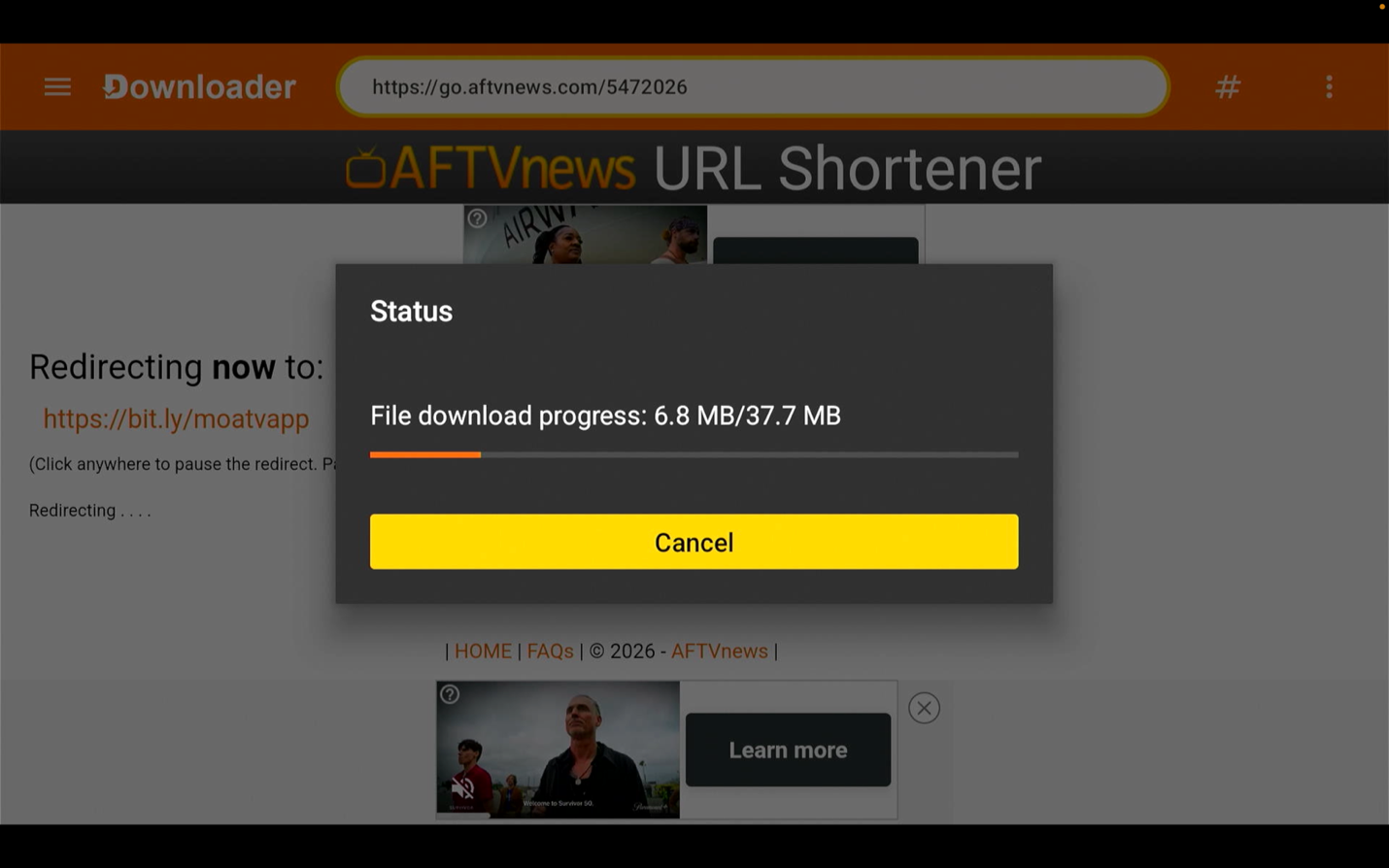
The file download starts
Wait for the file download to begin.
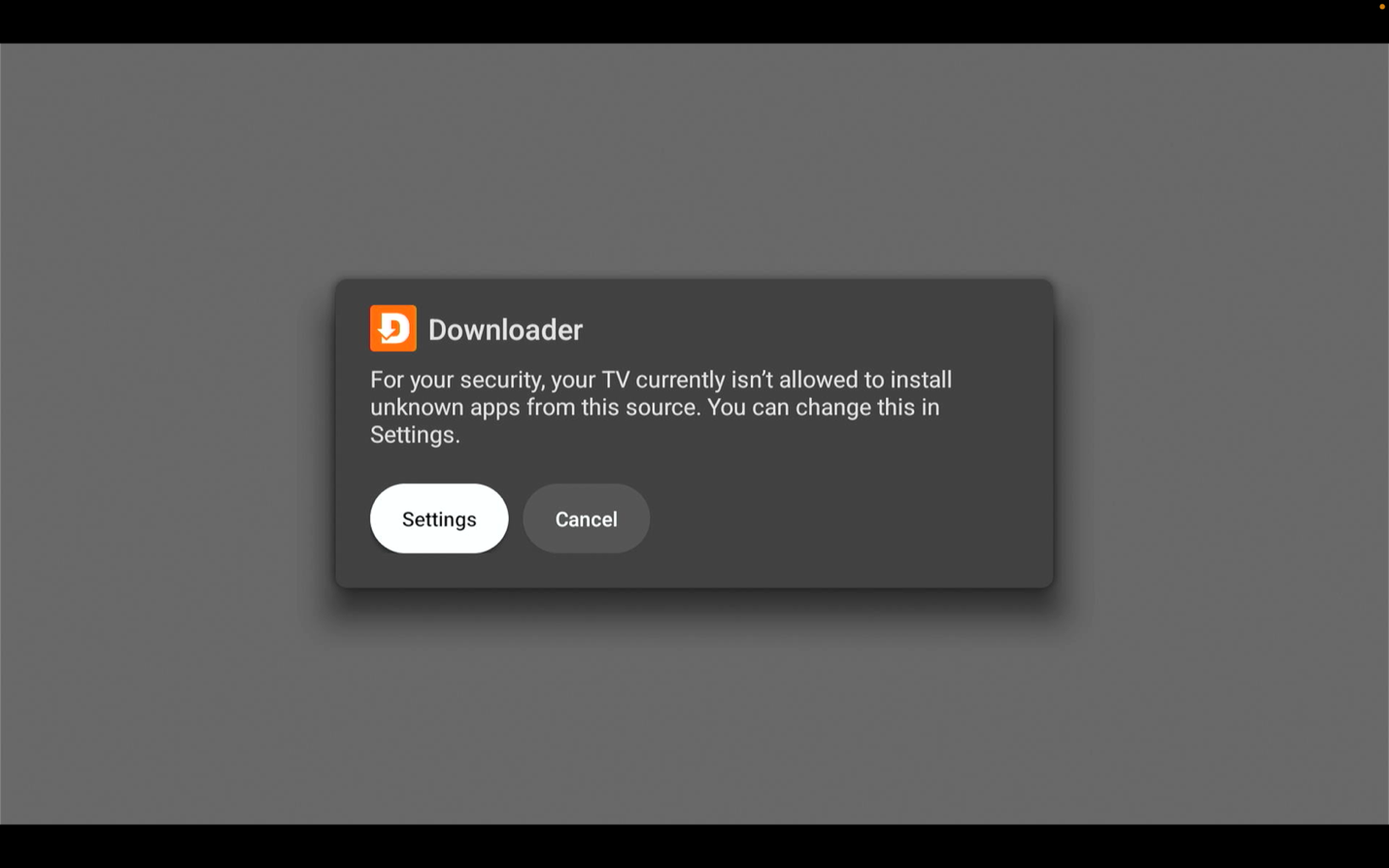
Allow Downloader to install apps
You will get a pop-up asking you to allow Downloader to install apps. Allow it, then click Settings.
Enable Downloader, then install
Turn on the Downloader permission, then press Install.
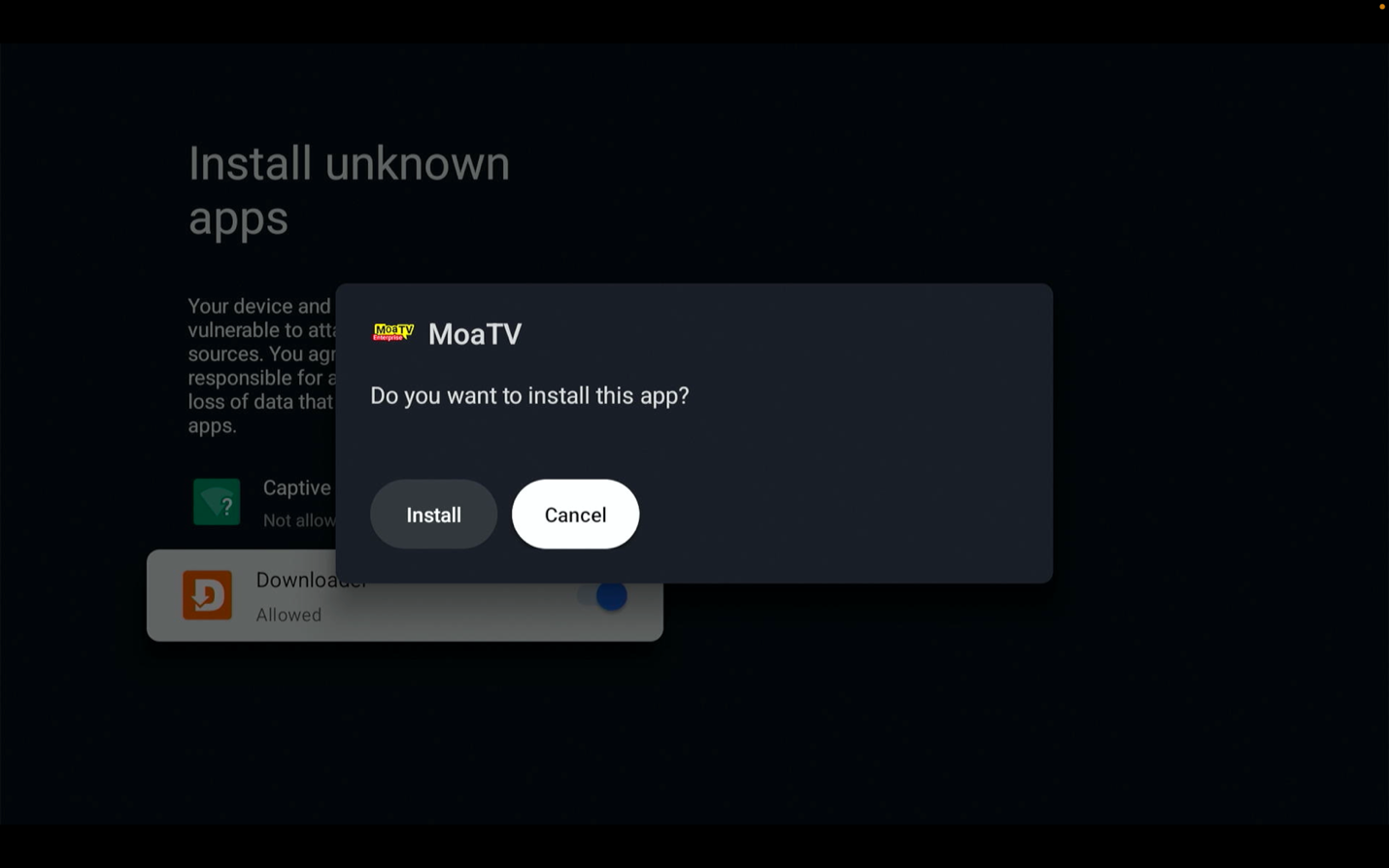
Continue the app install
The MoaTV app download and install continues. Open it when done.
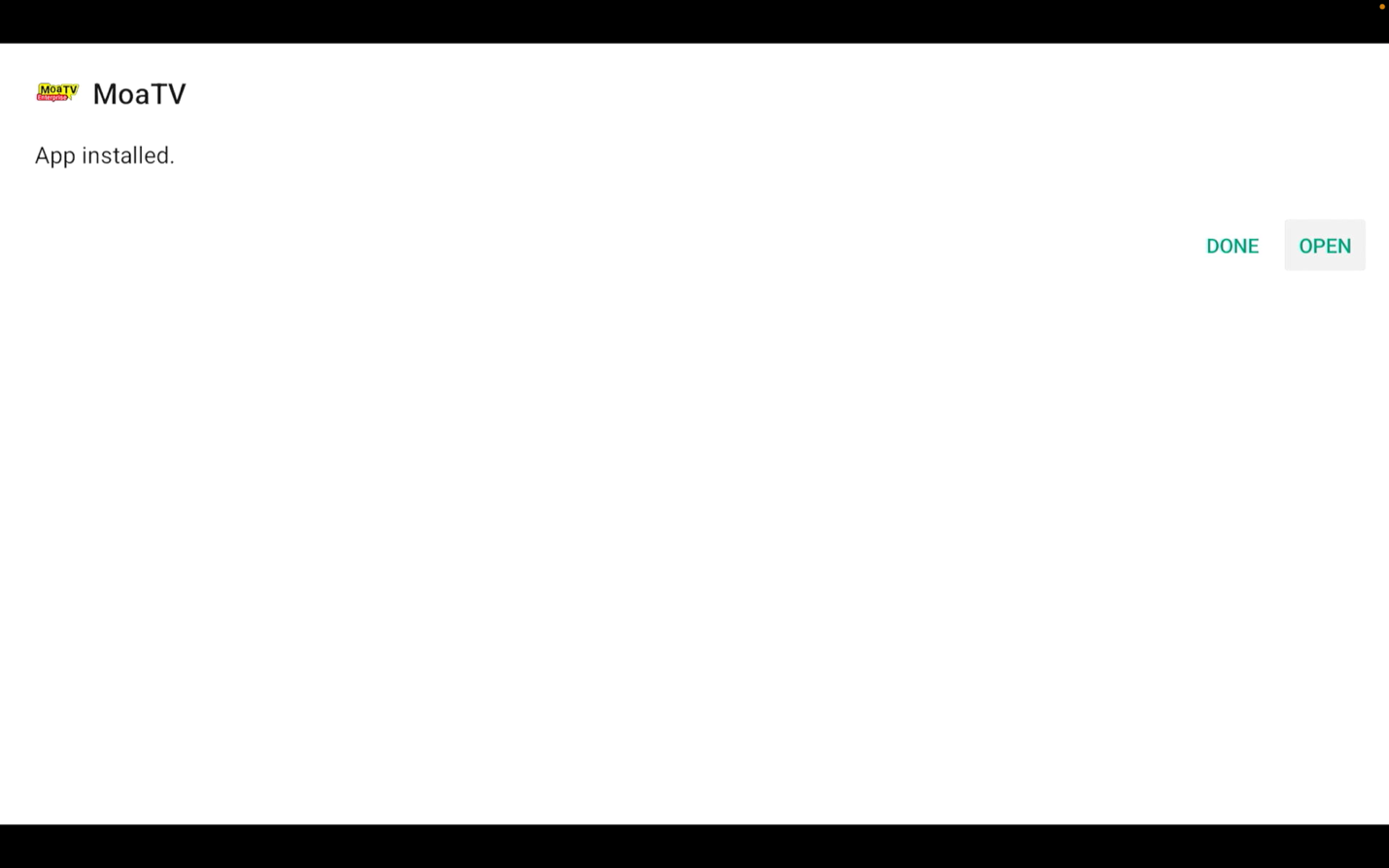
MoaTV opens
MoaTV opens once the install is complete.

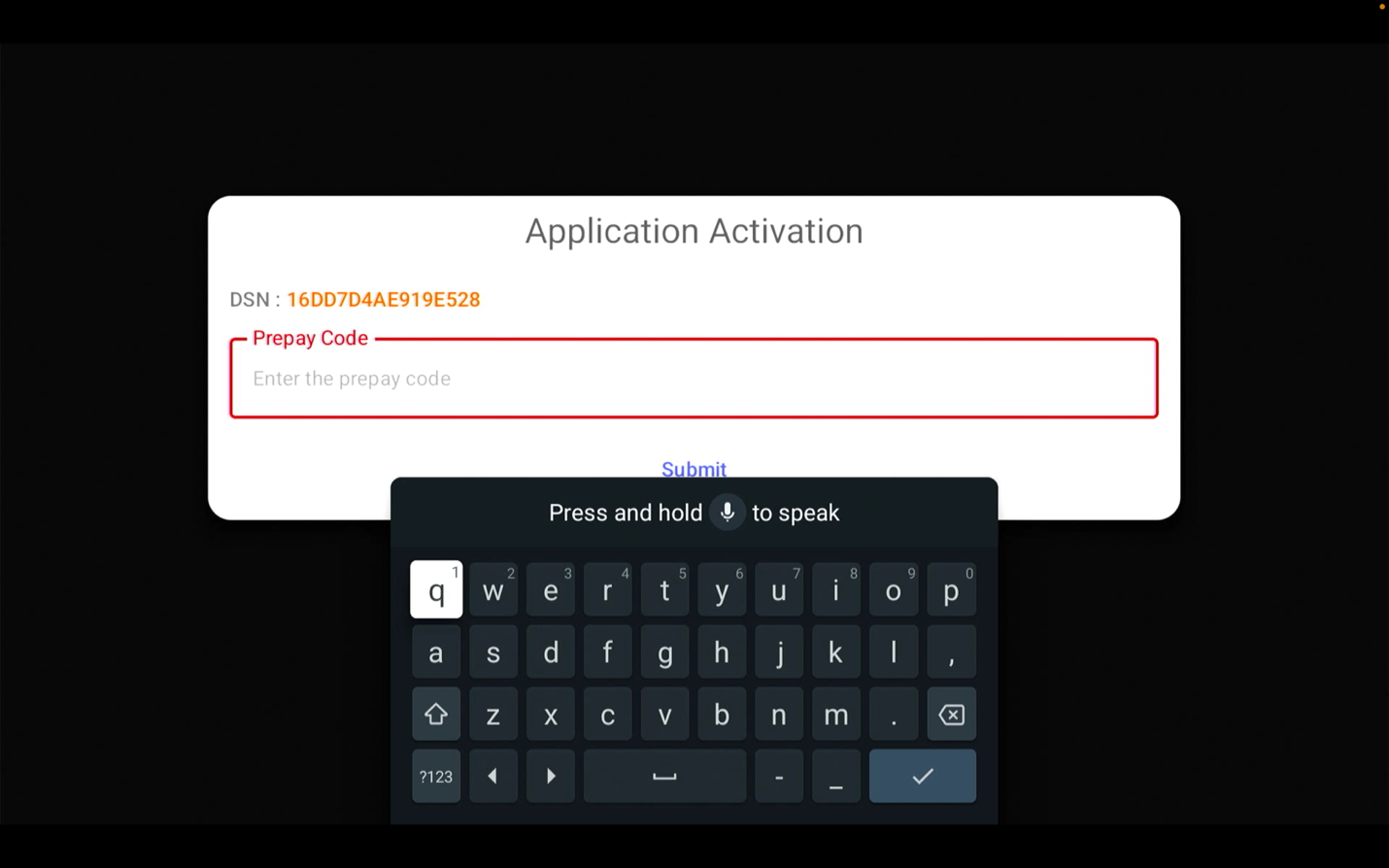
Enter your activation code
Enter the activation code provided by GeekzUP to continue.
Install & set up IPVanish
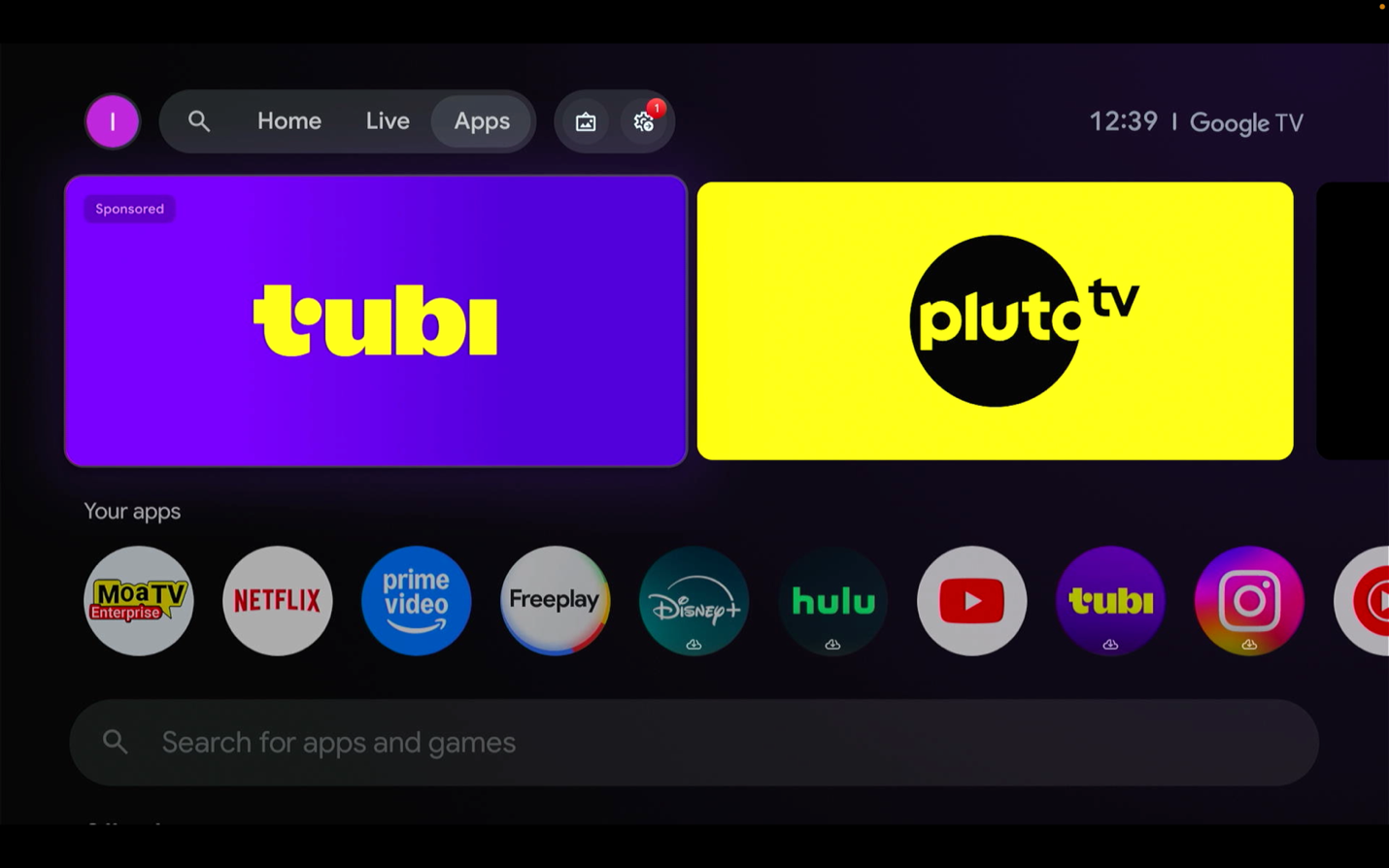
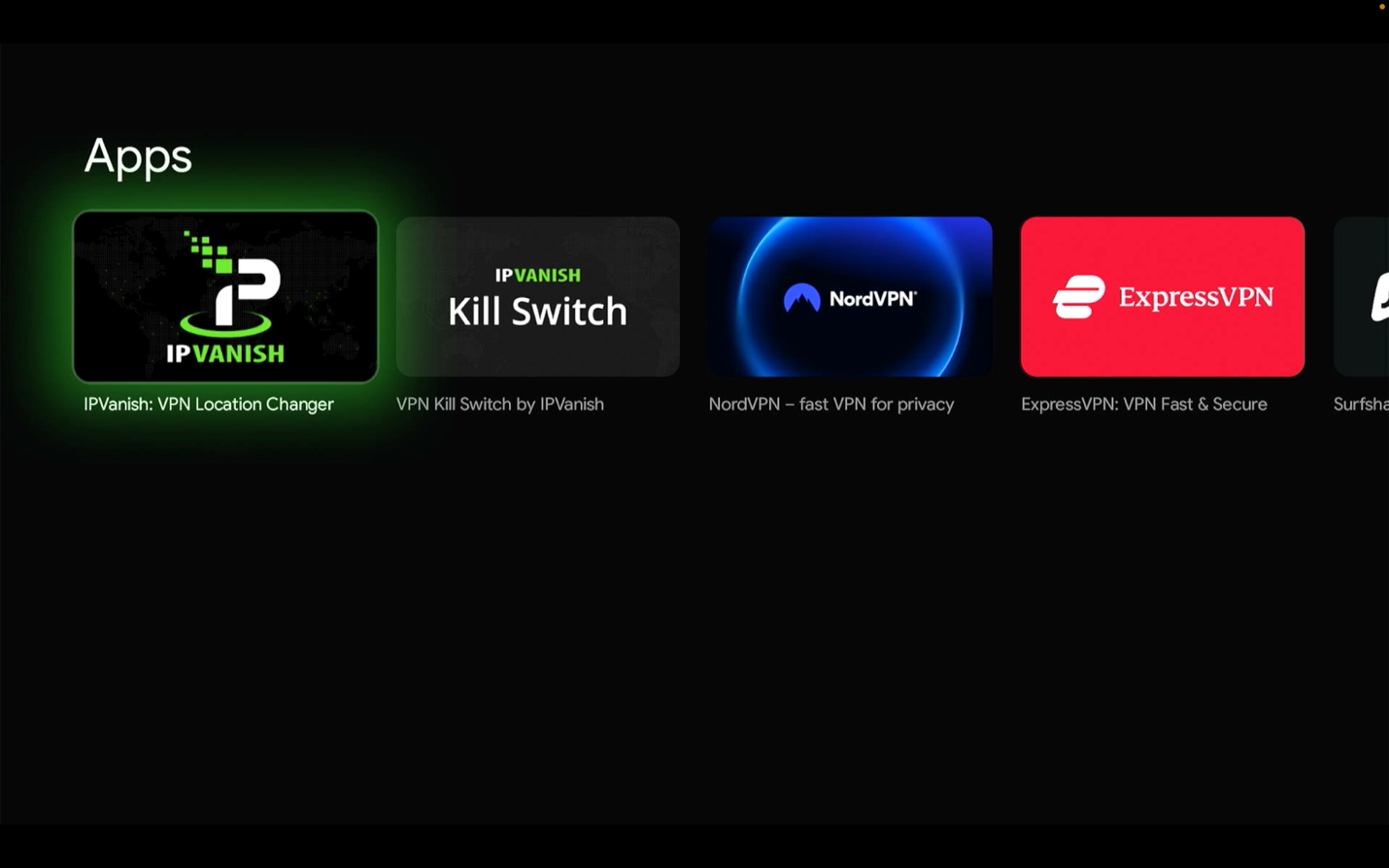
Scroll over to Apps on the main page, then install and configure IPVanish.
Search for IPVanish
In the middle of the page, use the search and type 'IPVanish'.
Download, install, and log in
When the app appears, download and install it, open it, and enter the credentials provided by GeekzUP.
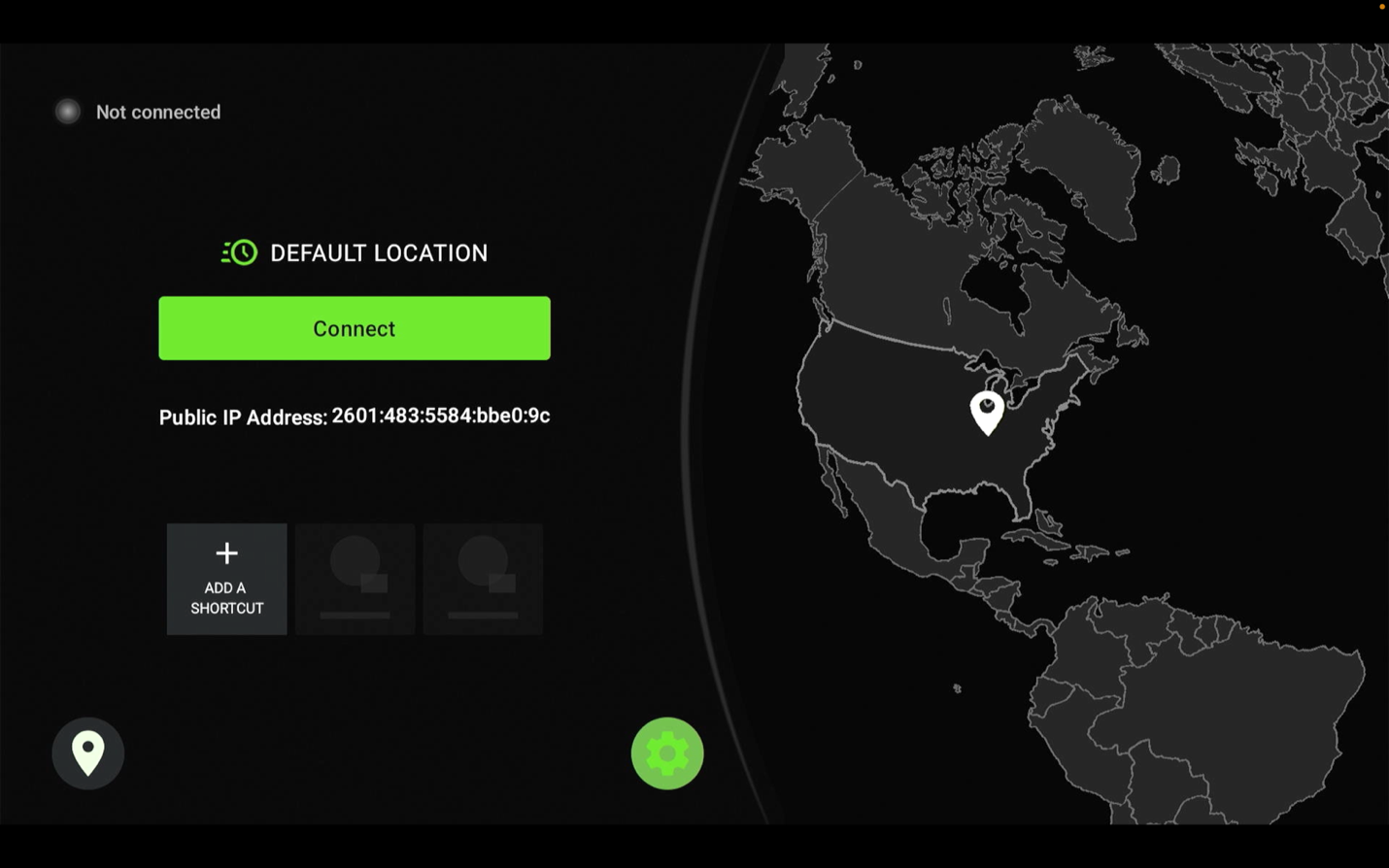
Go to Settings (gear icon)
Once logged in, open Settings, the gear icon on the right.
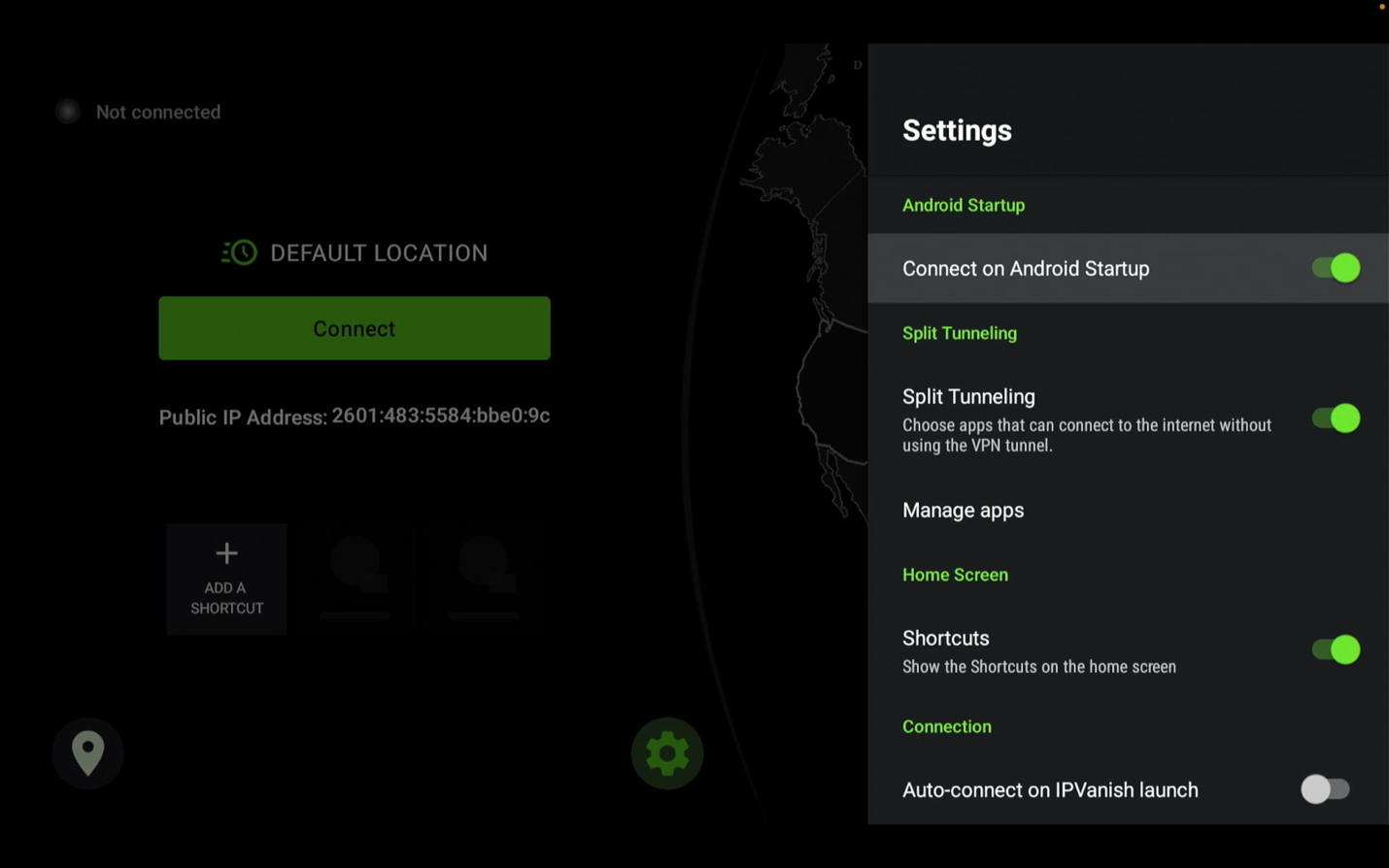
Turn on 'Connect on Android Startup'
Turn on 'Connect on Android Startup'.
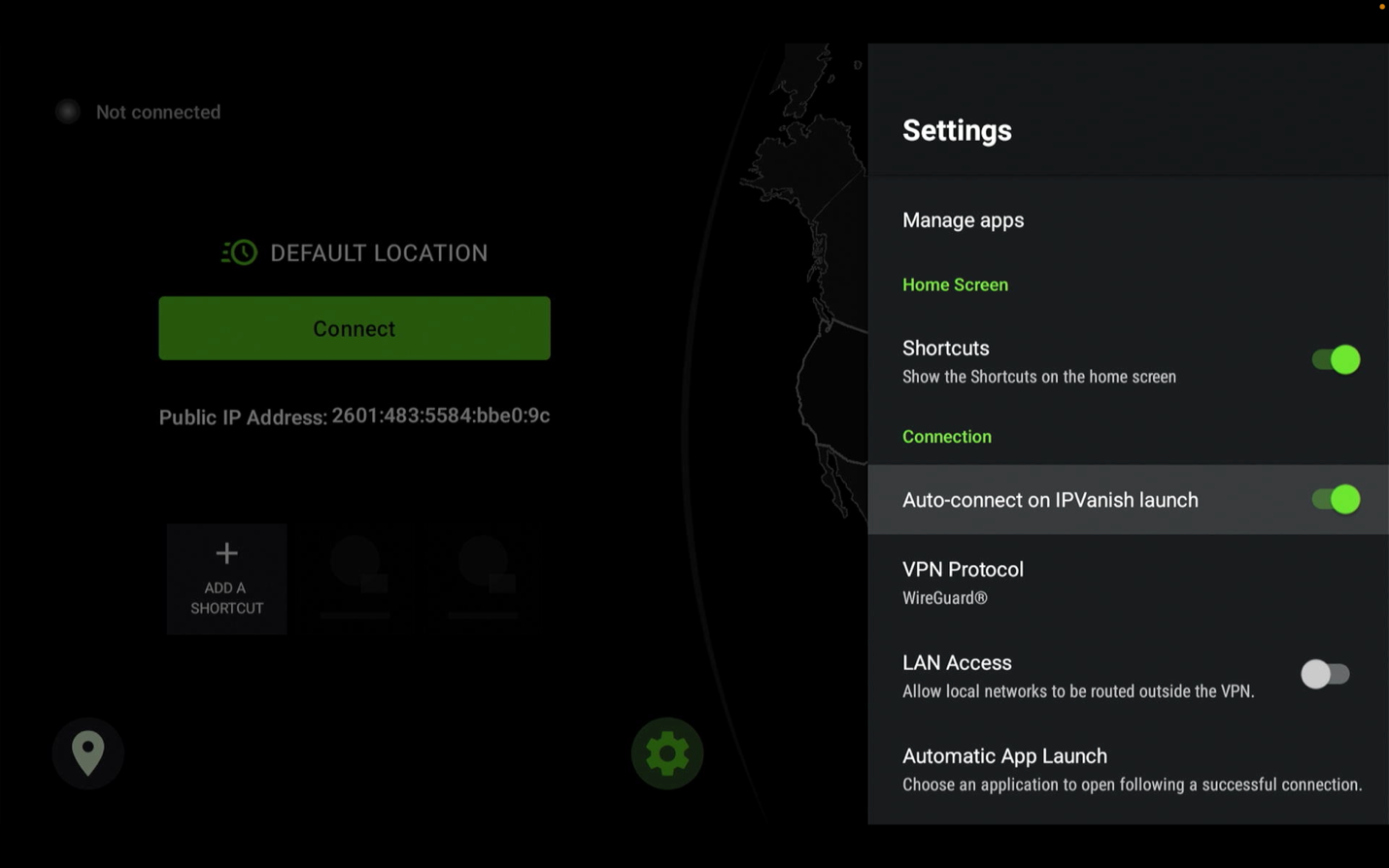
Turn on 'Auto-connect on IPVanish launch'
Turn on 'Auto-connect on IPVanish launch'.
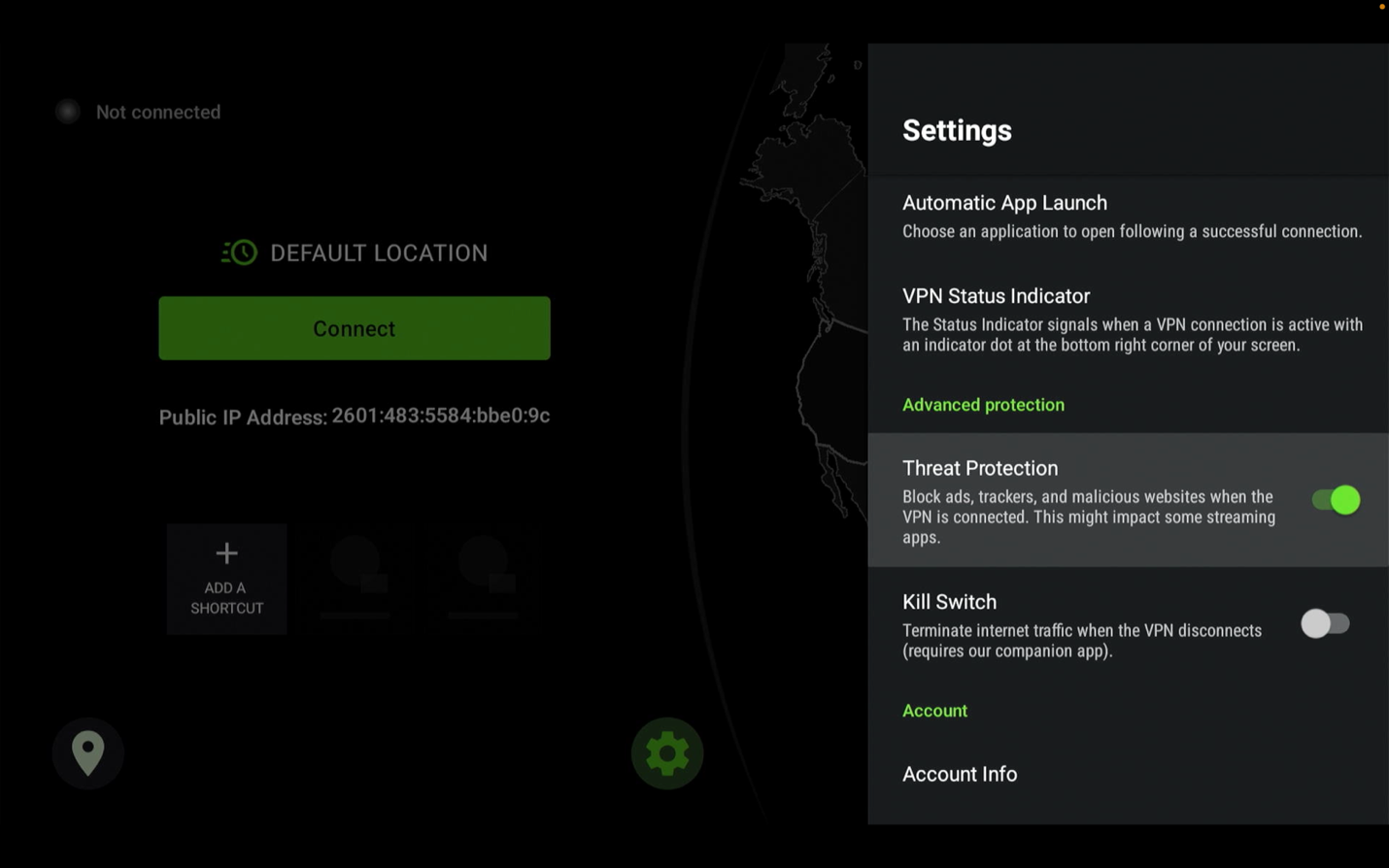
Turn on 'Threat Protection'
Turn on Threat Protection and leave all other settings as they are.
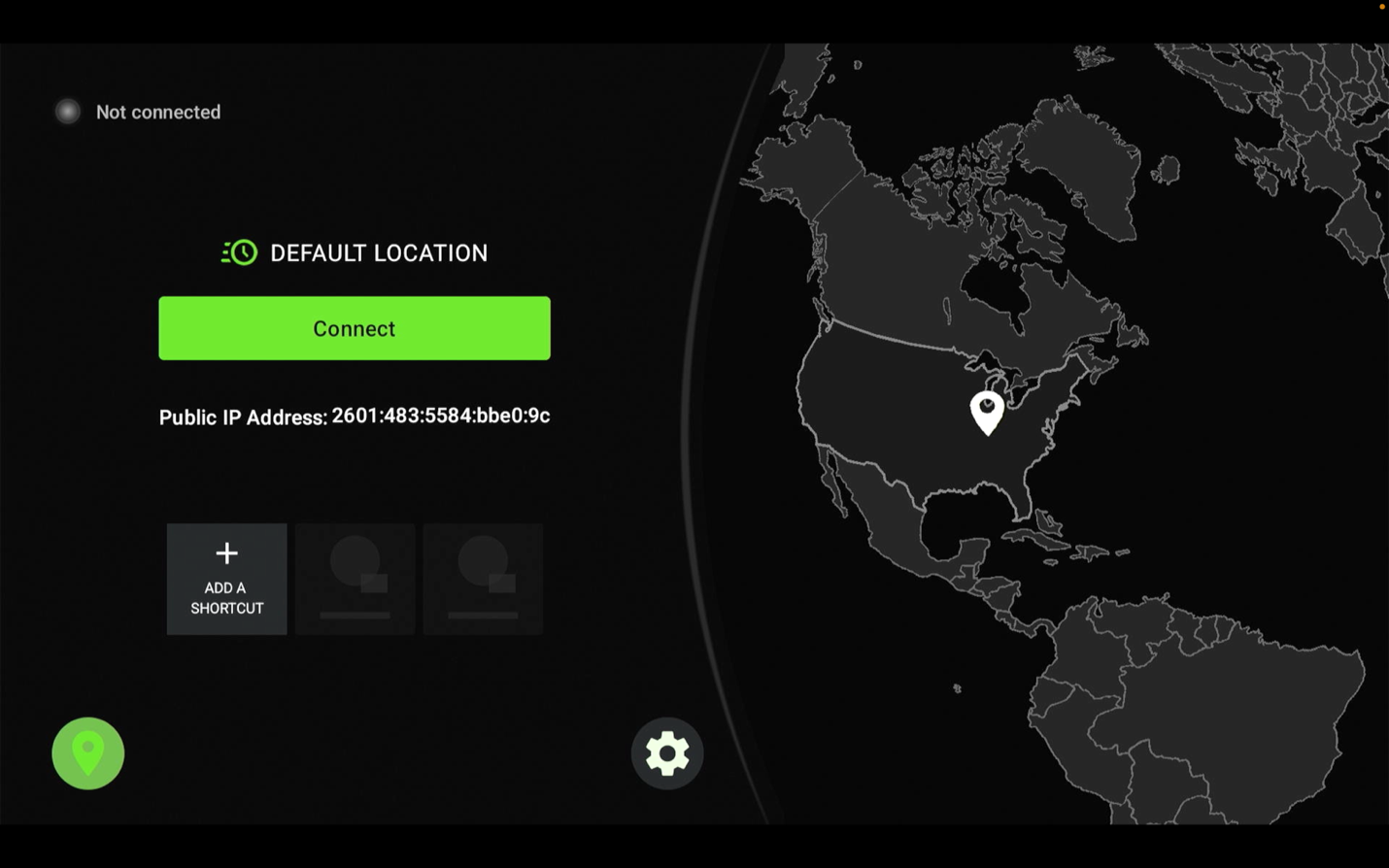
Choose the location icon
To pick the country that gives the best results, move to the location icon on the left.
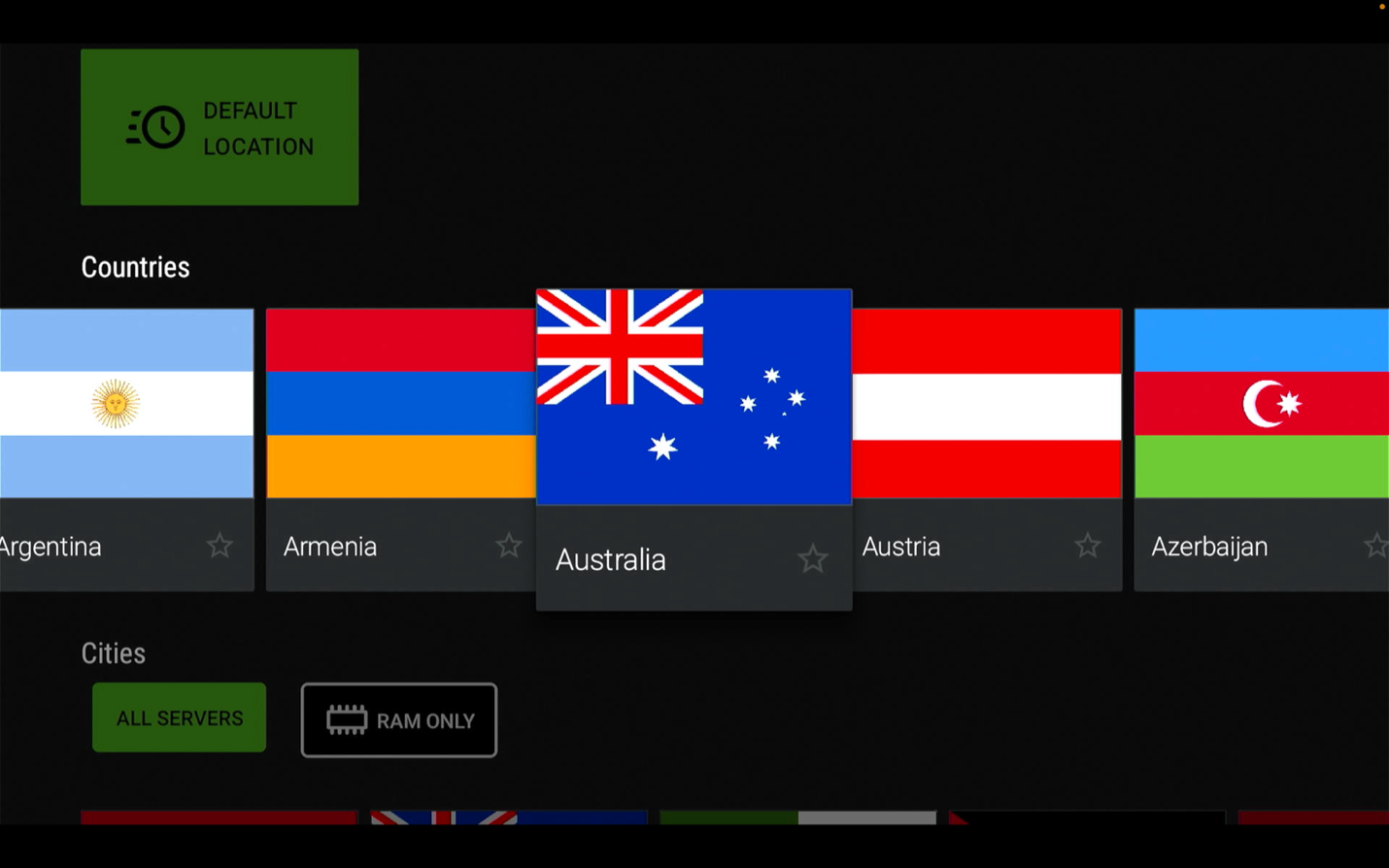
Choose Australia or Colombia, then connect
Select either Australia or Colombia, then press Connect.
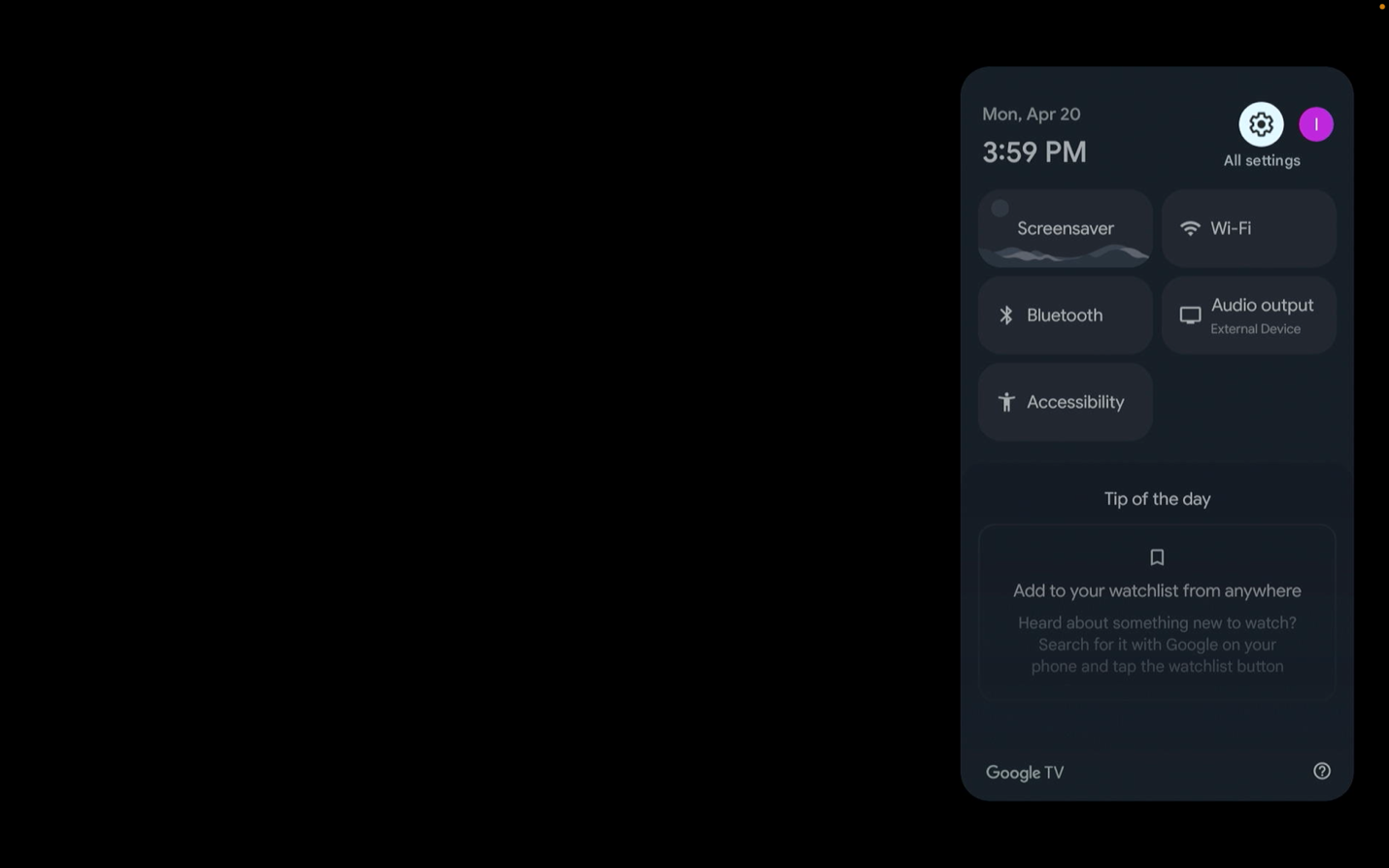
Configure & optimize your ONN 4K
A few settings changes keep the device fast and let you install extra apps.
Go to Settings
Open the Settings menu on the device.
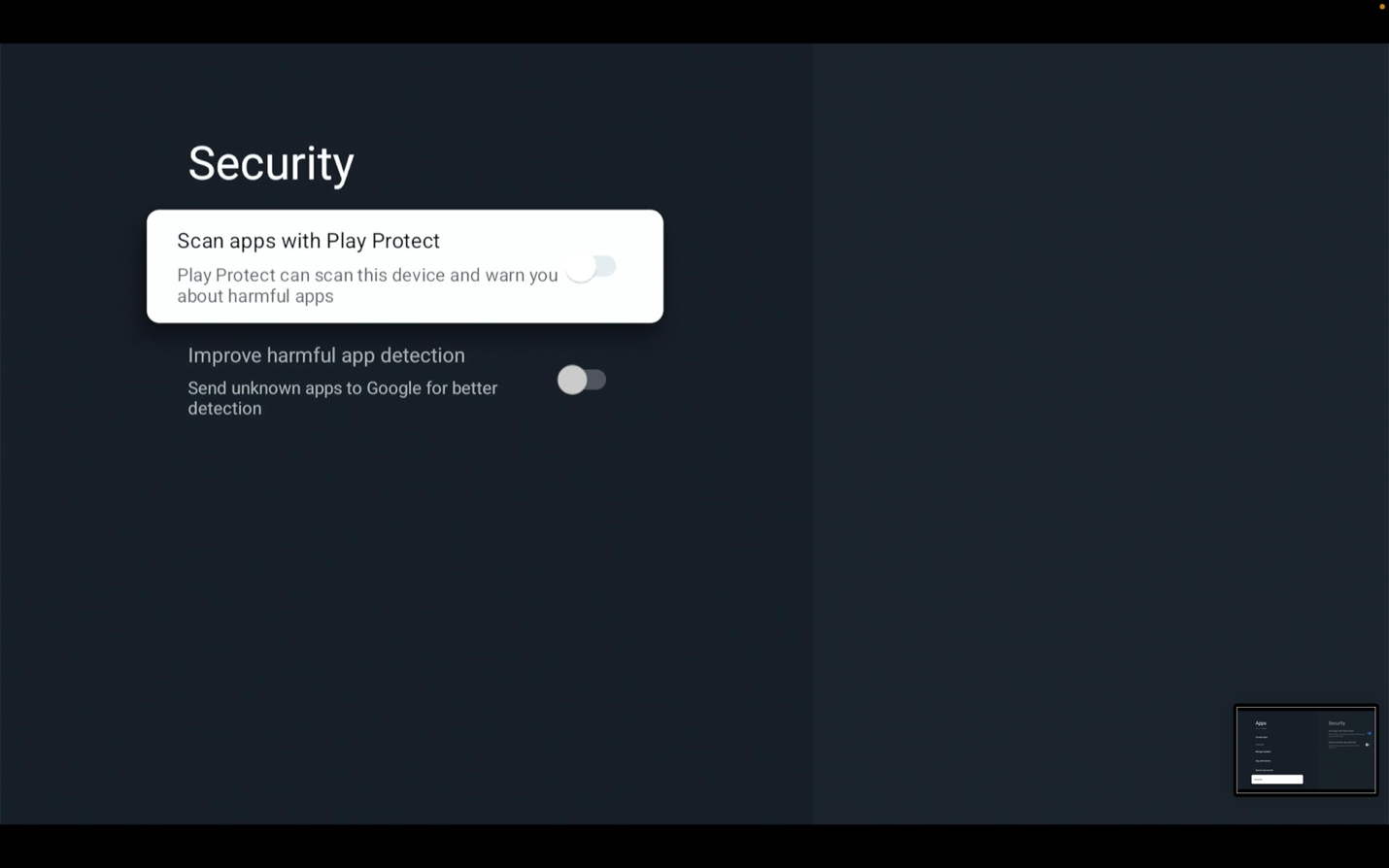
Disable 'Scan apps with Play Protect'
Disable 'Scan apps with Play Protect'.
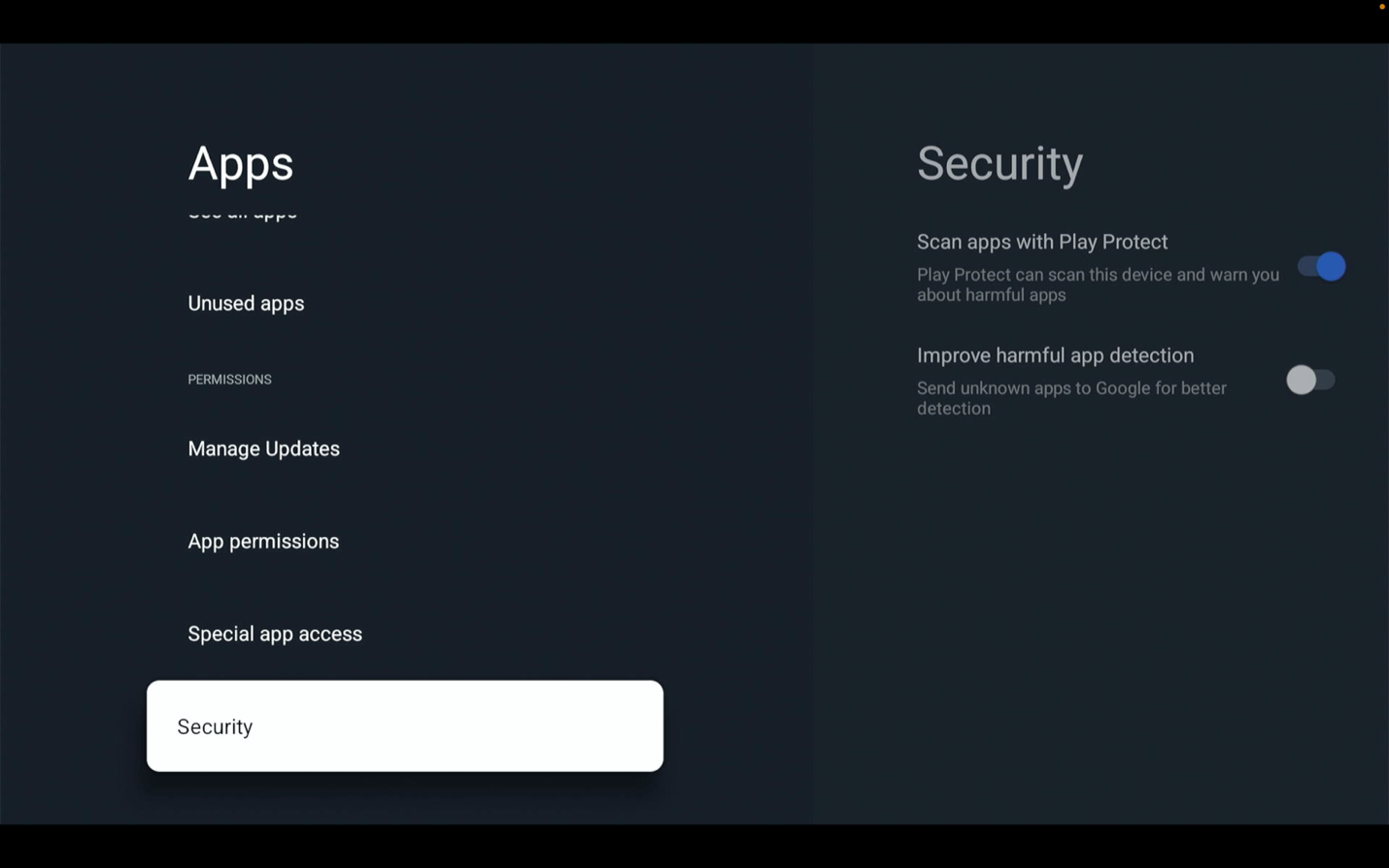
Install additional apps
You can now install additional apps that are not in the Google Play Store.
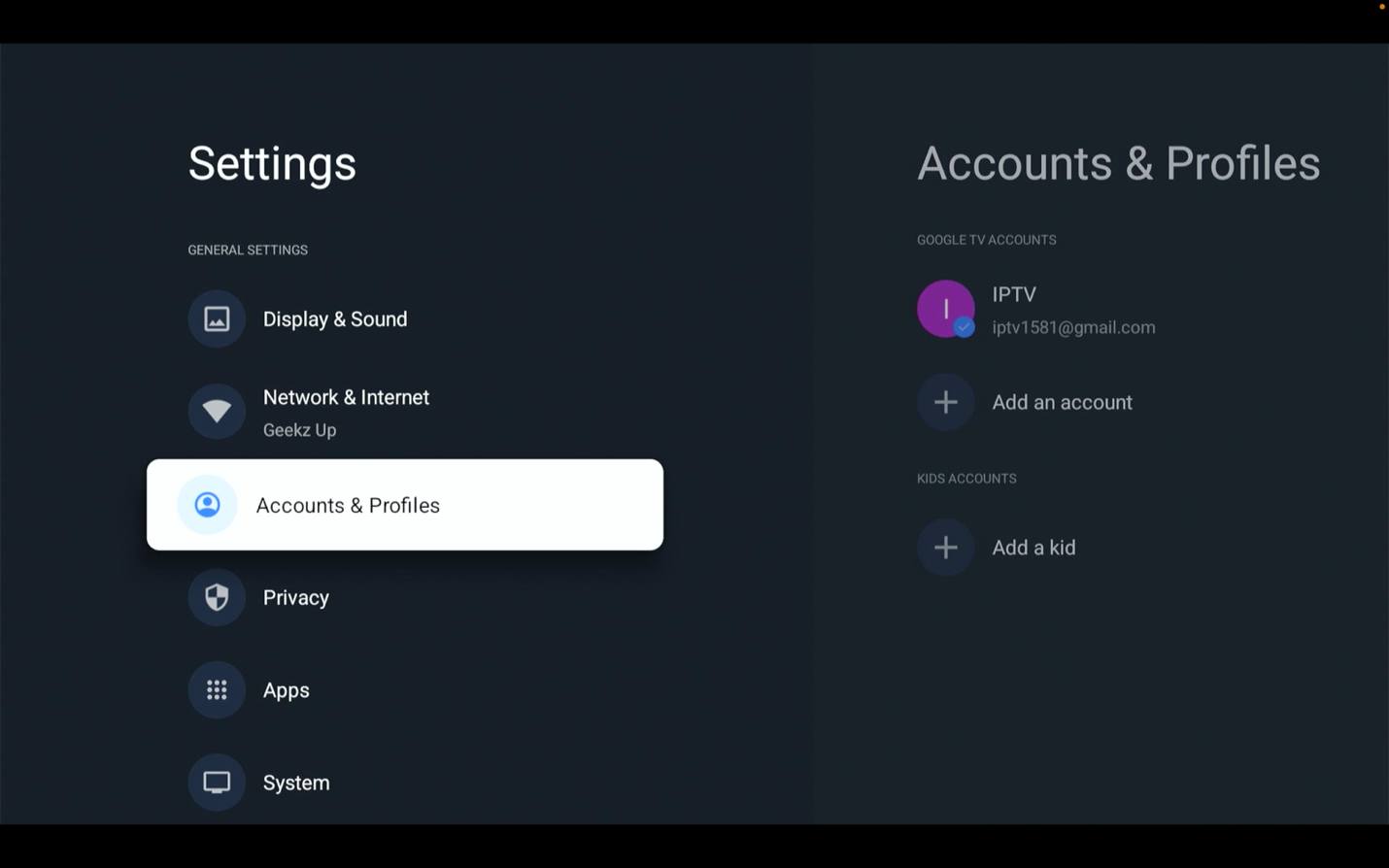
Open Accounts & Profiles
Go back to Settings and select 'Accounts & Profiles'.
Select your profile
Select your profile on the device.
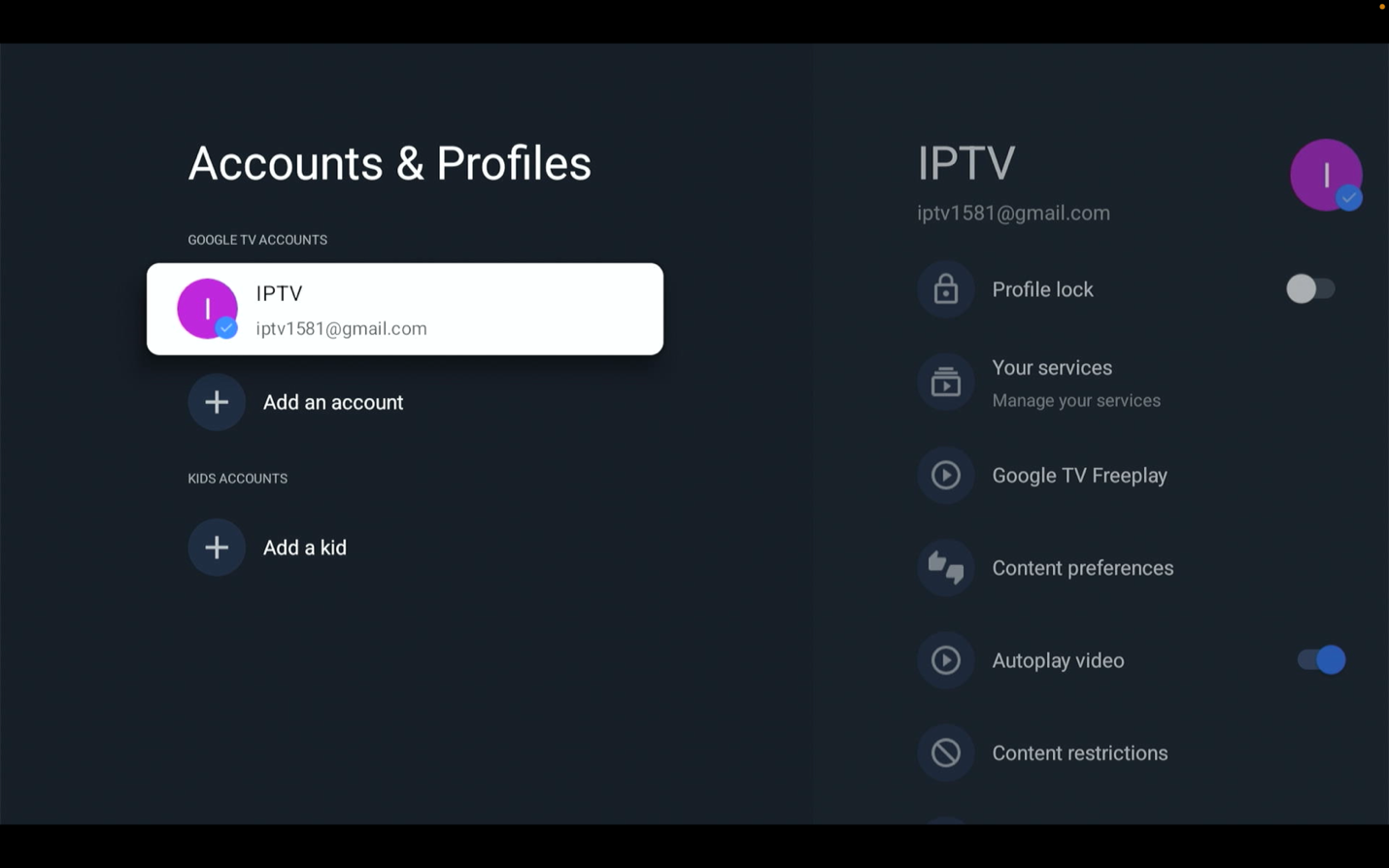
Final step
One last setting for a clean, clutter-free home screen.
Turn on Apps only mode
Turn on Apps only mode. This hides everything except your apps for a cleaner, simpler home screen.
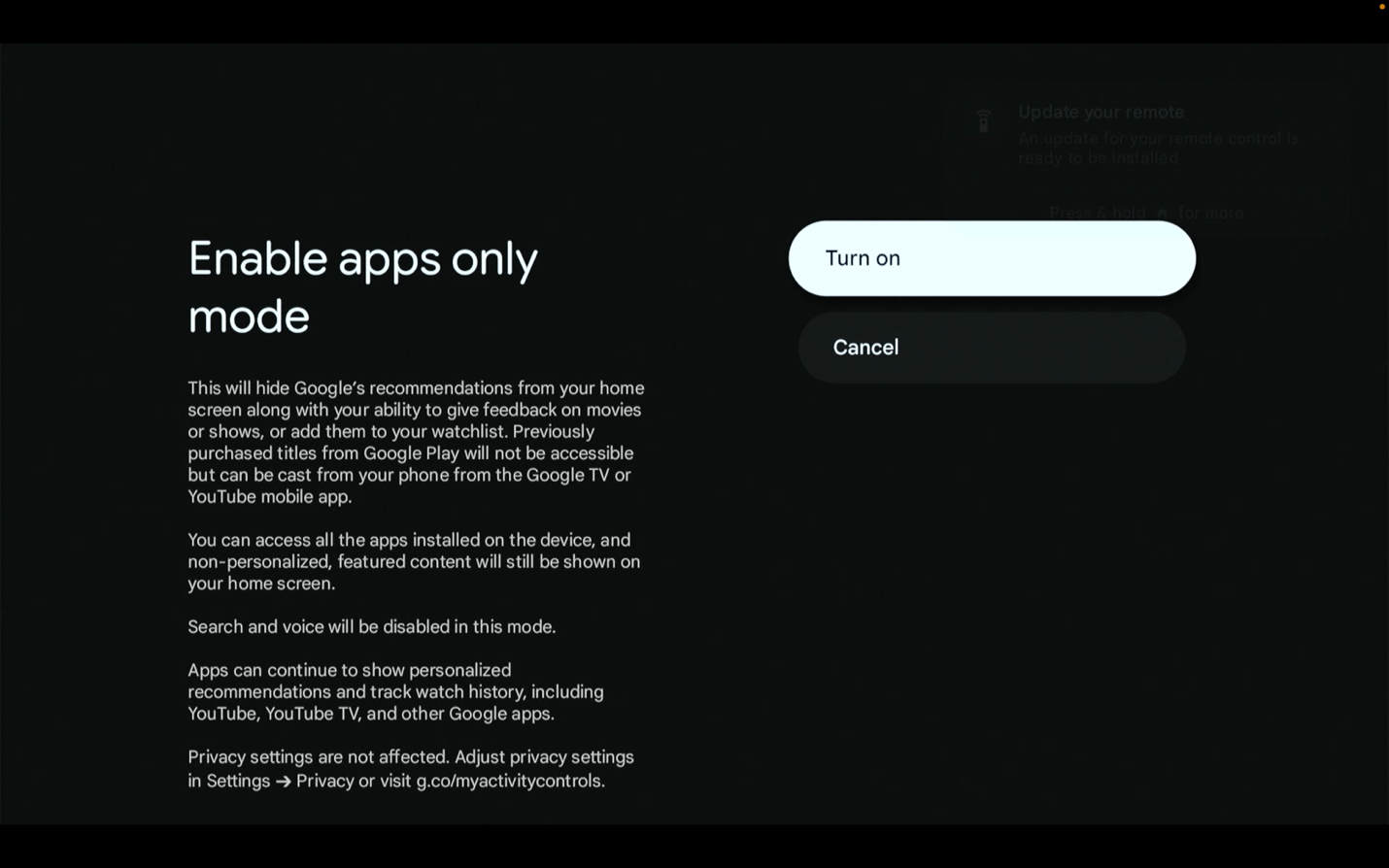
That's it, your ONN 4K is ready to stream MoaTV.
Need a hand? Active GeekzUP customers get free MoaTV support.
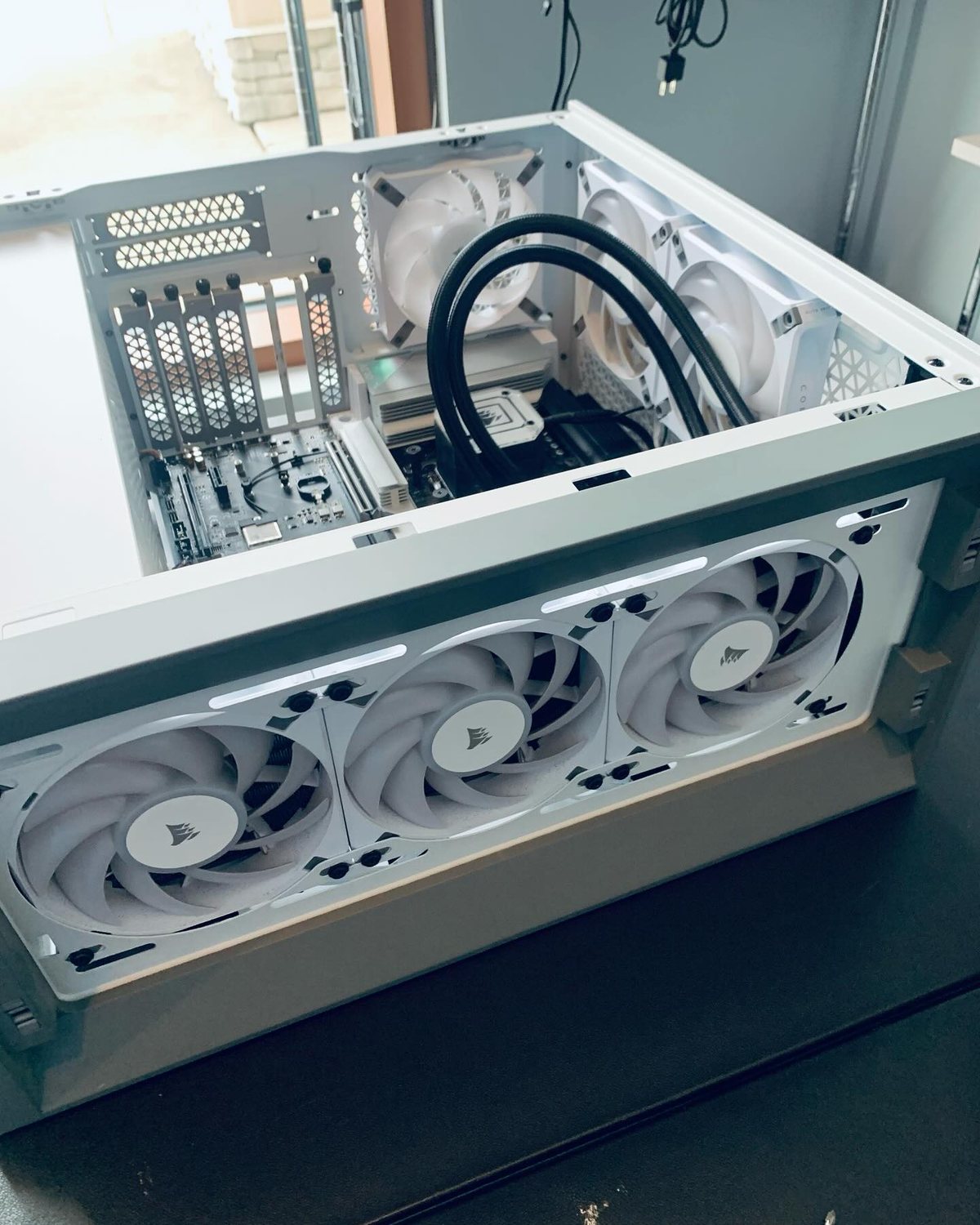
Want it done for you?
Skip the setup and we'll deliver your device fully configured with MoaTV, IPVanish and extra apps.