

Install MoaTV on a Firestick
A complete, screen-by-screen walkthrough to get MoaTV and IPVanish running on your Amazon Fire TV Stick. Prefer we handle it? Choose the 'With Firestick' bundle and it arrives ready to stream.
This guide walks you through
- 1Set up the Firestick and unlock Developer Options
- 2Install the Downloader app
- 3Install and activate MoaTV
- 4Install IPVanish and secure your connection
Before you start
- Make sure your Firestick is connected to Wi-Fi.
- Sign in to your Amazon account before starting the install steps.
- Keep your MoaTV activation code nearby for the activation step.
- Keep your IPVanish username and password ready for the last part.
Firestick setup & Developer Options
Get the Firestick ready, sign in, and unlock Developer Options before installing MoaTV.
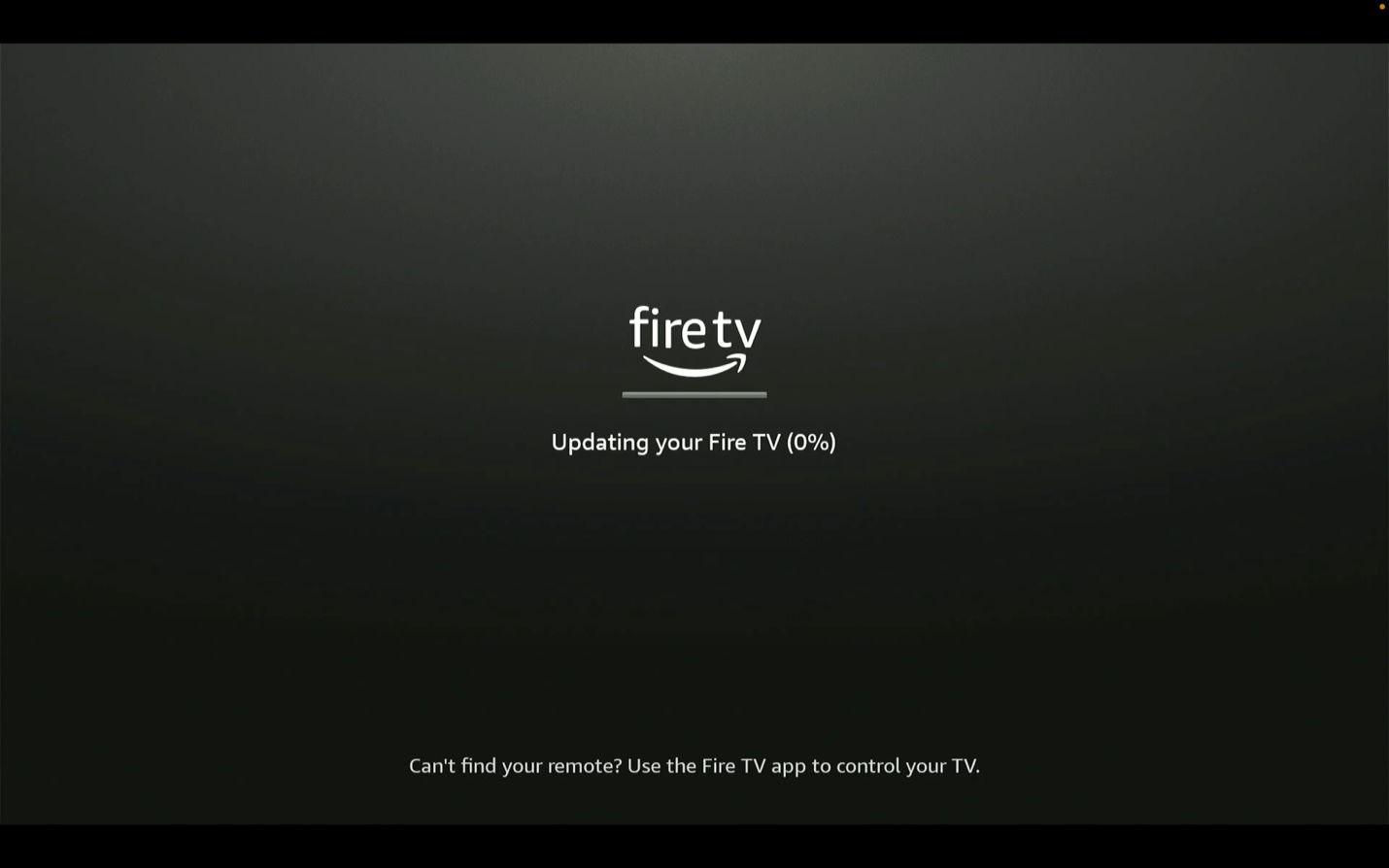
Plug in your Firestick and connect to Wi-Fi
Connect your Firestick to Wi-Fi and allow any available updates to finish before moving forward.
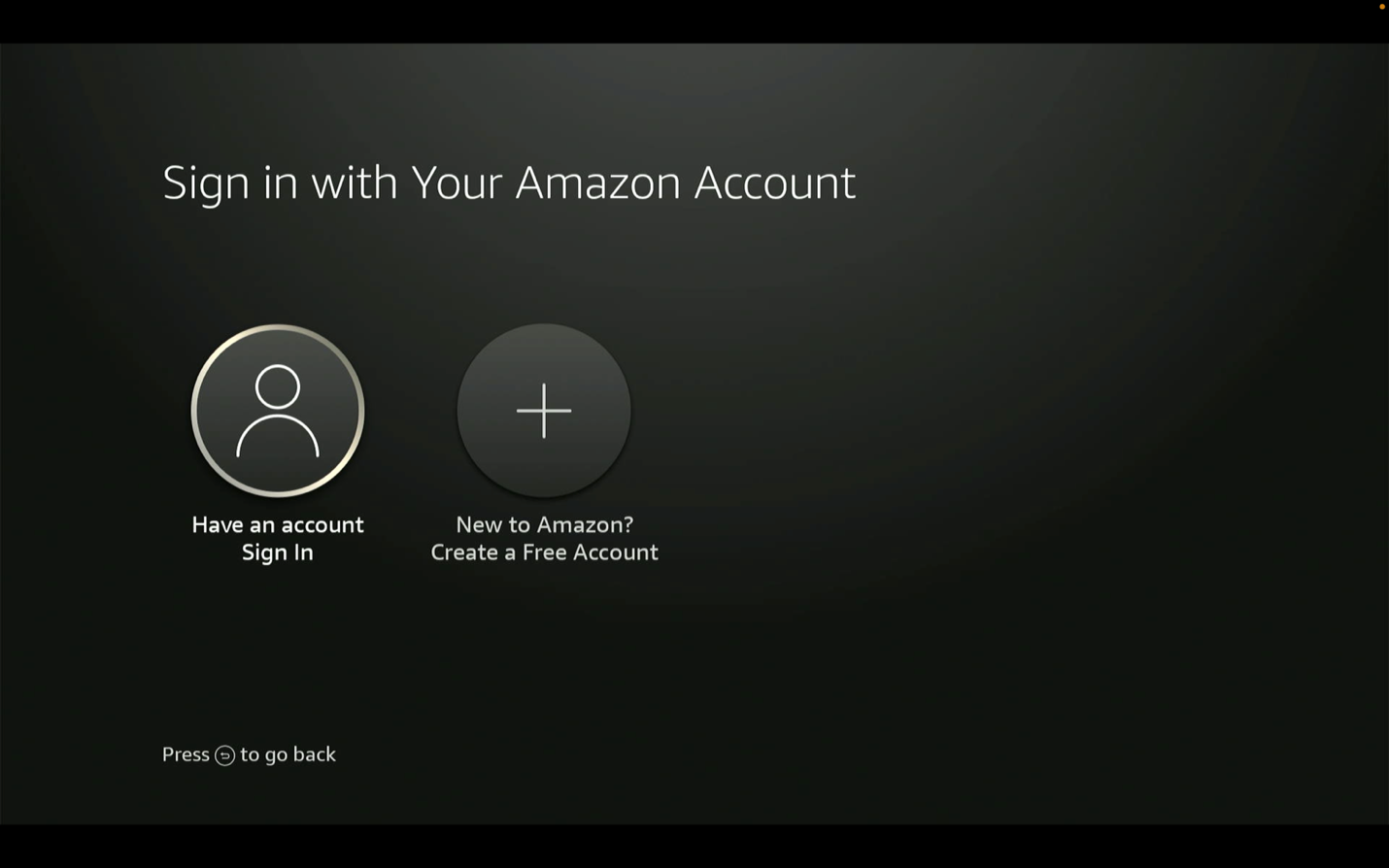
Sign in to your Amazon account
Sign in to your Amazon account to activate the device.
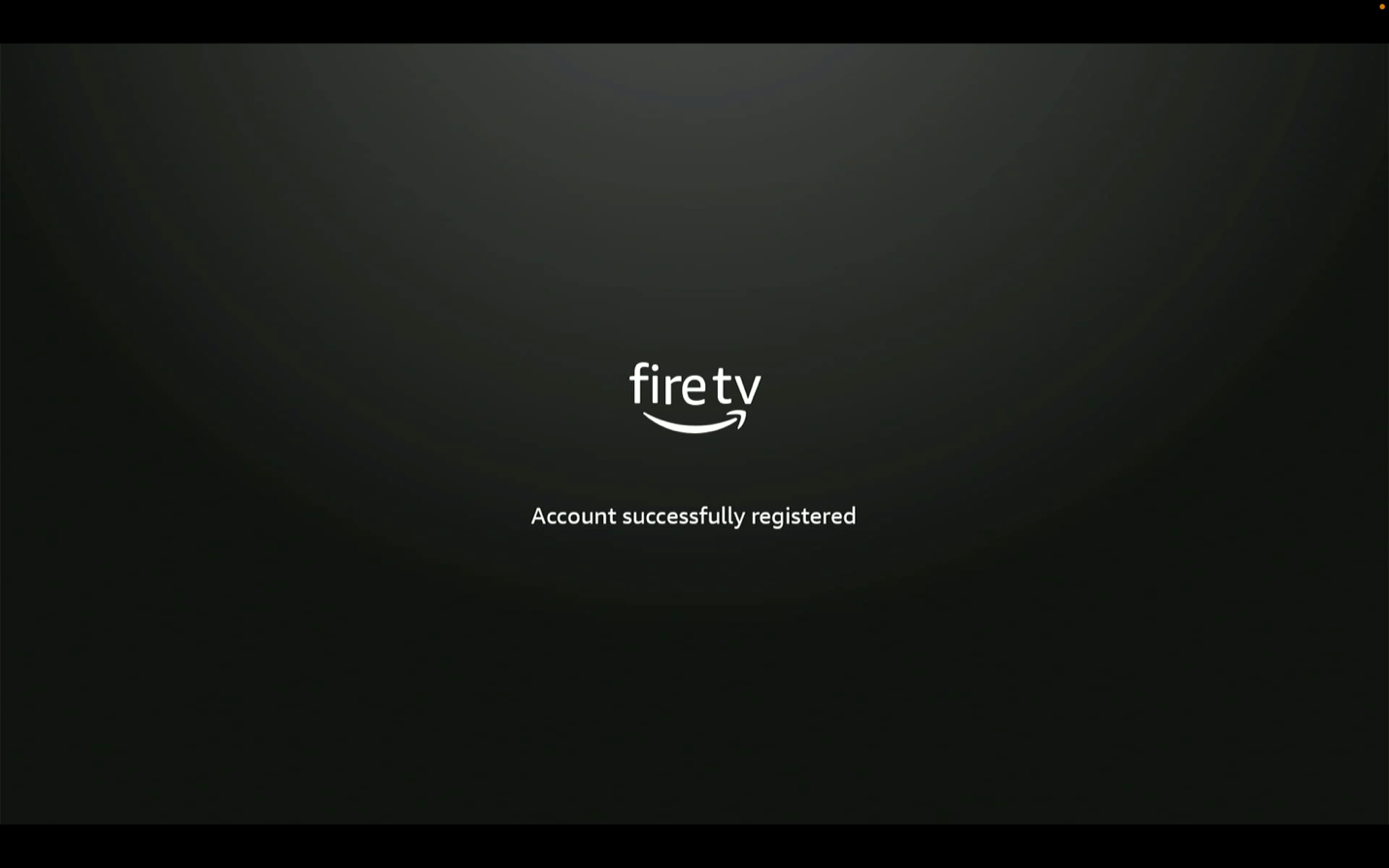
Continue after your account is set up
Once your Amazon account is connected, you are ready to start setup.
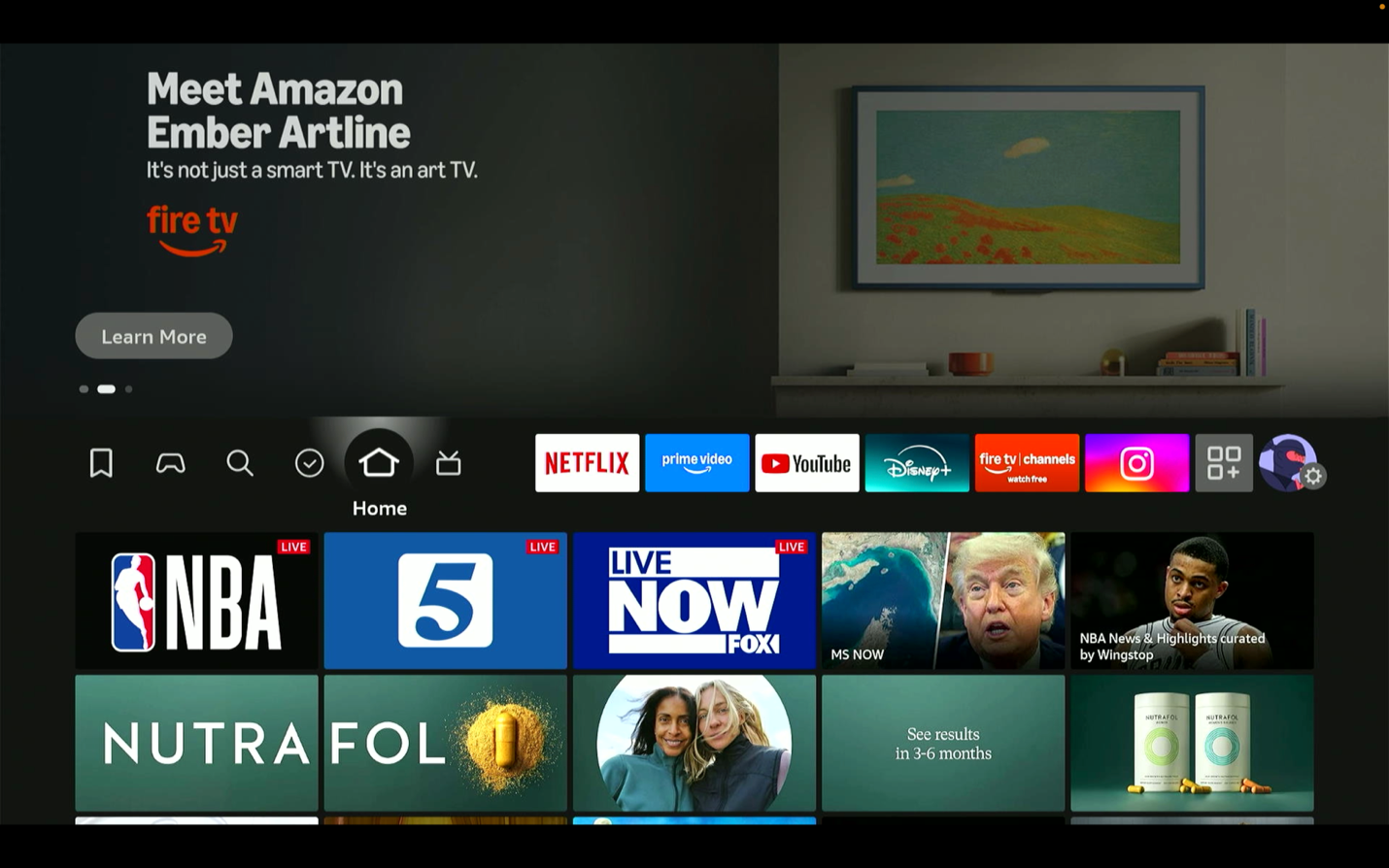
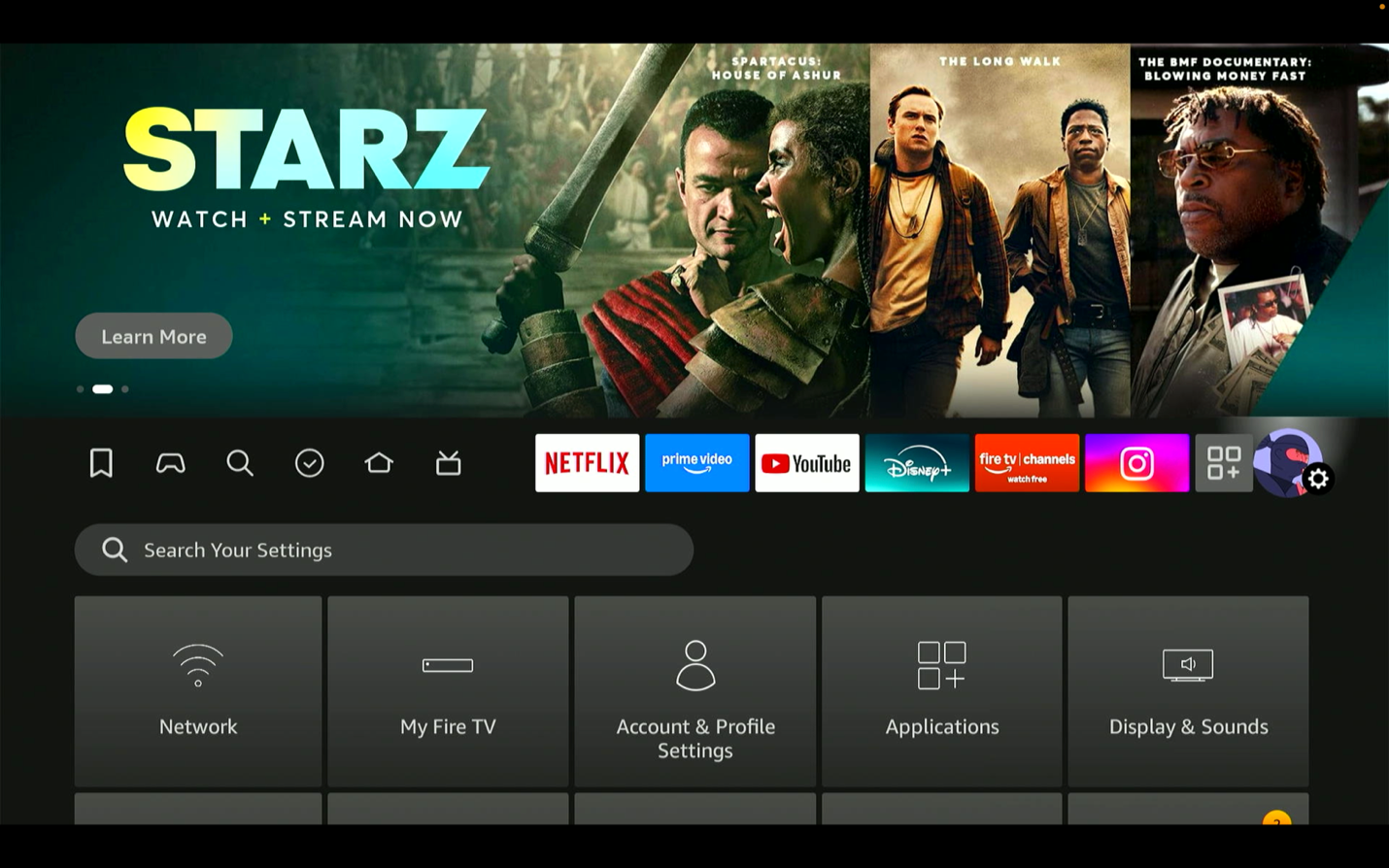
Go to Settings
From the home screen, open Settings.
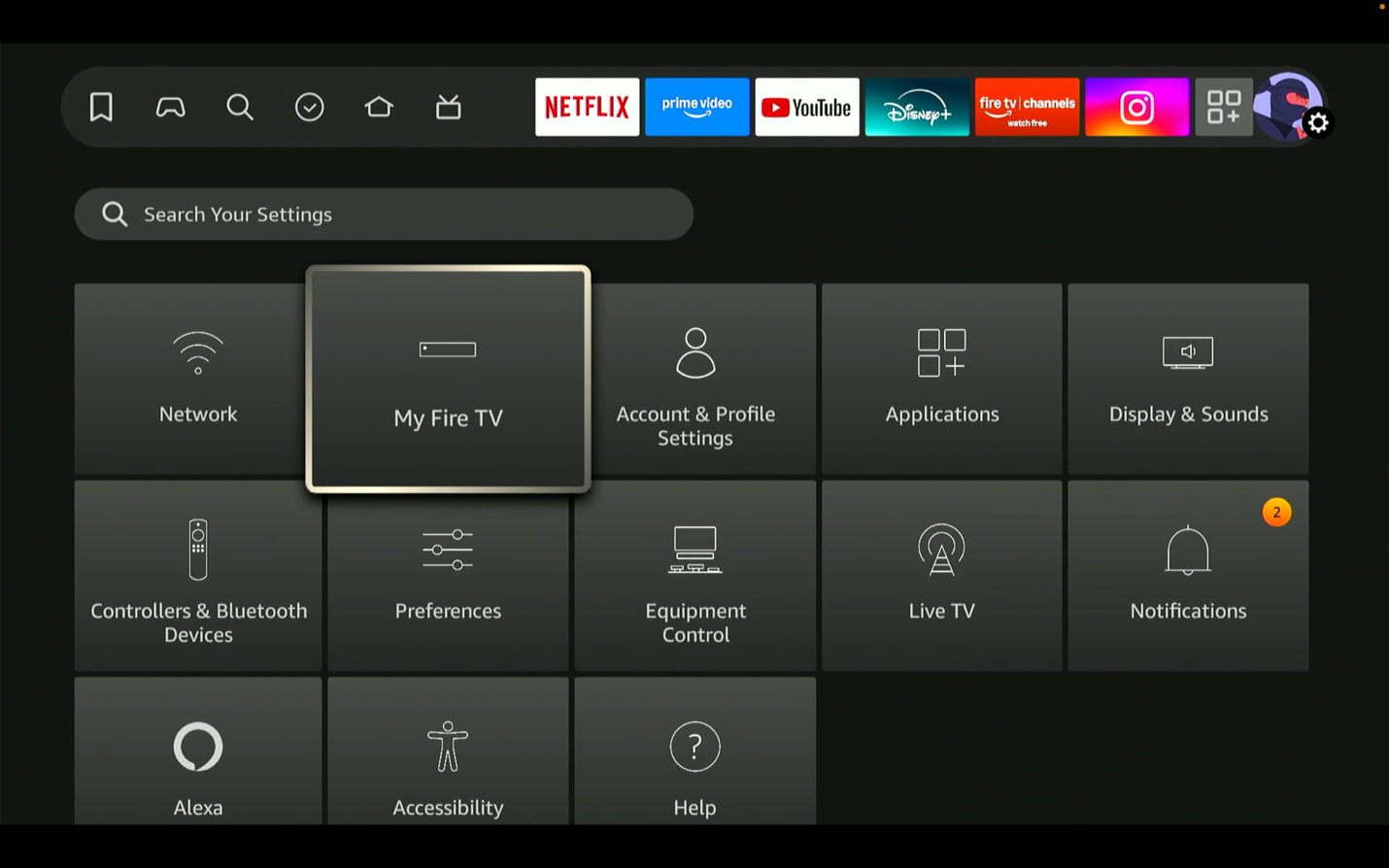
Select My Fire TV
In Settings, select My Fire TV, where the device and developer controls live.
Open My Fire TV
Select My Fire TV to continue.
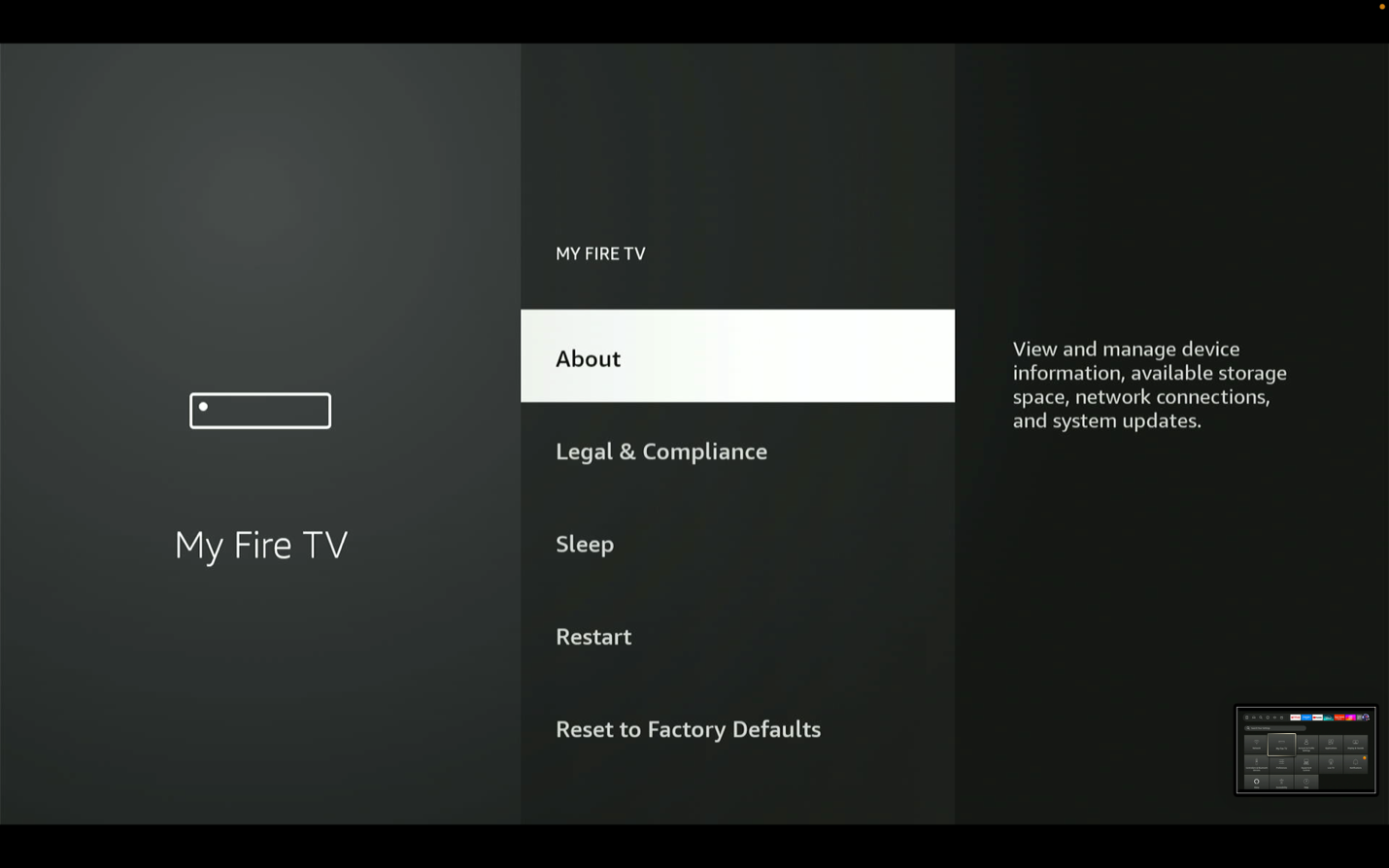
Select About
Choose About from the My Fire TV menu. This is where you unlock Developer Options.
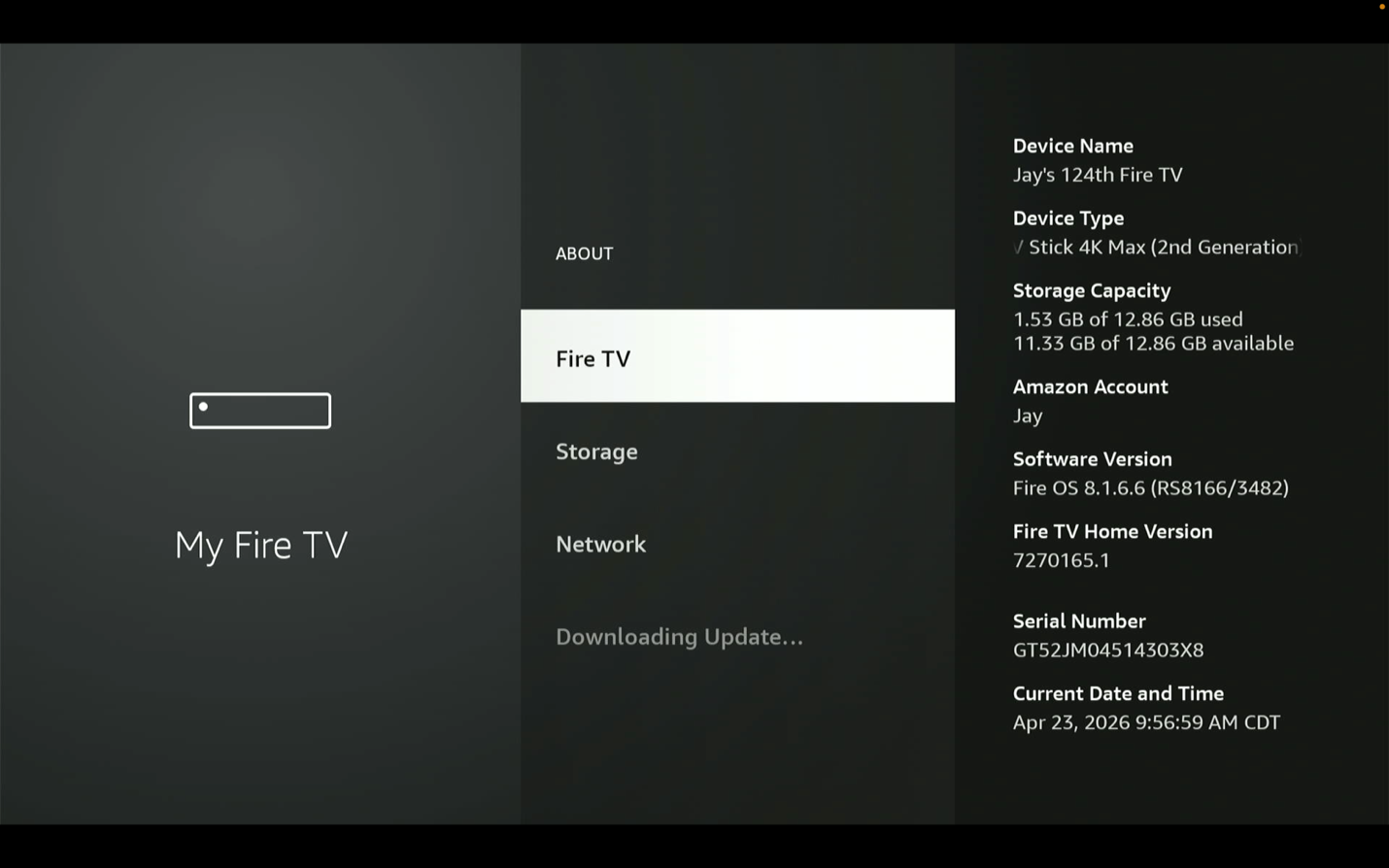
Highlight Fire TV and press it 7 times
On the next screen, highlight Fire TV and press it 7 times to unlock developer access.
Developer Options will unlock
A developer message confirms that the option has been enabled.
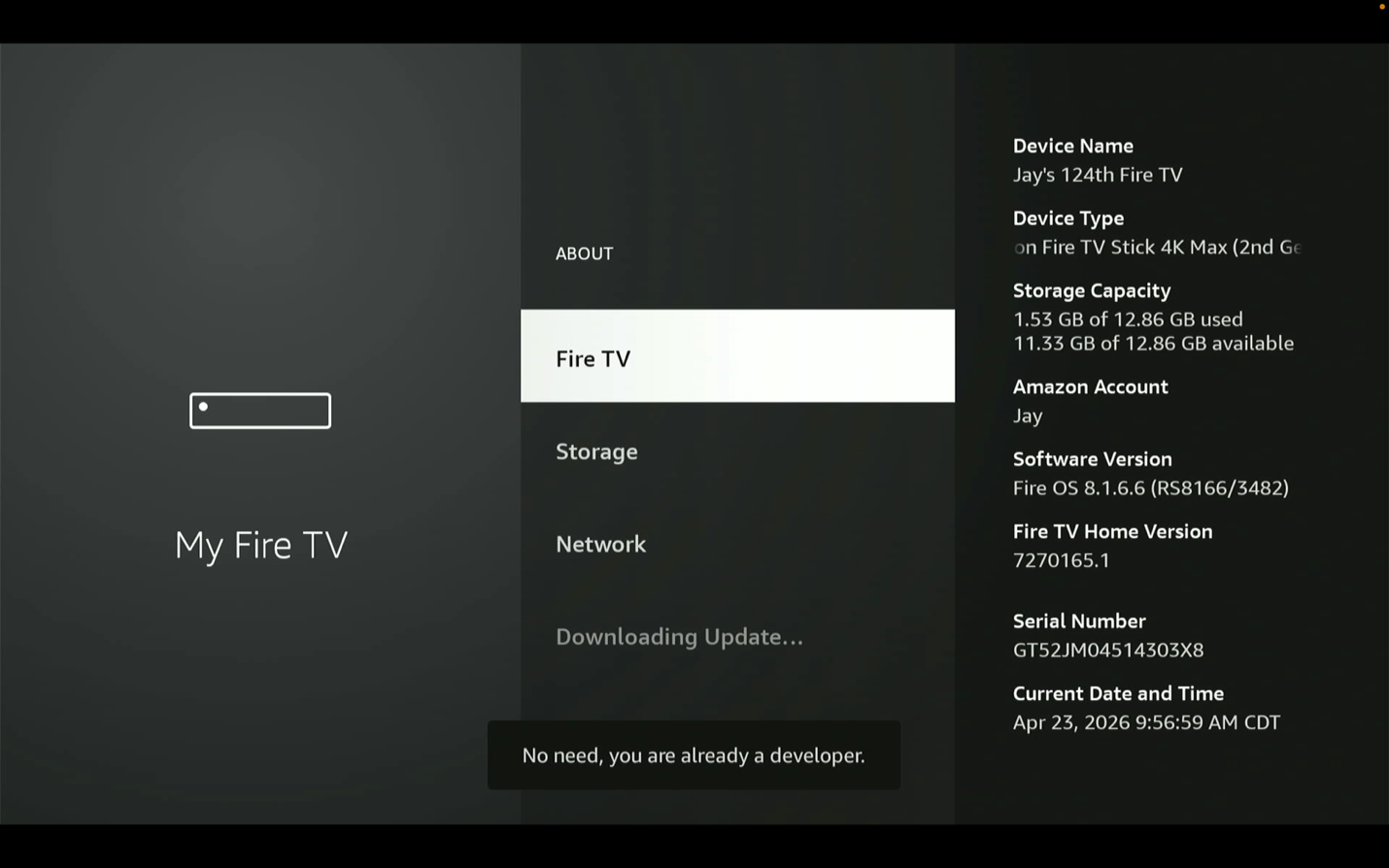
Go back and open Developer Options
Press the back button on your remote and select Developer Options.
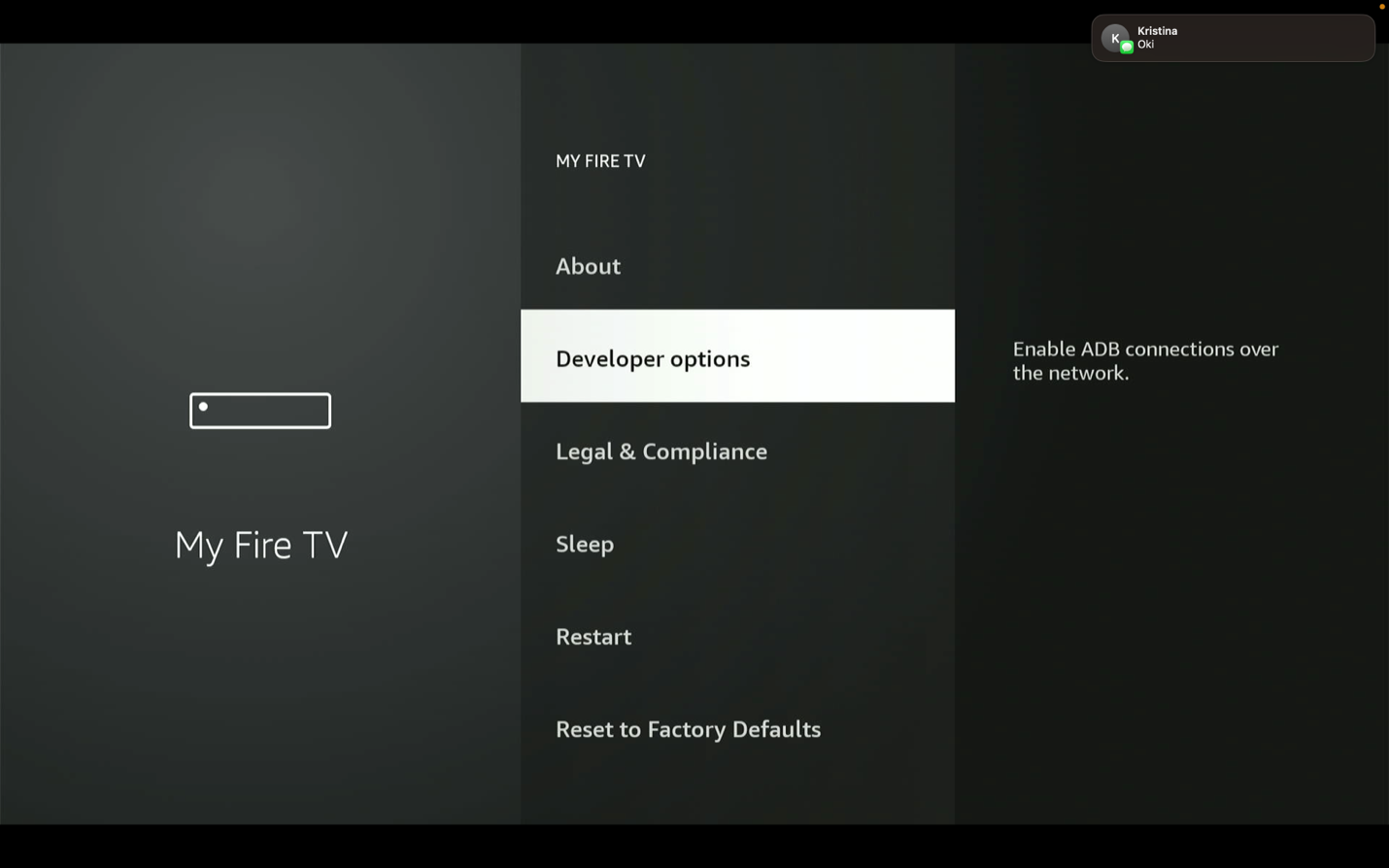
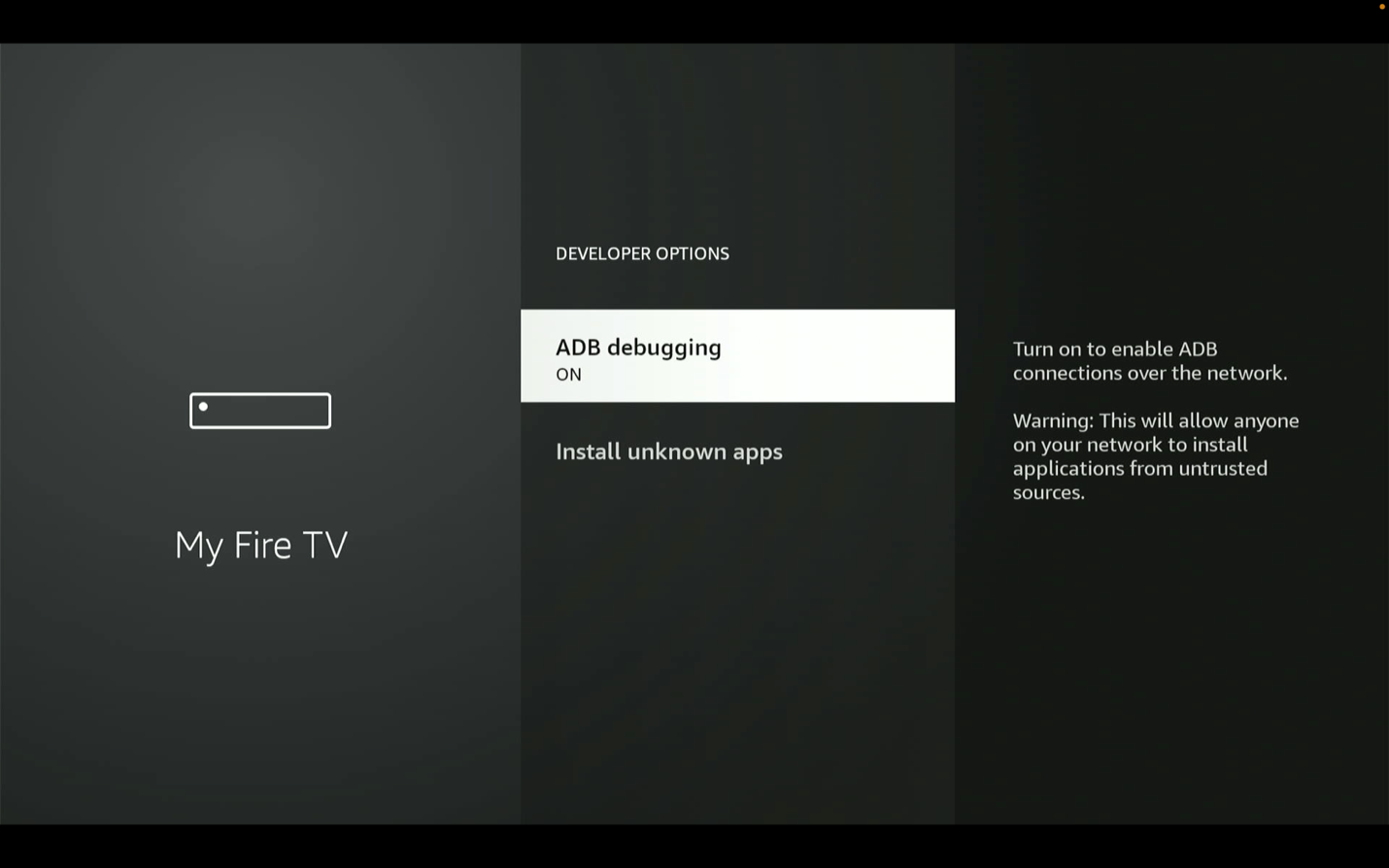
Turn ADB Debugging ON
Turn ADB Debugging ON before moving on to Downloader.
Install Downloader
Use Firestick search to find and install the Downloader app.
Go to Find / Search
Press the Home button on your remote and go to Find, then Search.
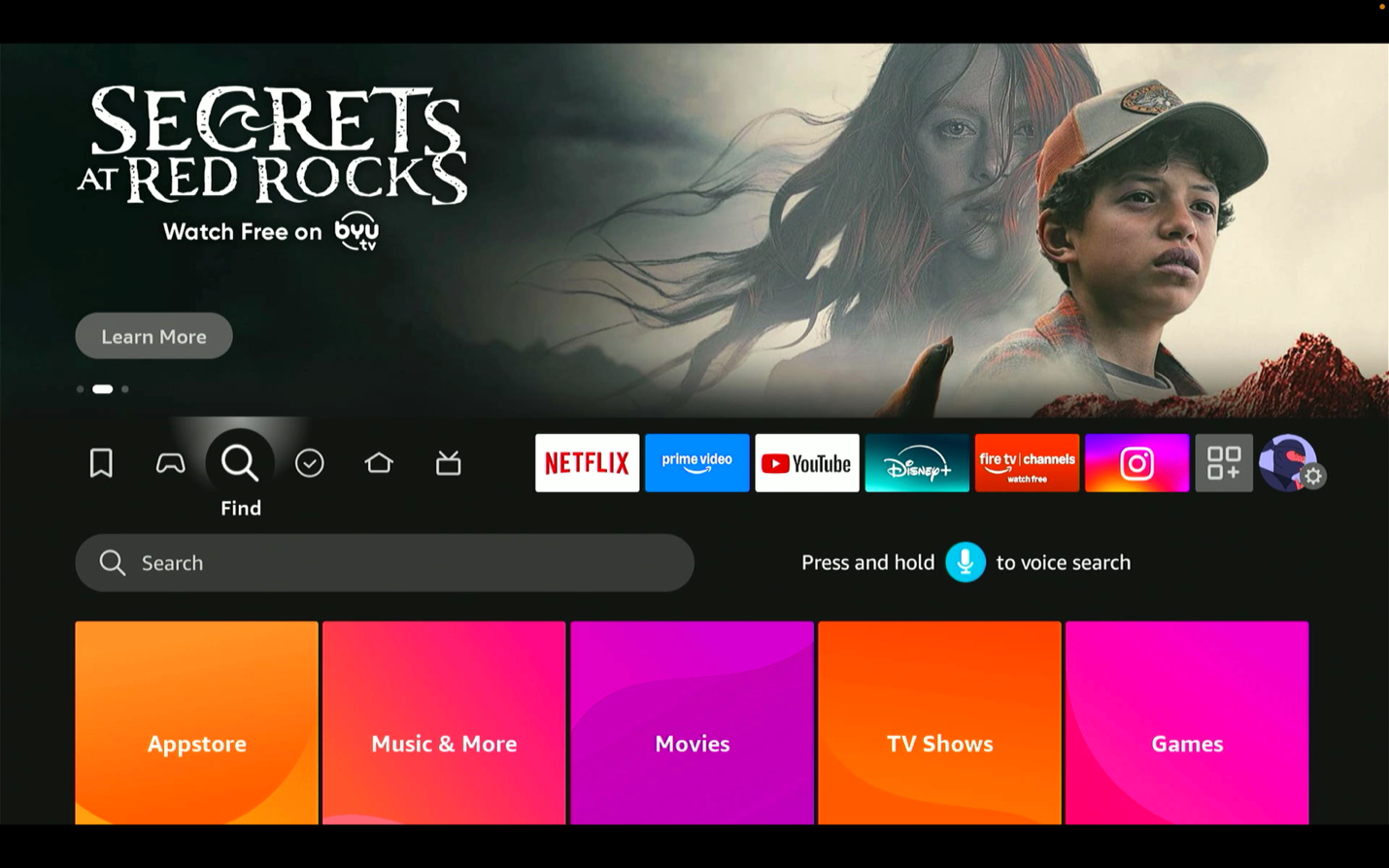
Search for Downloader
Type 'Downloader' in the search bar.
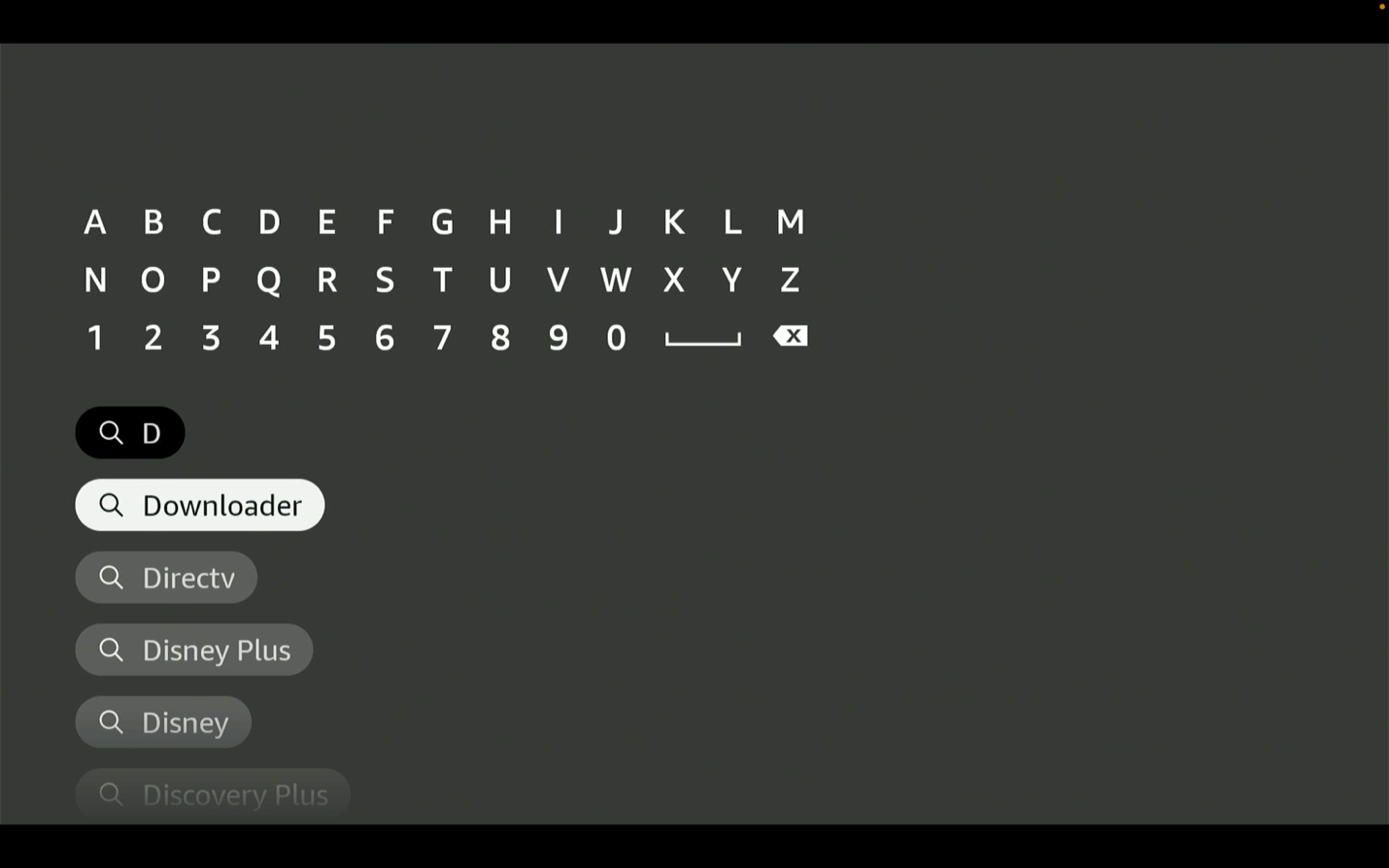
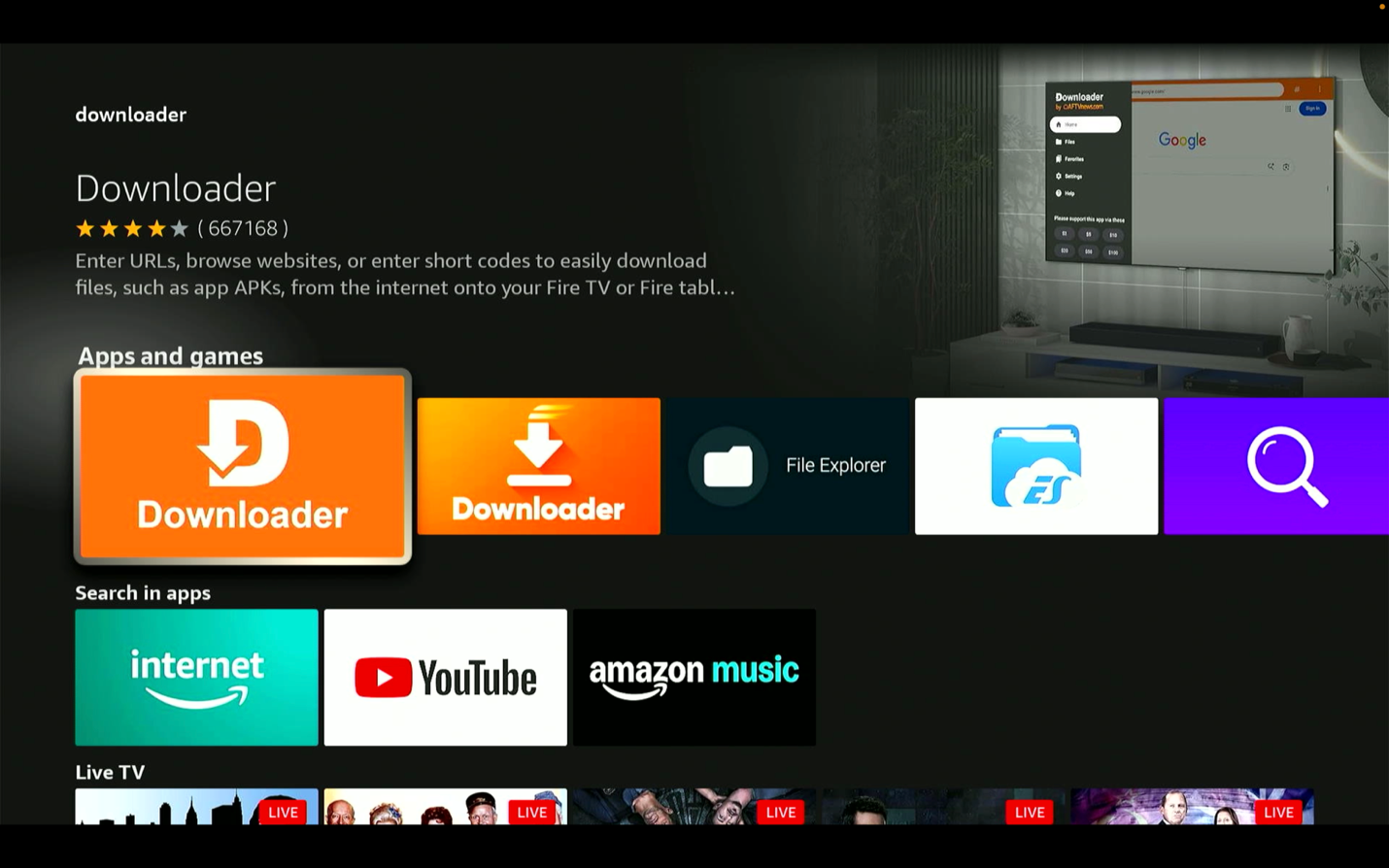
Select the correct Downloader app
Make sure you choose the official Downloader app result.
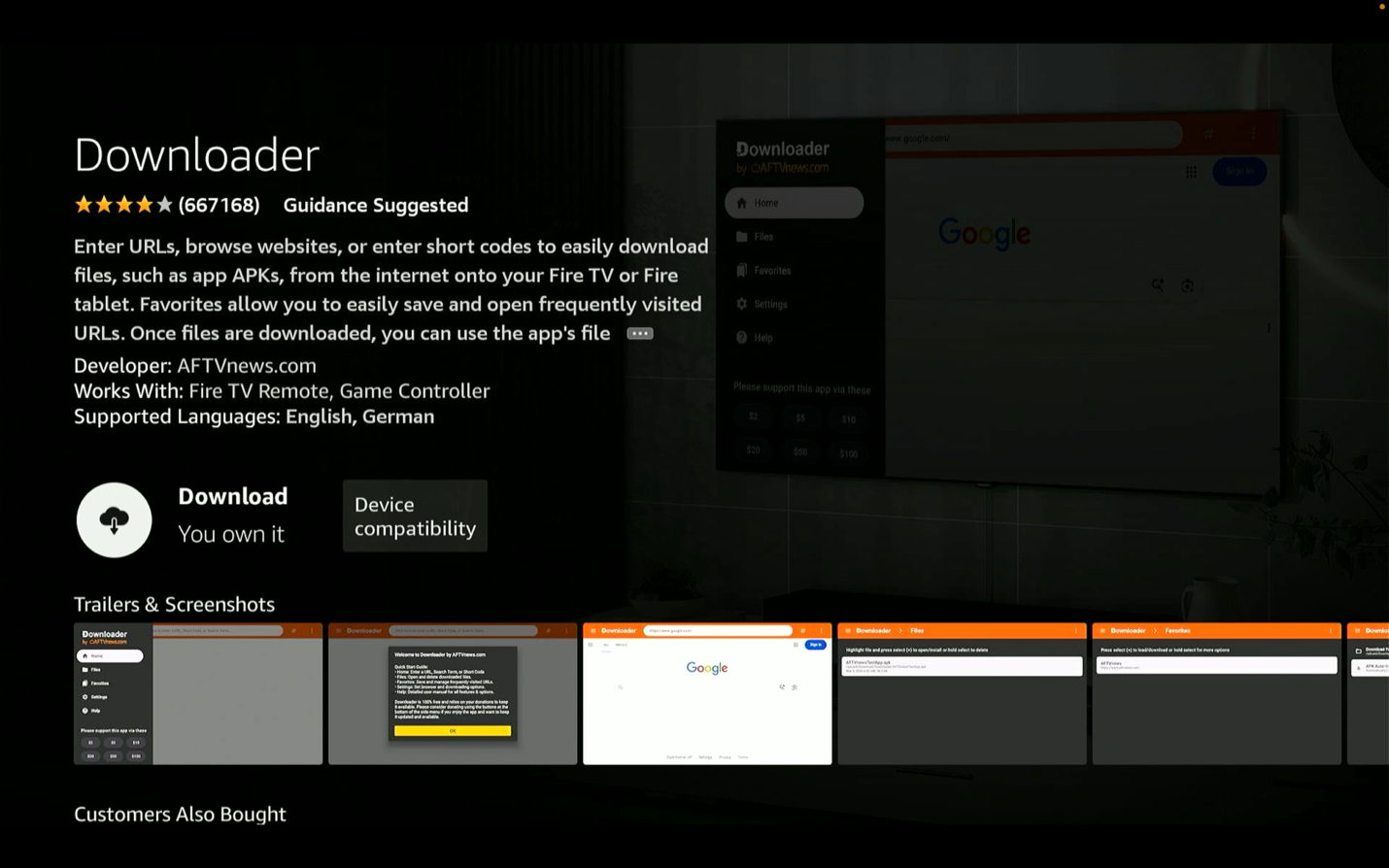
Download and install Downloader
Download and install Downloader on your Firestick before moving to the MoaTV install link.
Install and activate MoaTV
Use Downloader to install MoaTV, enable install permissions, and activate the app.
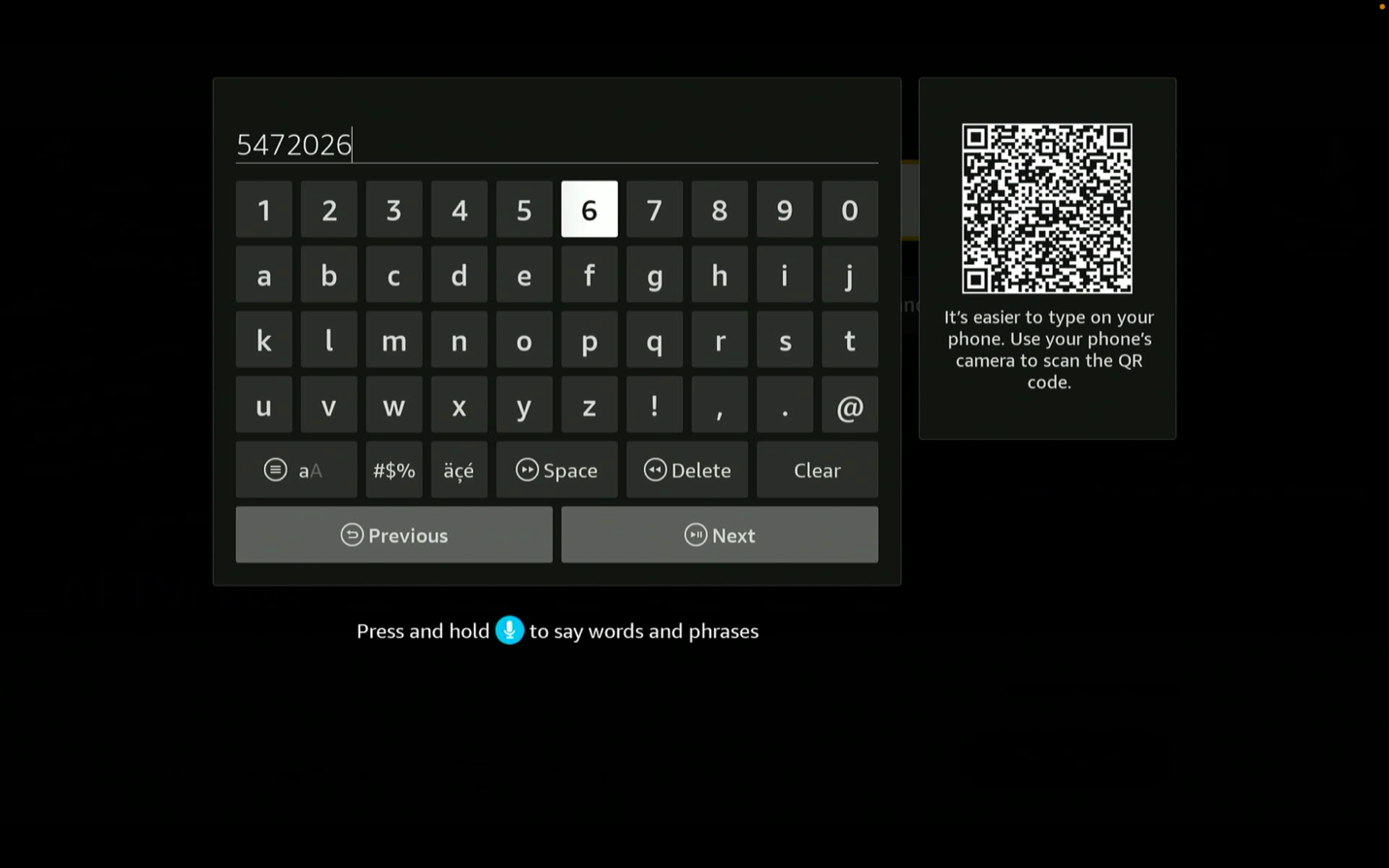
Open Downloader and enter the install link
Open Downloader and enter http://aftv.news/5472026, or use the short code 5472026.
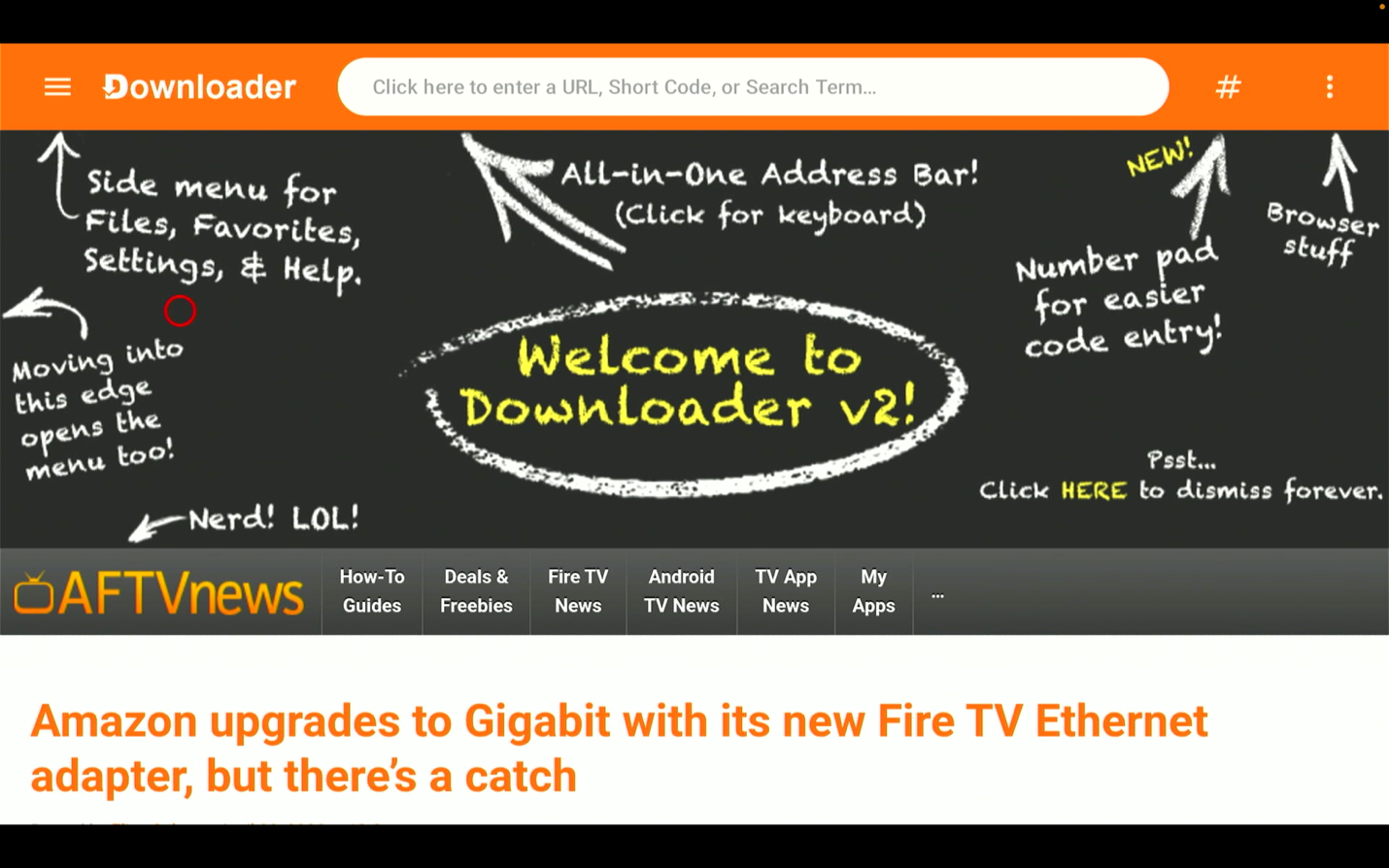
Use the short code if needed
You can use short code 5472026 if your Downloader screen supports it.
MoaTV begins downloading and installing
The MoaTV app begins downloading and installing automatically.
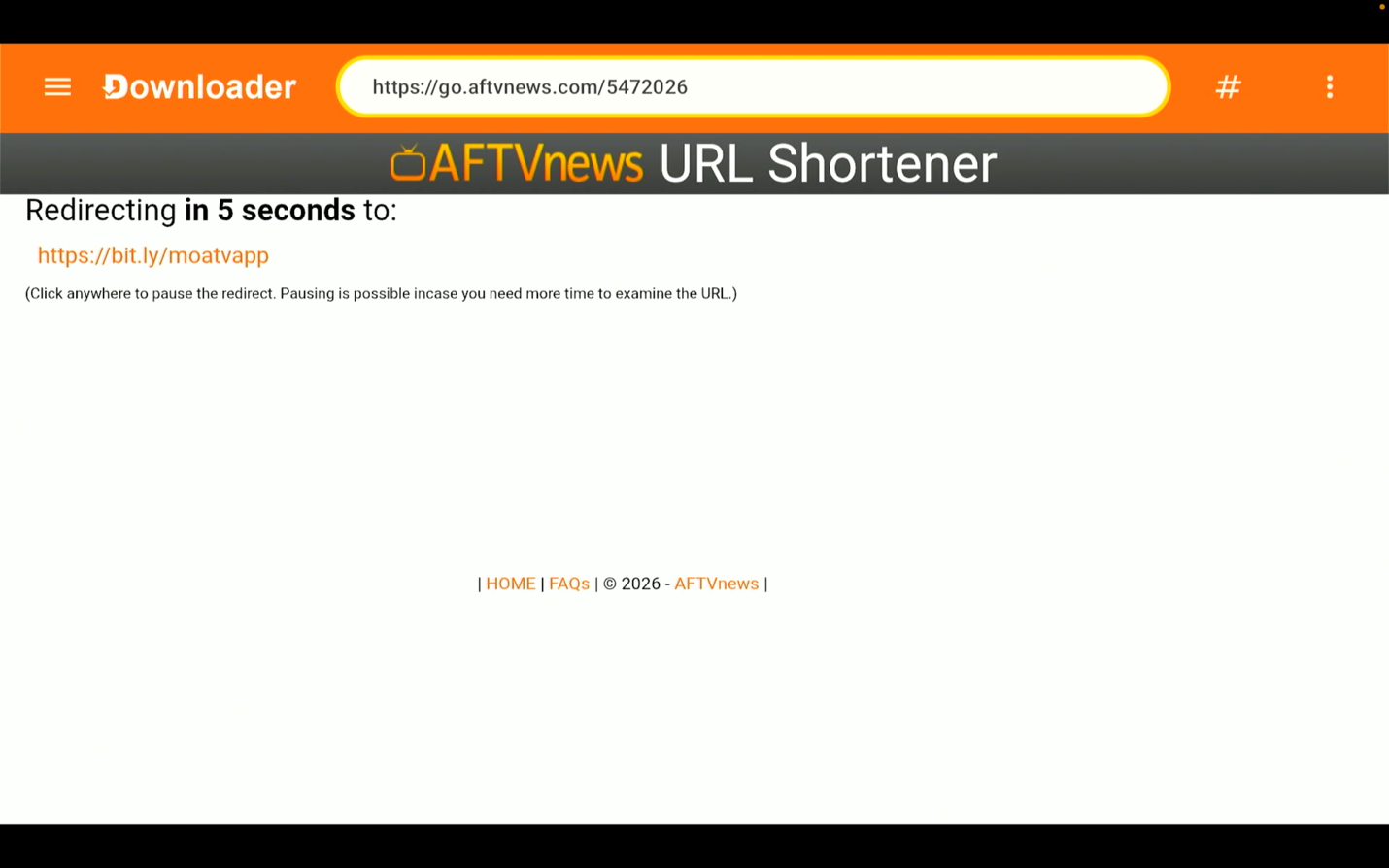
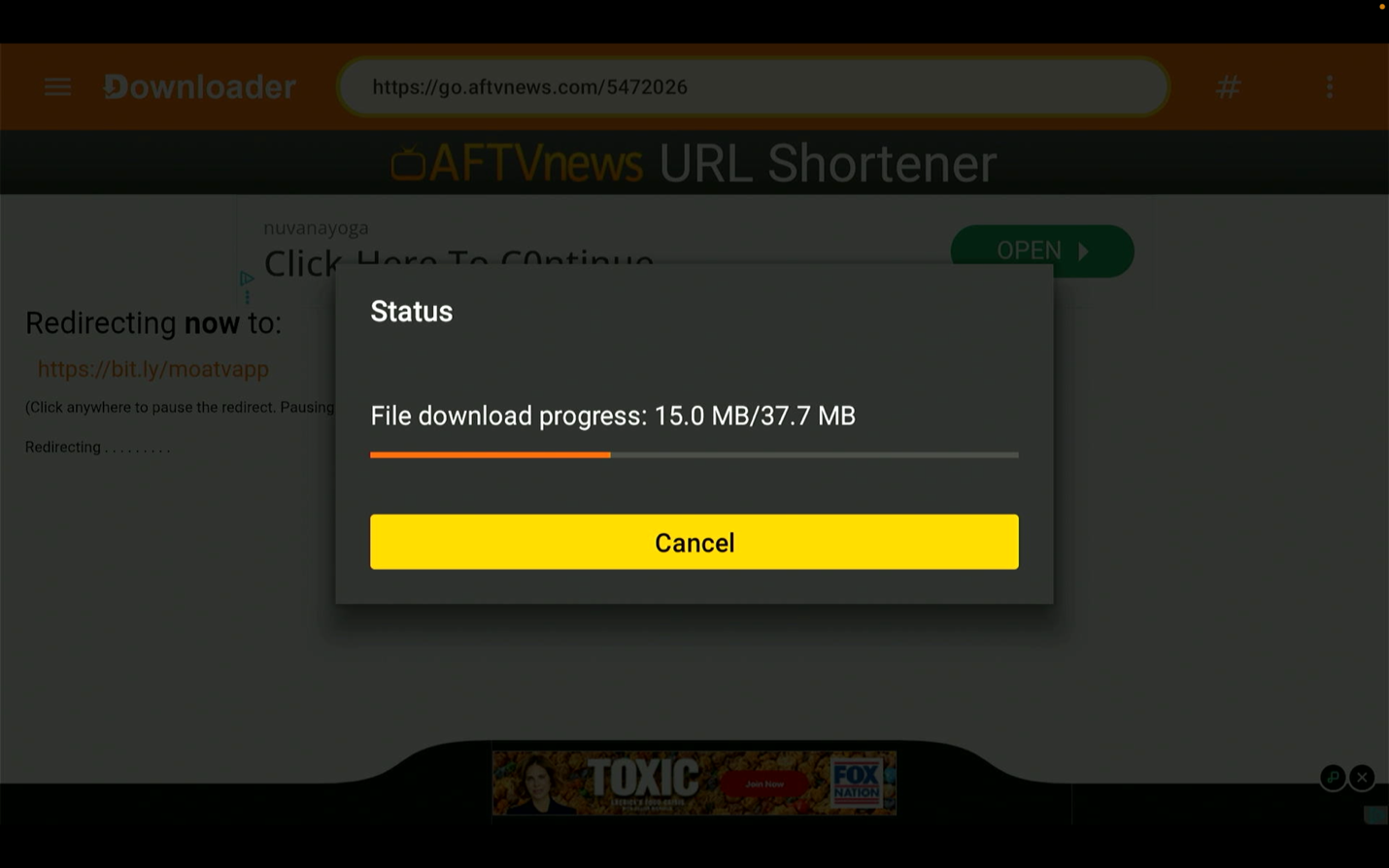
Wait for the download to start
Wait while Downloader starts downloading the file.
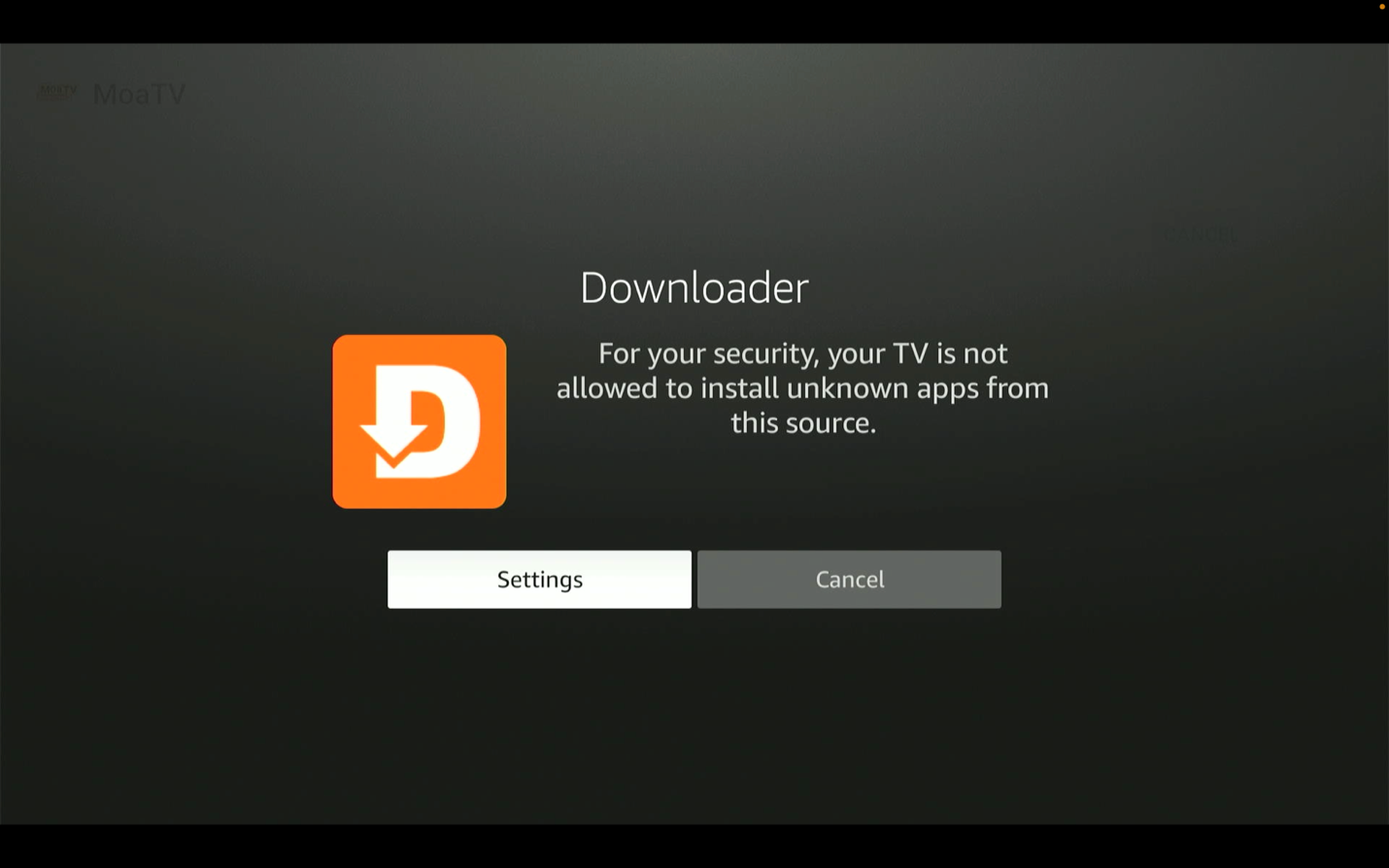
Click Settings on the pop-up
If a pop-up asks you to unlock installation settings, click Settings.
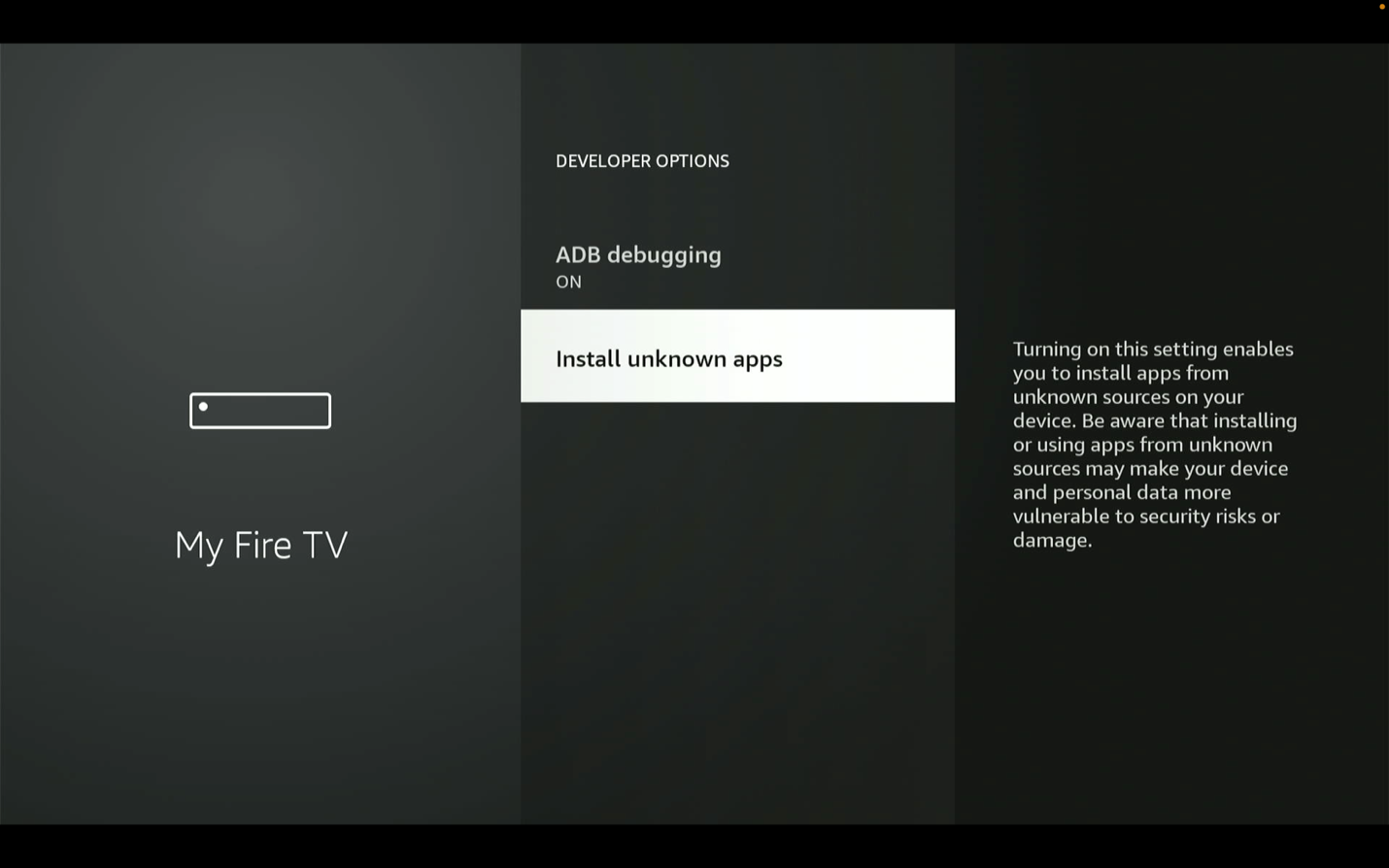
Select Install Unknown Apps
Select Install Unknown Apps from the Firestick settings screen.
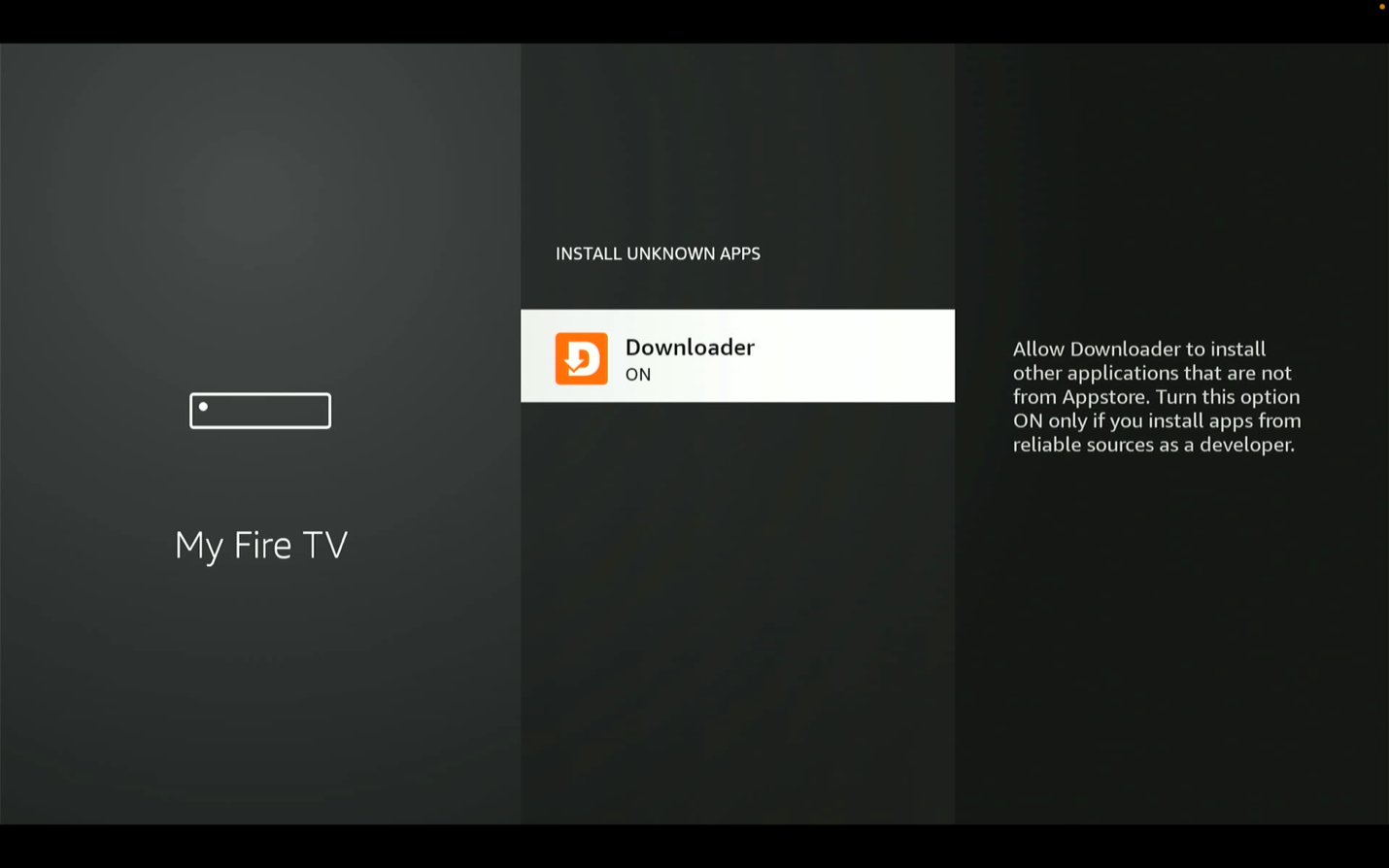
Turn Downloader ON
Turn Downloader ON so it is allowed to install MoaTV.
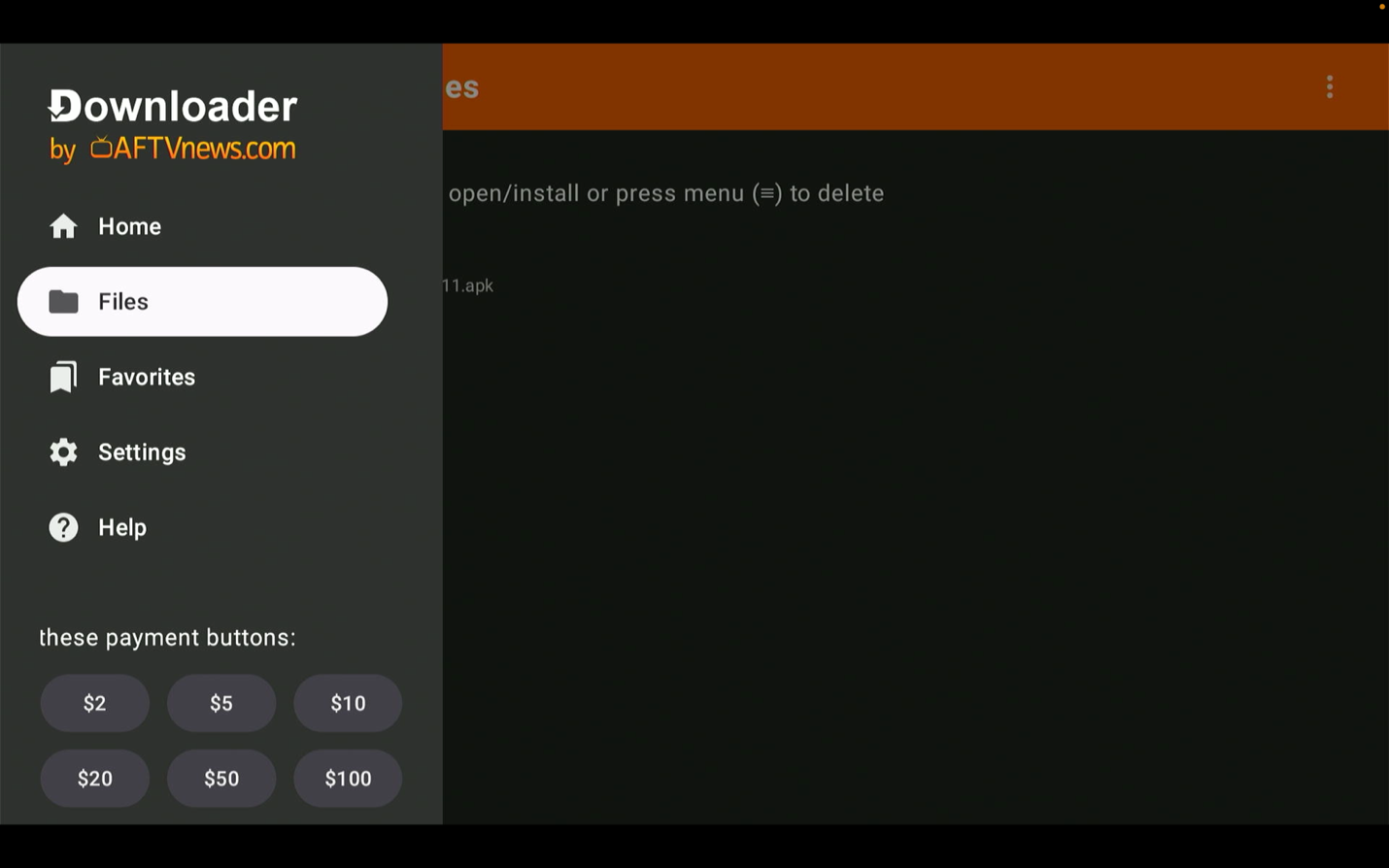
Reopen Downloader and go to Files
Reopen Downloader, select the 3 lines in the top-left corner, and open Files to find the downloaded MoaTV app.
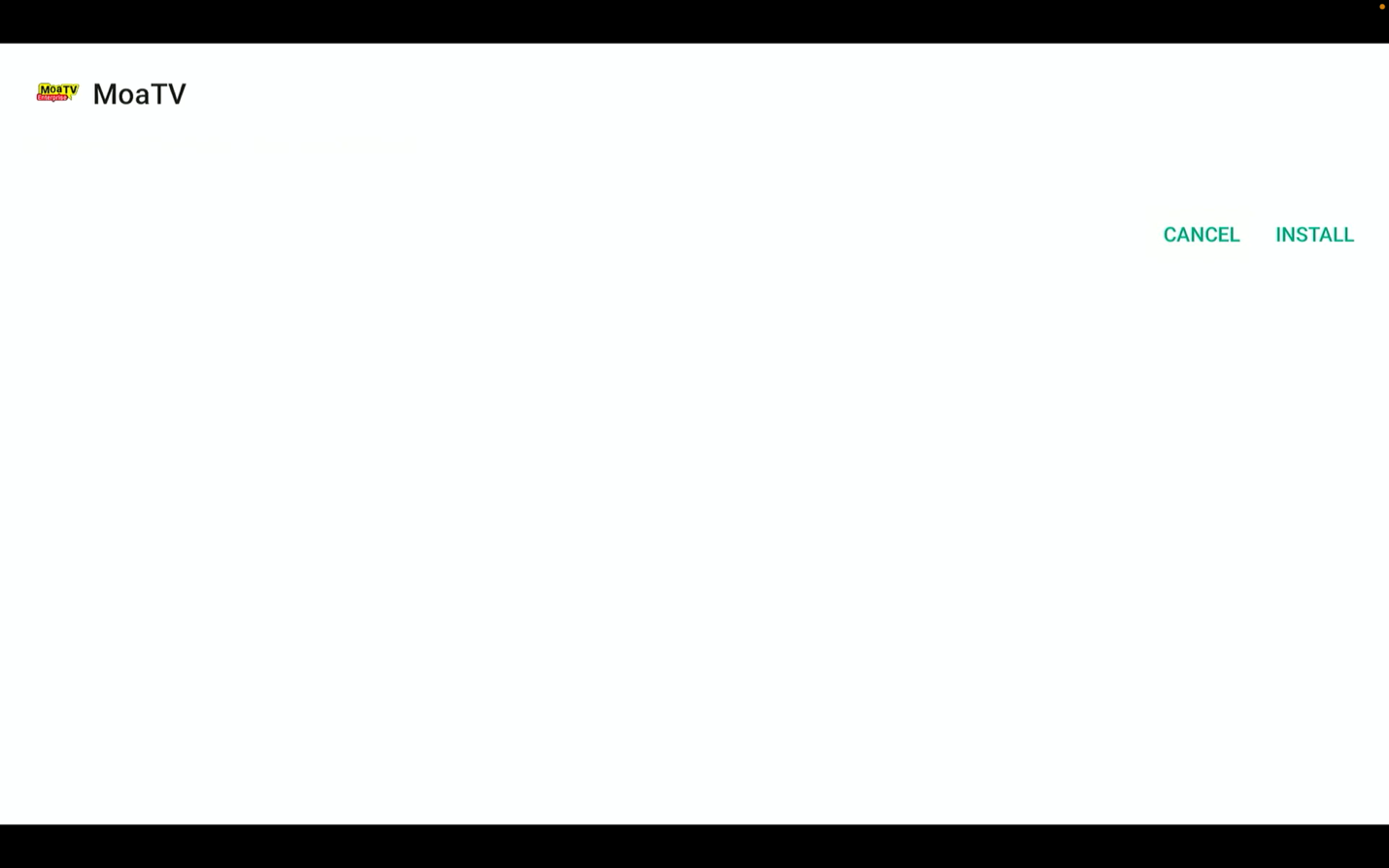
Install the app
Select the MoaTV file and install the app.
Open the app
Open the app once it has finished installing.
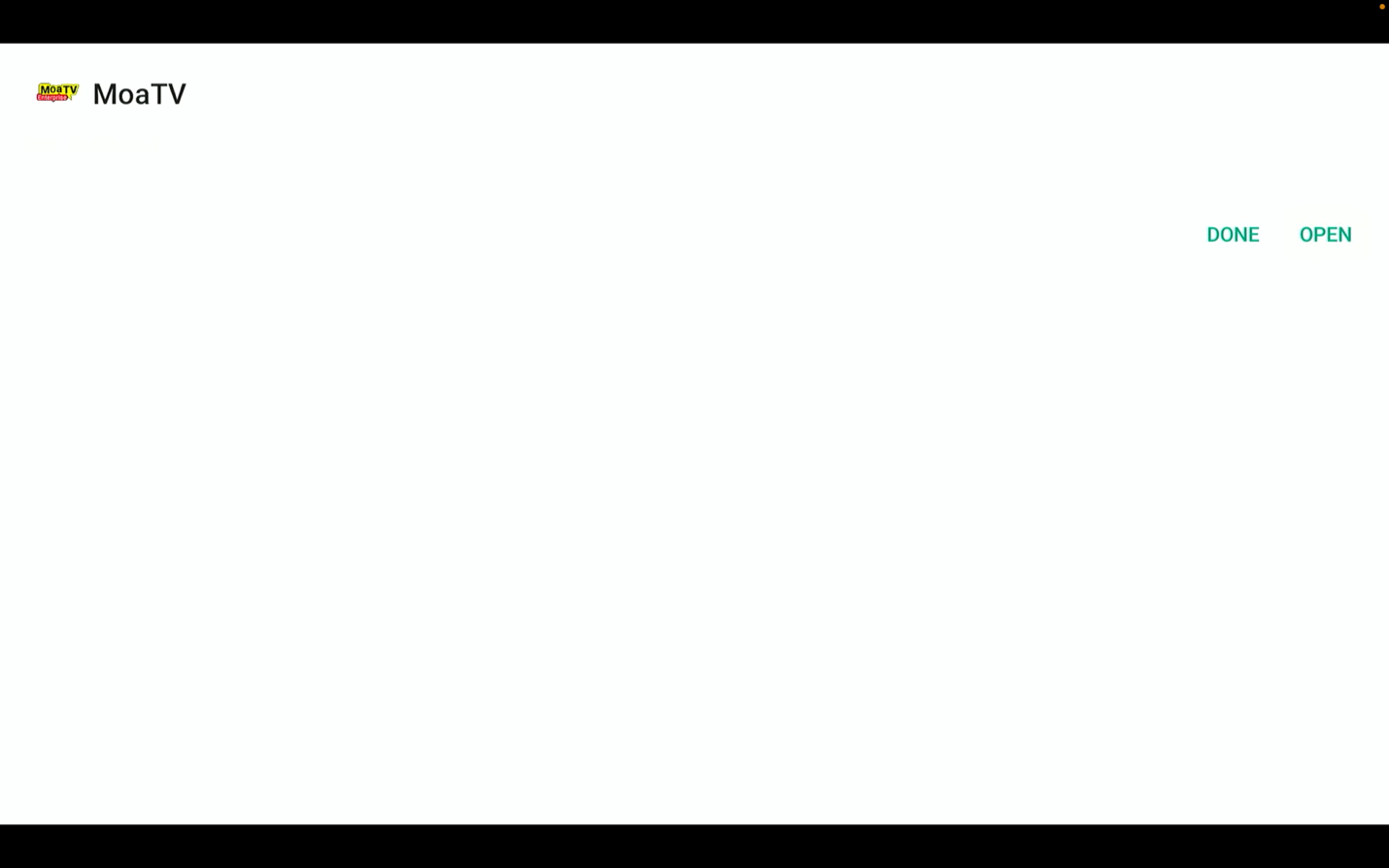
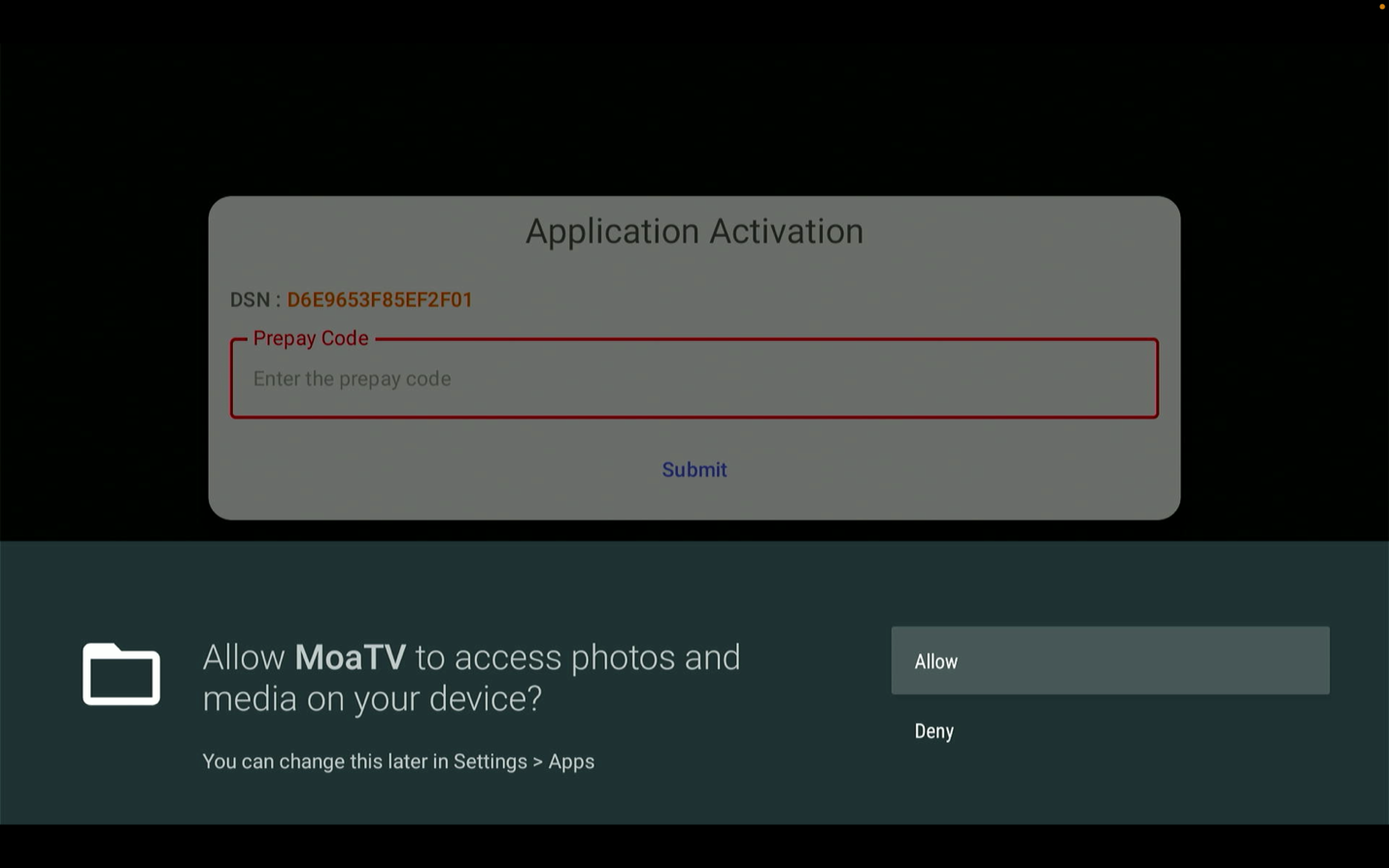
Allow access and enter your activation code
Allow access if prompted, then enter the activation code provided by GeekzUP.
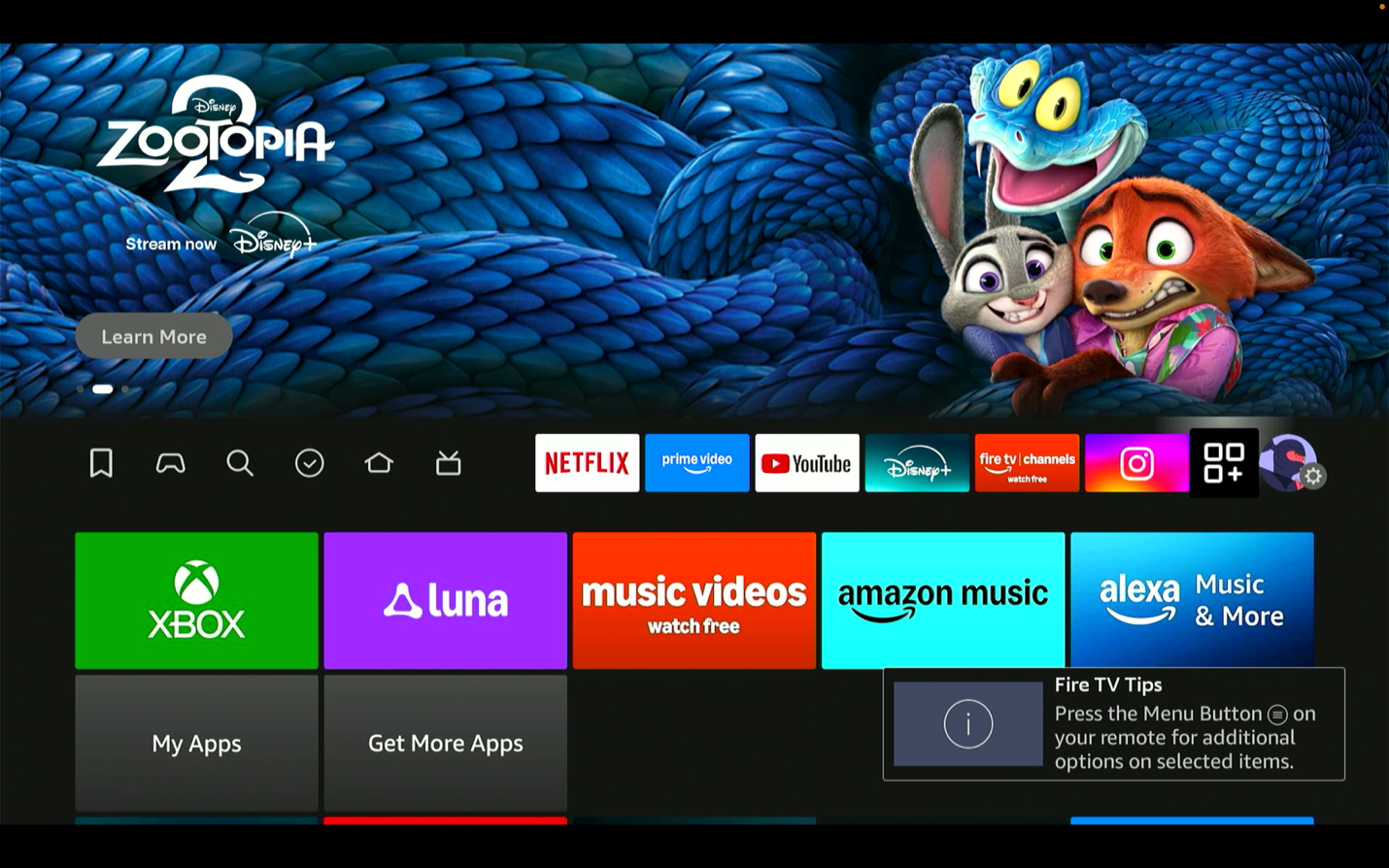
Go to the Apps section
Press the Home button on the remote and go to the Apps section in the first row.
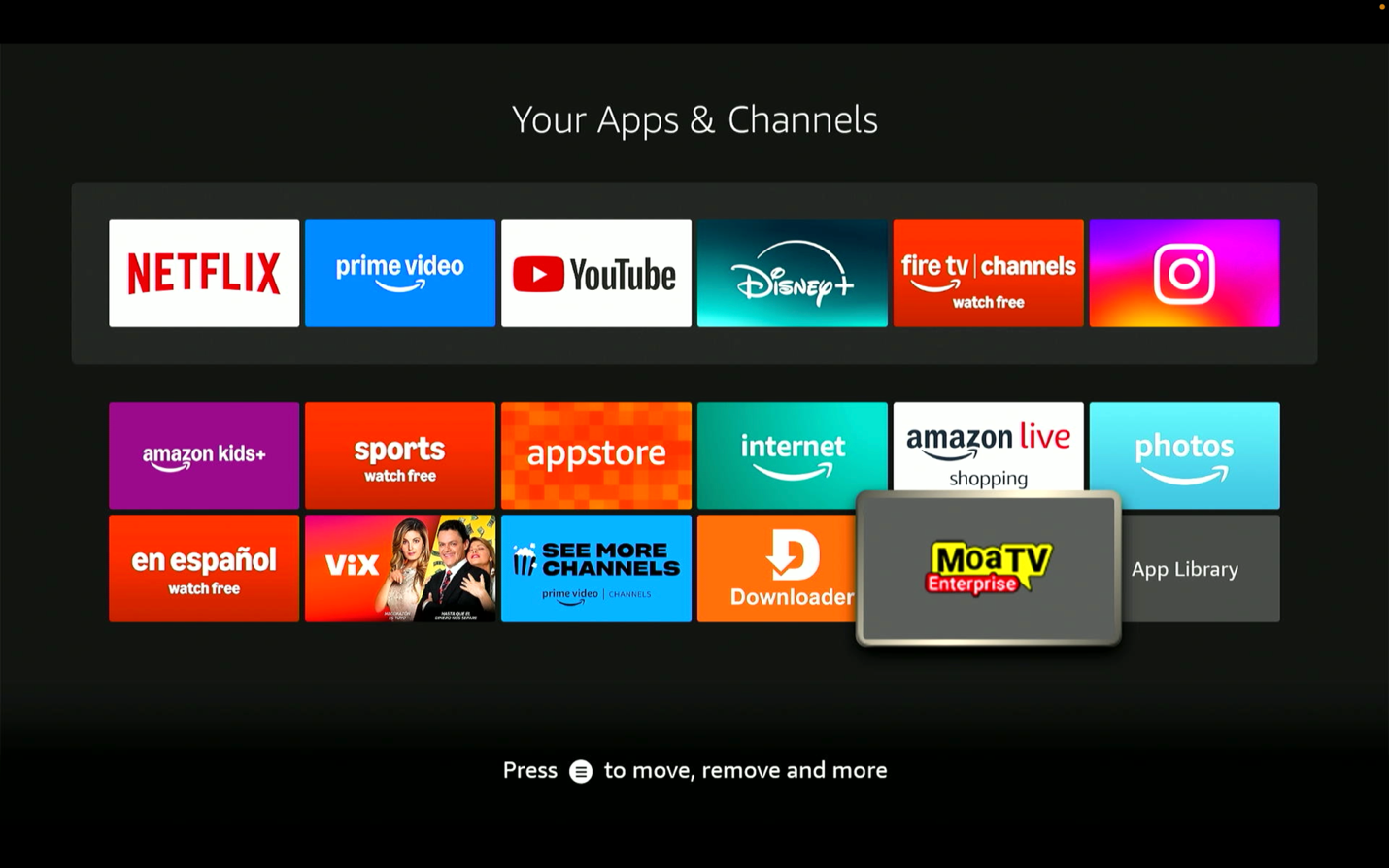
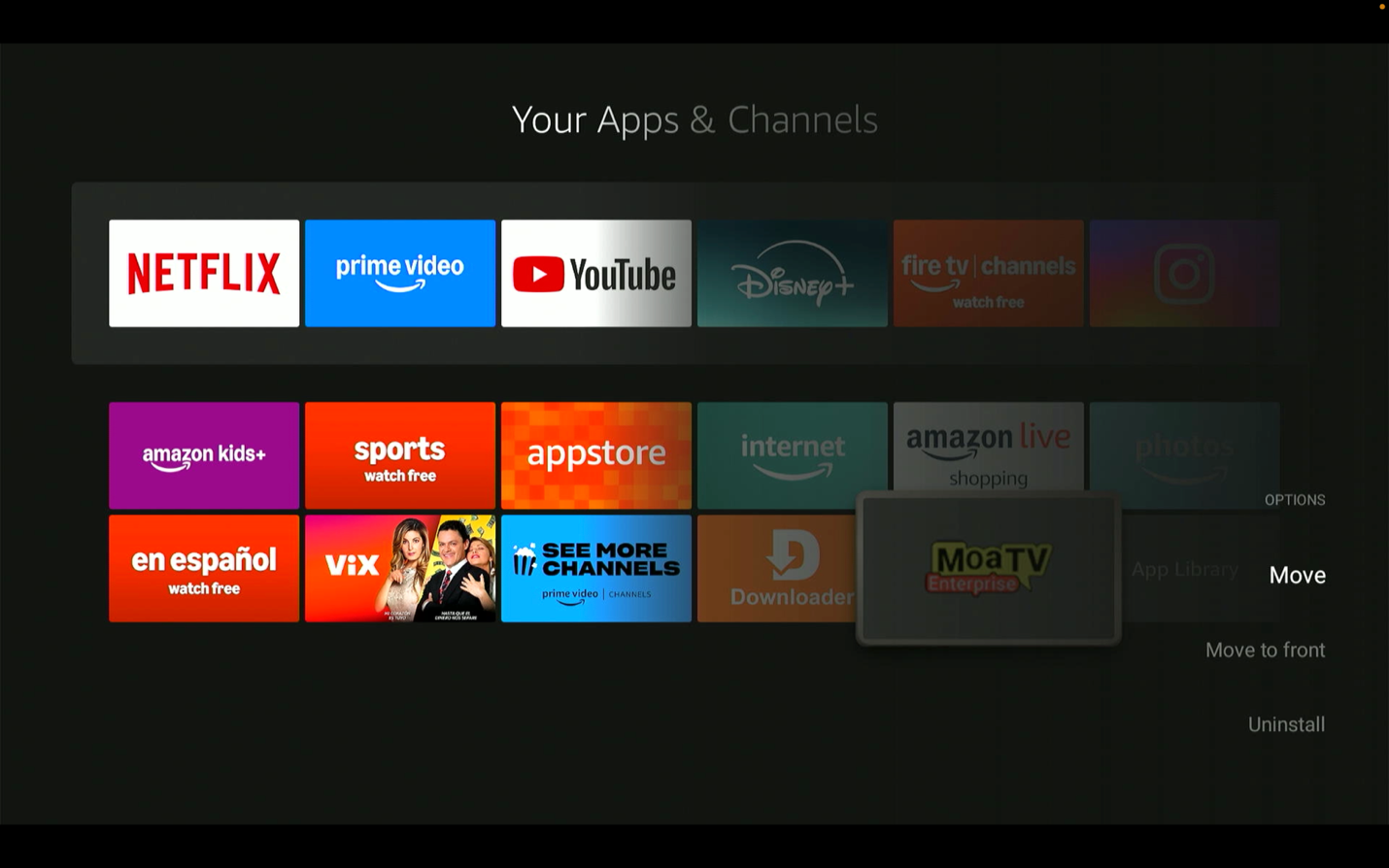
Open the MoaTV app menu
Hover over the MoaTV app and press the 3-line menu button on the remote.
Select Move to Front
When the side menu appears, select Move to Front.
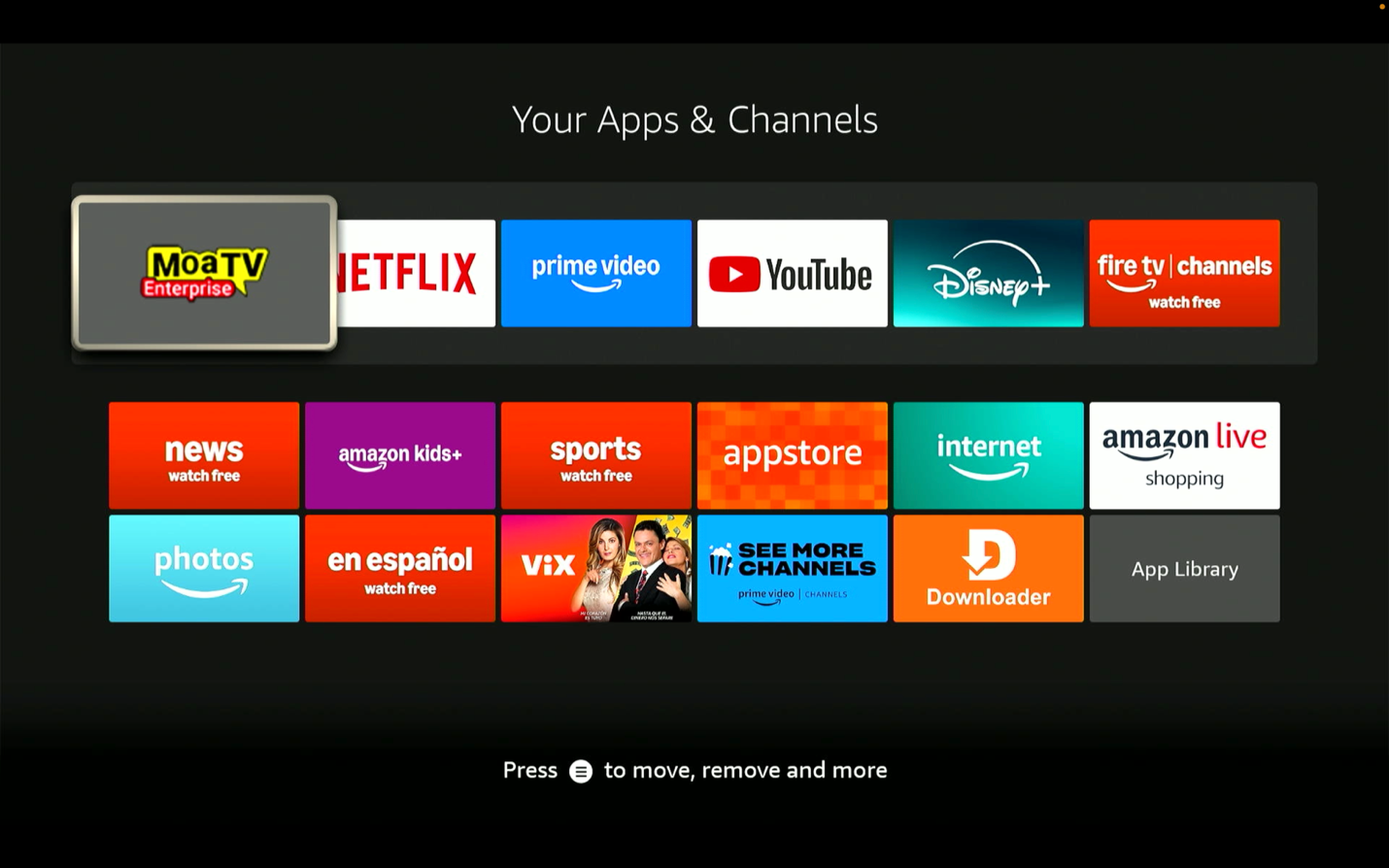
MoaTV appears in the front row
MoaTV now appears in the front row for easier access from the home screen.
Install IPVanish
Finish the setup by installing IPVanish and logging in with the credentials we provide.
Return to Search
Return to the home screen and go to Search.
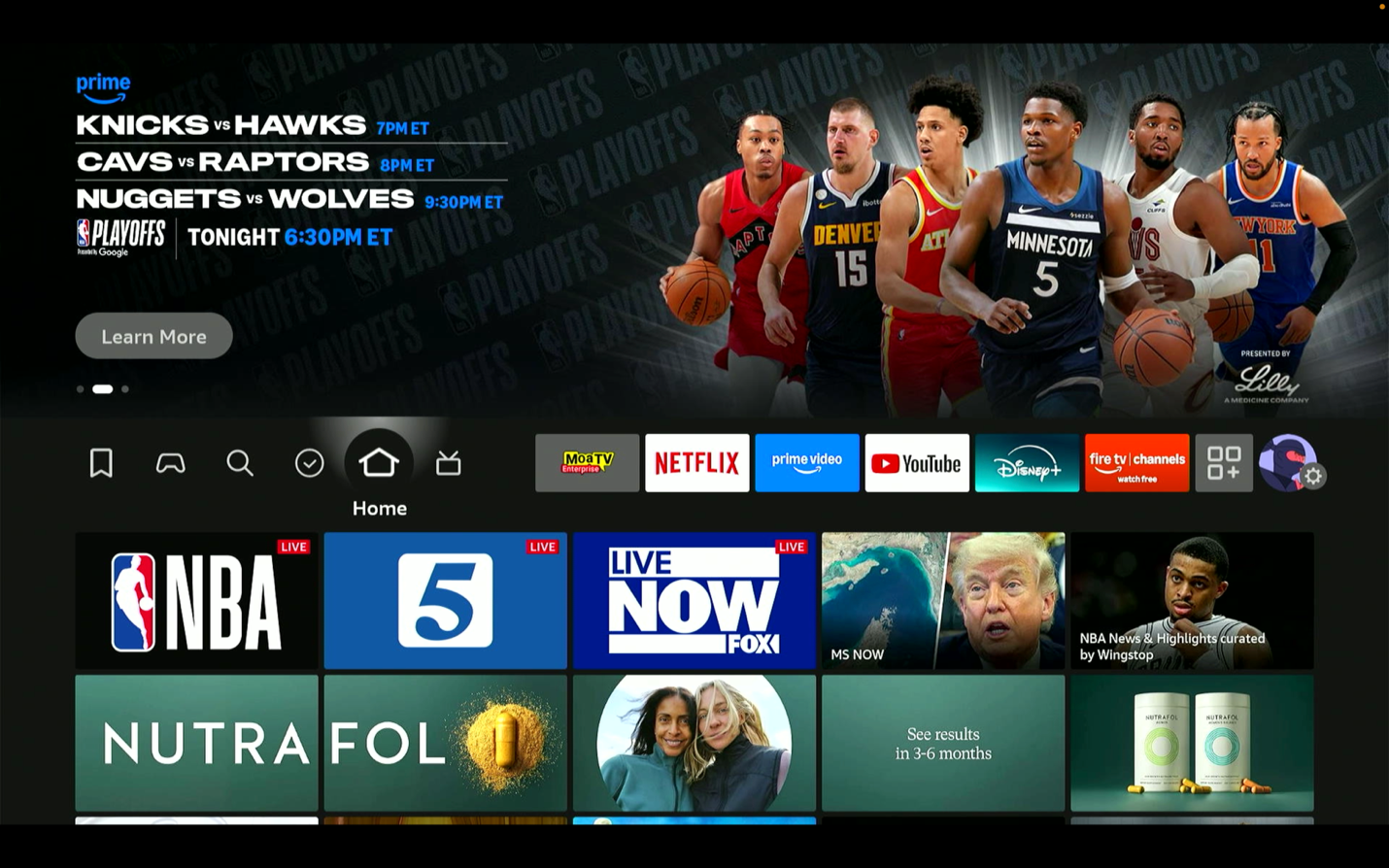
Type in IPVanish
Search for IPVanish from the Firestick search screen.
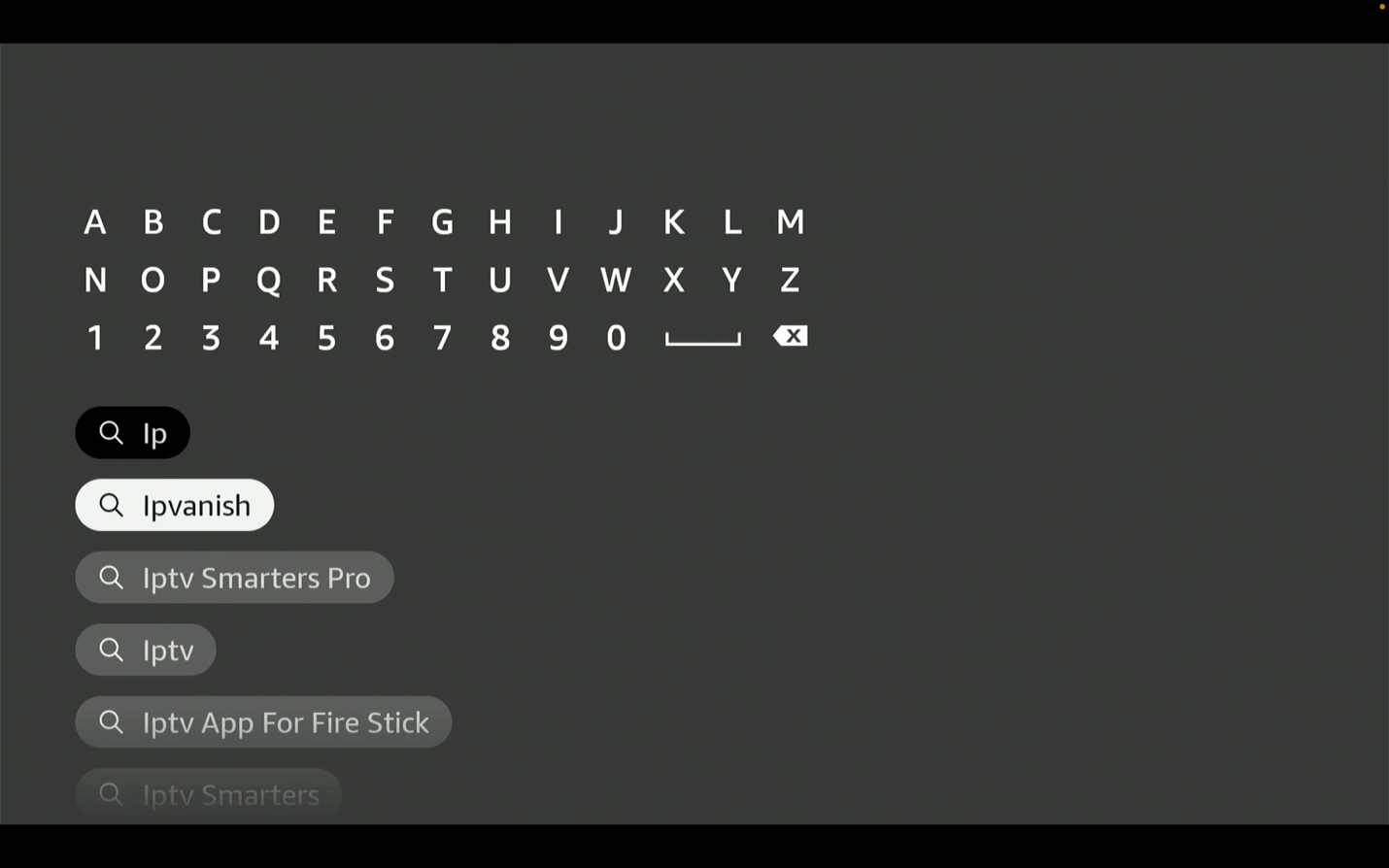
Download and install IPVanish
Download and install the IPVanish app before trying to log in.
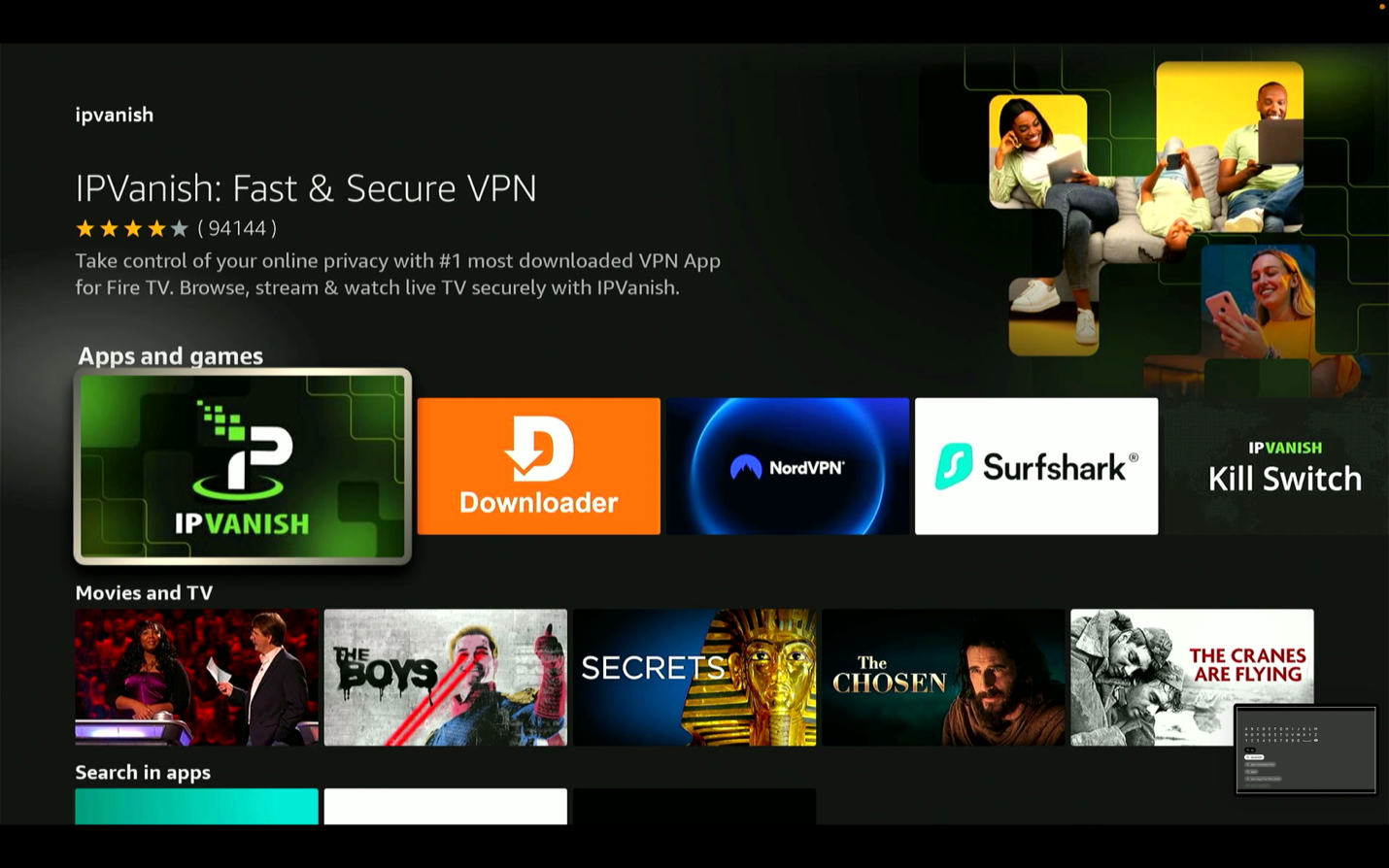
Log in with the provided credentials
Log in using the username and password provided to you.
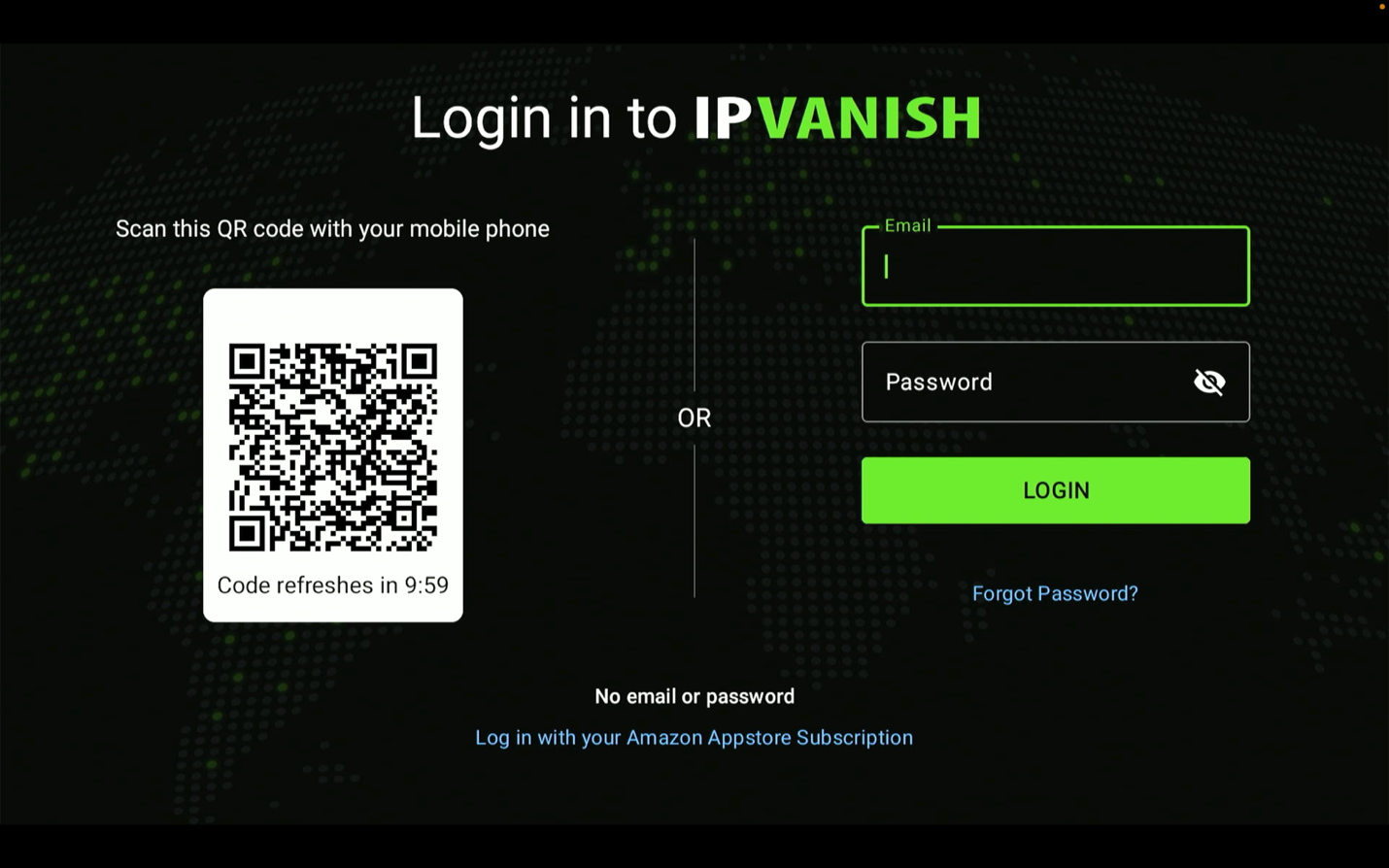
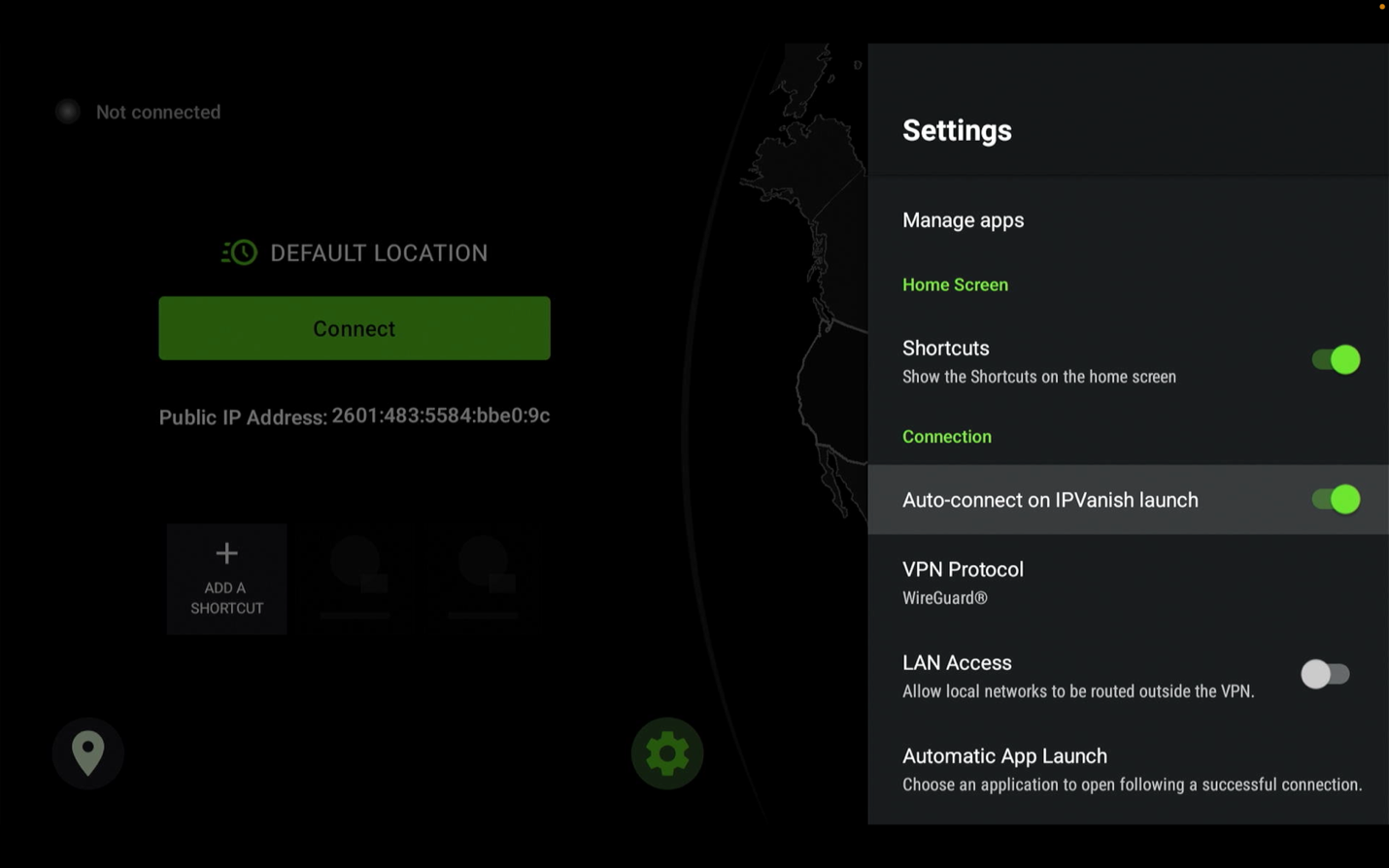
Go to Settings (gear icon)
Once logged in, open Settings, the gear icon on the right.
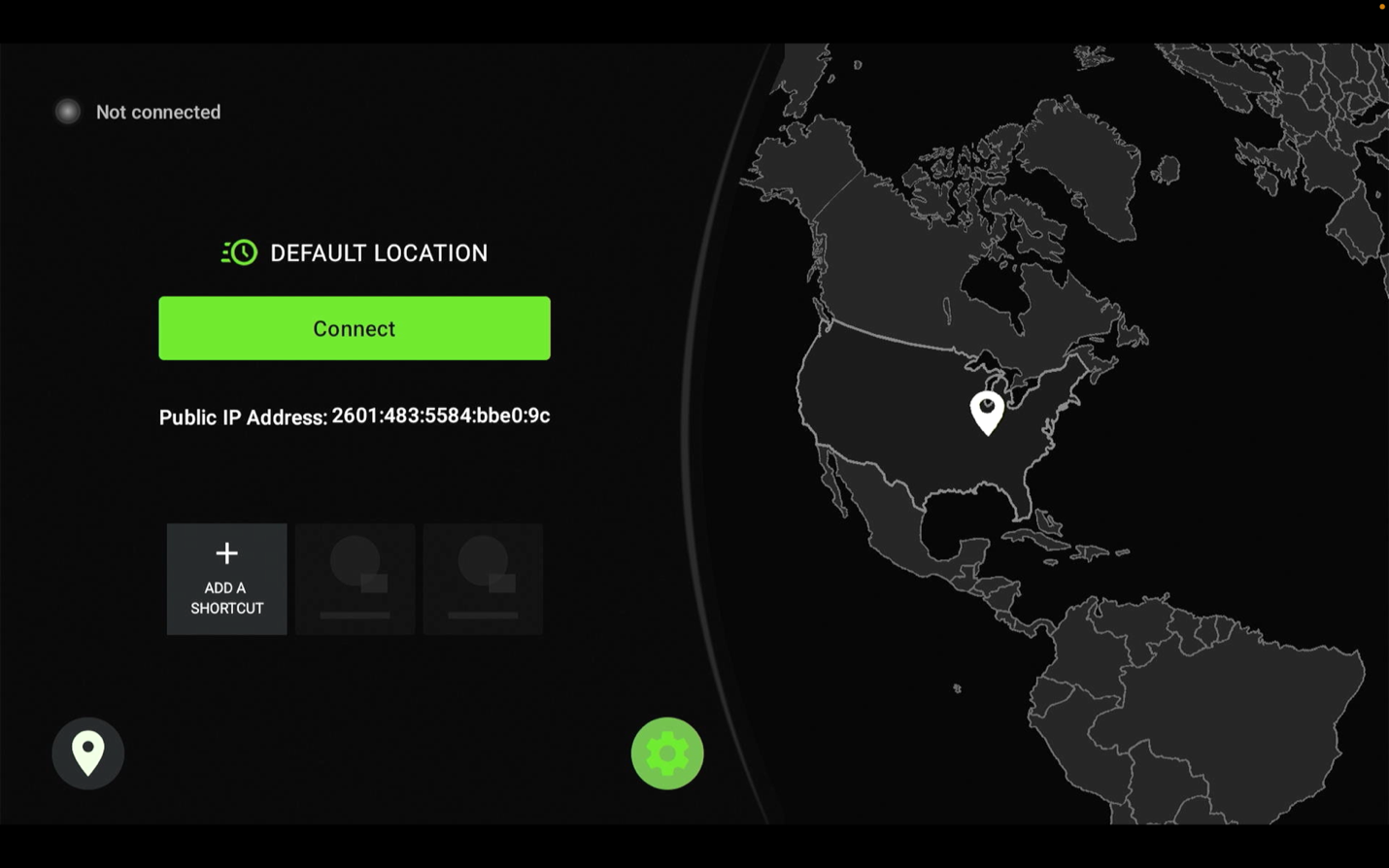
Turn on 'Connect on Android Startup'
Turn on 'Connect on Android Startup'.
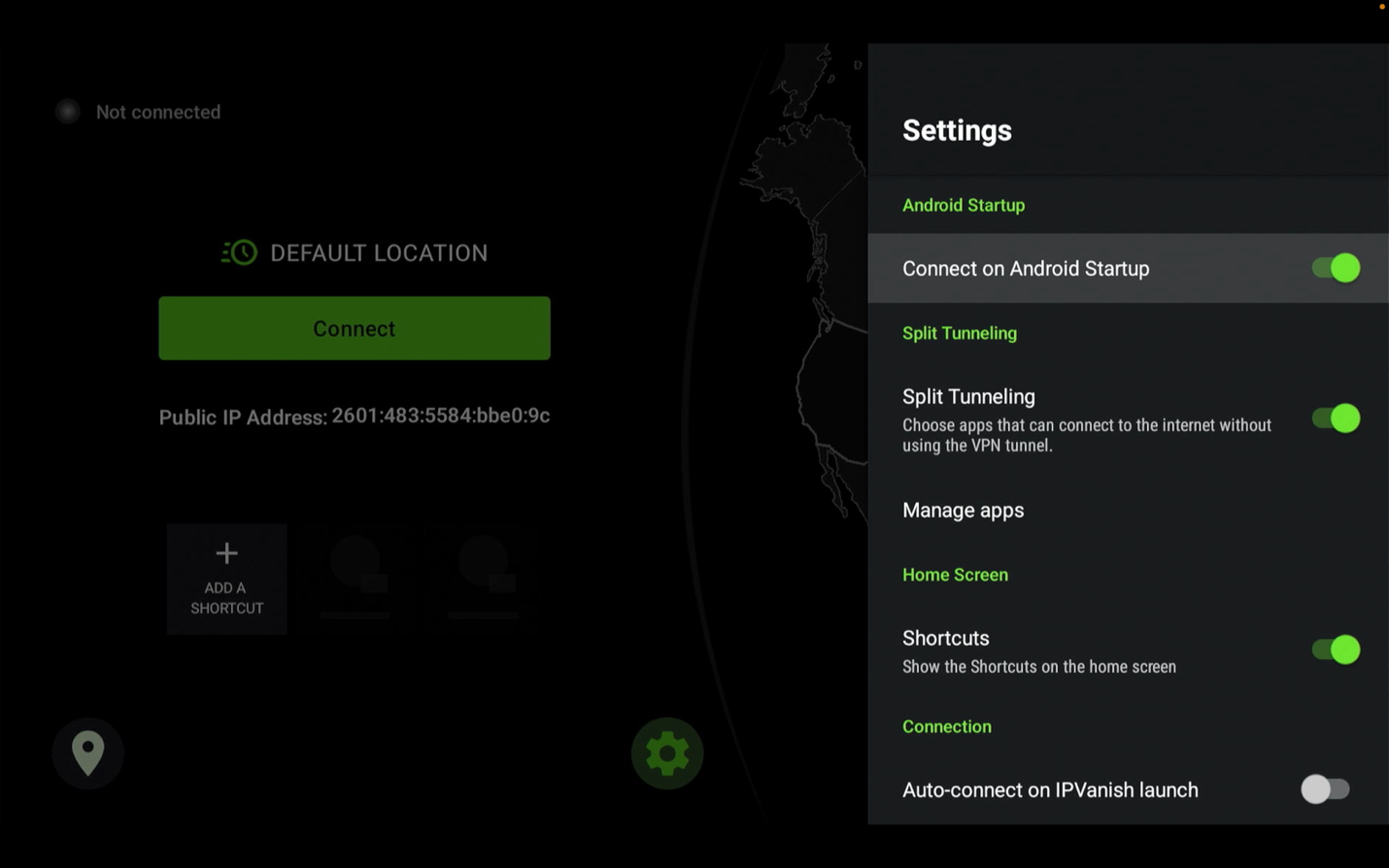
Turn on 'Auto-connect on IPVanish launch'
Turn on 'Auto-connect on IPVanish launch'.
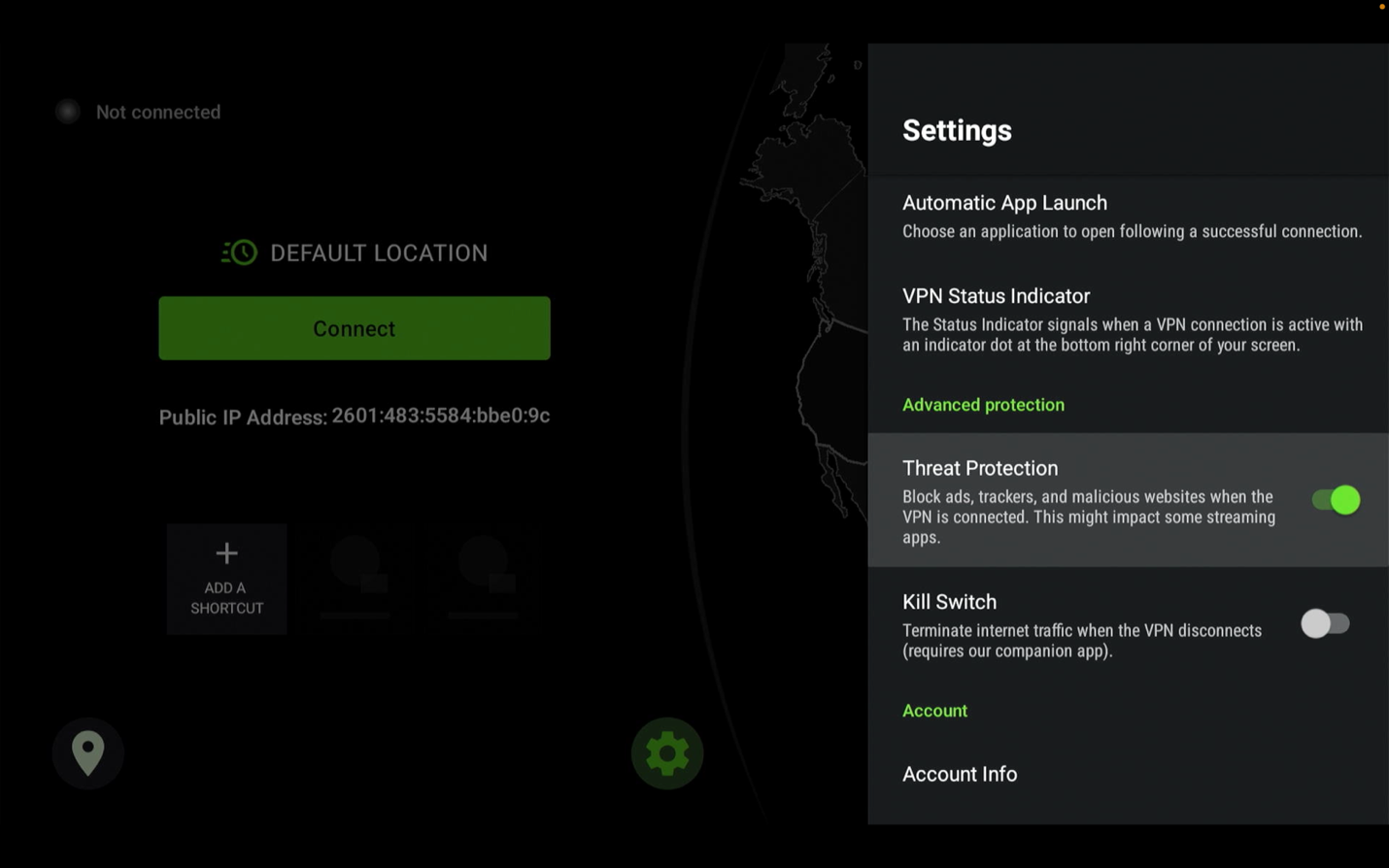
Turn on 'Threat Protection'
Turn on 'Threat Protection' and leave all other settings as they are.
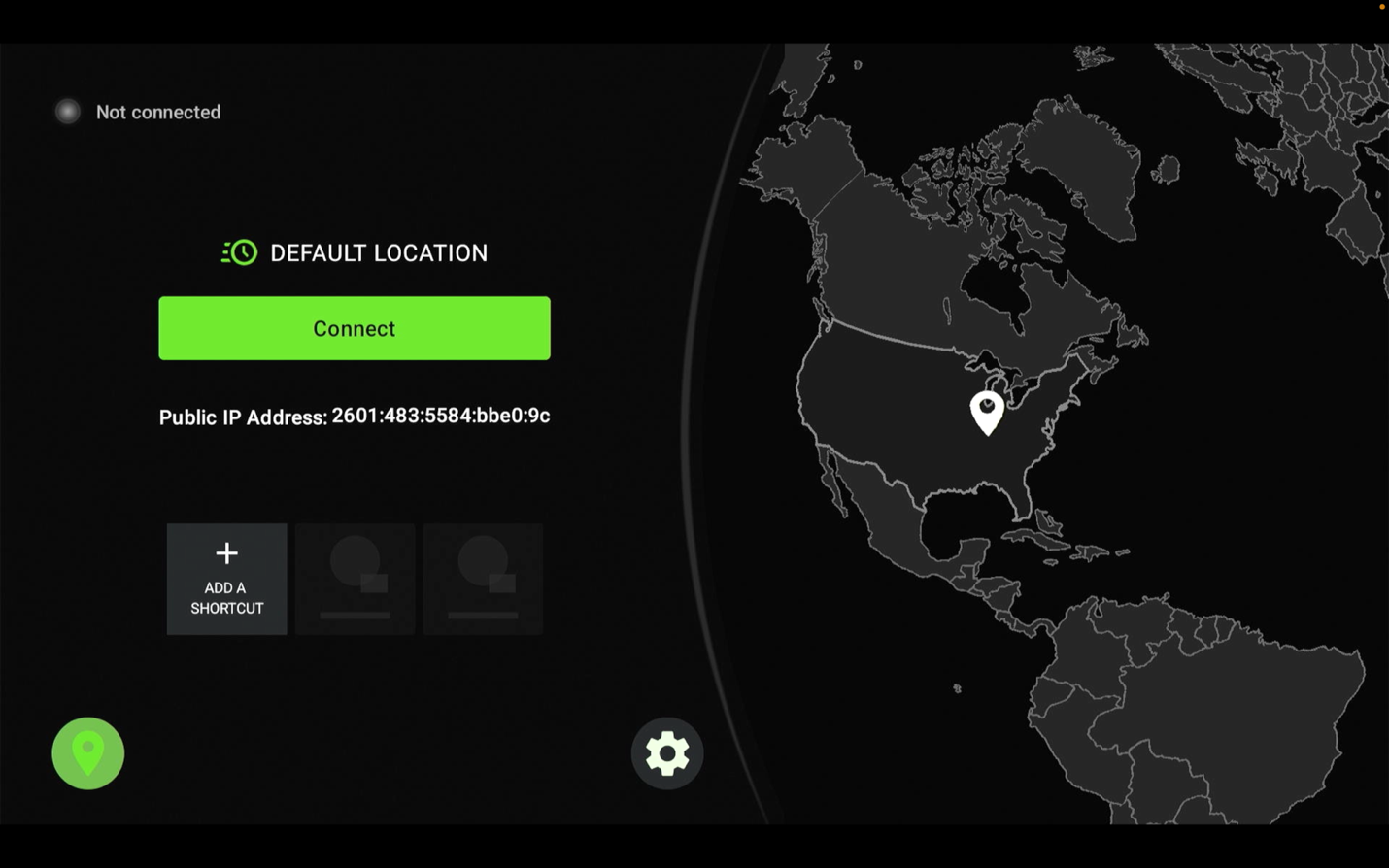
Choose the location icon
To pick the country that gives you the best results, move to the location icon on the left.
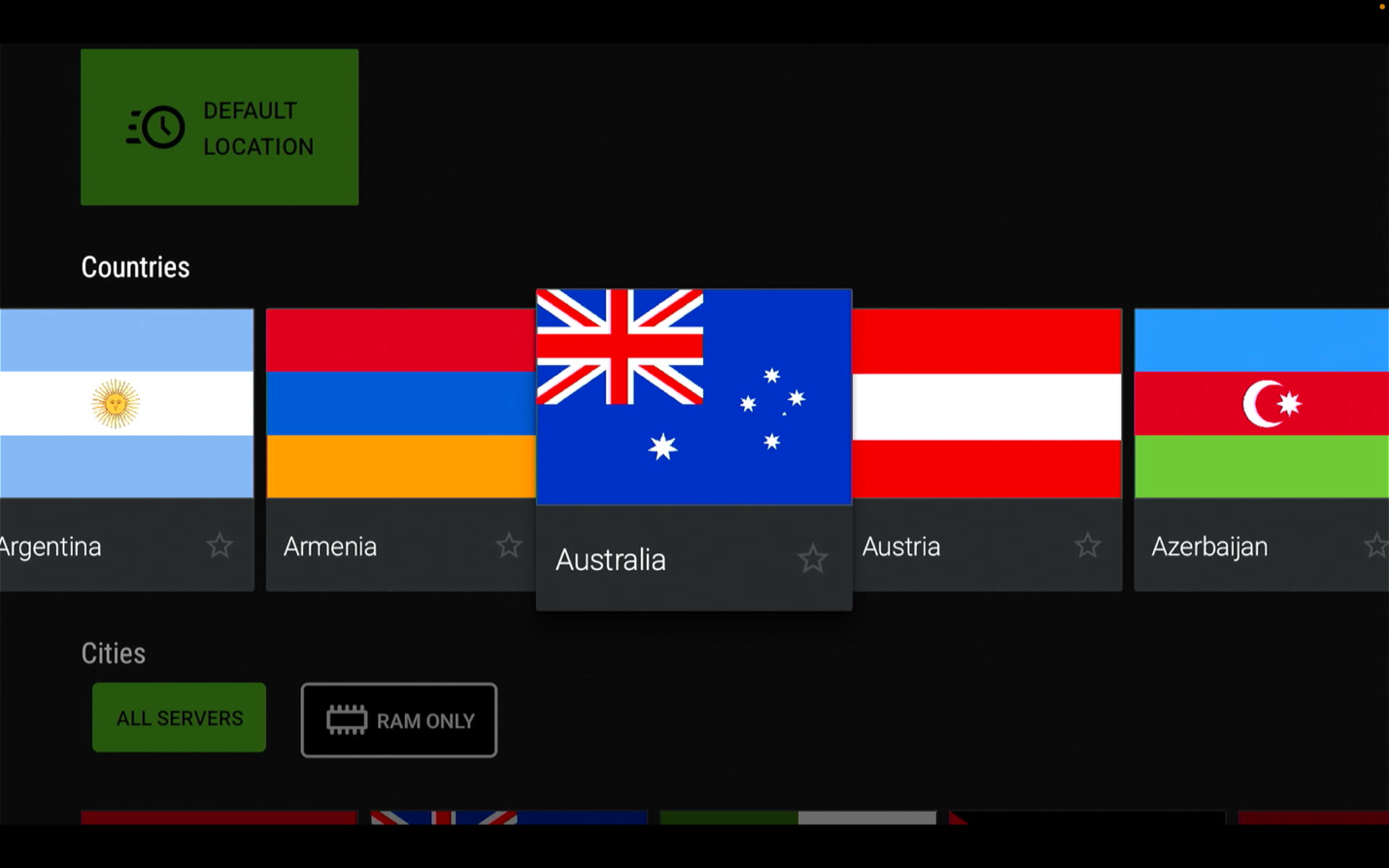
Choose Australia or Colombia, then connect
Select either Australia or Colombia, then press Connect.
Quick troubleshooting
- If you do not see Developer Options, go back to About and press Fire TV 7 times again.
- If the install is blocked, make sure Downloader is turned ON under Install Unknown Apps.
- If you do not see the downloaded app, reopen Downloader and check the Files section again.
- If MoaTV is hard to find later, go to the Apps section and use Move to Front.
- If IPVanish login does not work, re-enter the username and password exactly as provided.
That's it, you are ready to use MoaTV.
Need a hand? Active GeekzUP customers get free MoaTV support.
Want it done for you?
Skip the setup and we'll deliver your device fully configured with MoaTV, IPVanish and extra apps.